Start-to-finish Order Status Workflows demo
Build, test, trigger, and verify one real WooCommerce order workflow from beginning to end.
Reviewed 2026-08-17
This walkthrough creates one connected example instead of mixing unrelated rules. The store routes a large Benelux order to its priority fulfilment queue as soon as the order enters Processing.
What you will build
- Trigger: an order enters Processing.
- Conditions: the shipping country is Netherlands, Belgium, or Luxembourg and the order total is at least €250 or it contains at least five items.
- Actions: add the Priority fulfilment tag and a private order note.
- Evidence: a matching WooCommerce order and its Activity entry.
- Premium extensions: audit and backfill, reusable conditions, branching, delayed sequences, scheduled evaluation, observation, and signed inbound events.
1. Install and open the rule builder
- Install and activate WooCommerce.
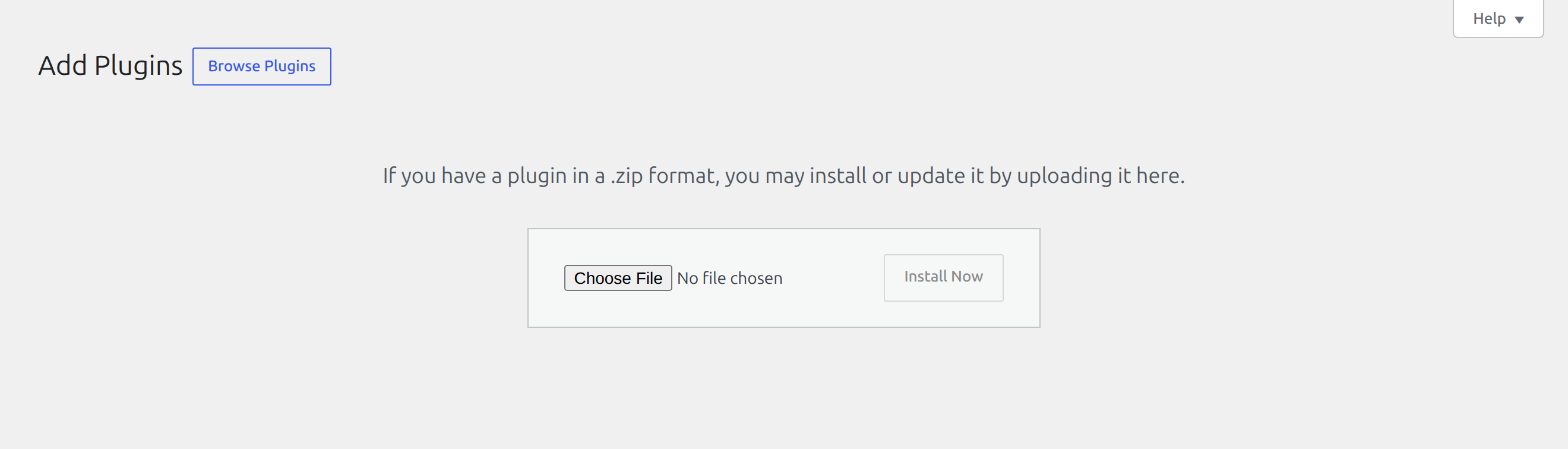
- Go to Plugins → Add Plugin → Upload Plugin.
- Upload and activate Laqi Order Status Workflows.
- Open WooCommerce → Order Status Workflows and choose Add rule.
The Free plugin is enough for this complete workflow. Premium adds scheduled, inbound, sequence, conditional-action, audit, and backfill tools afterward.

2. Define when the rule starts
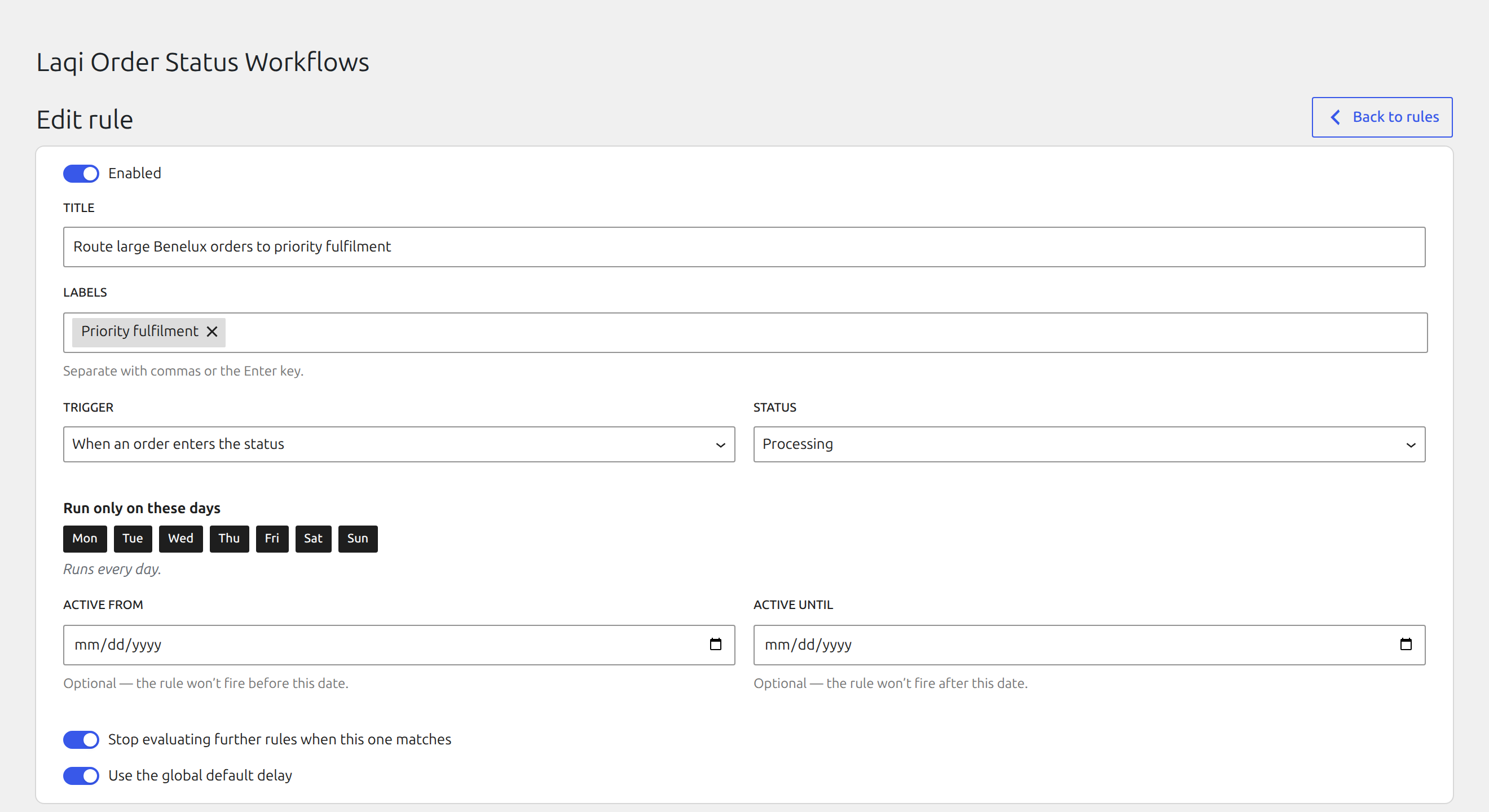
Enter title Route large Benelux orders to priority fulfilment. Keep the rule enabled, choose When an order enters the status, select Processing, and leave every weekday active.
3. Add the matching conditions
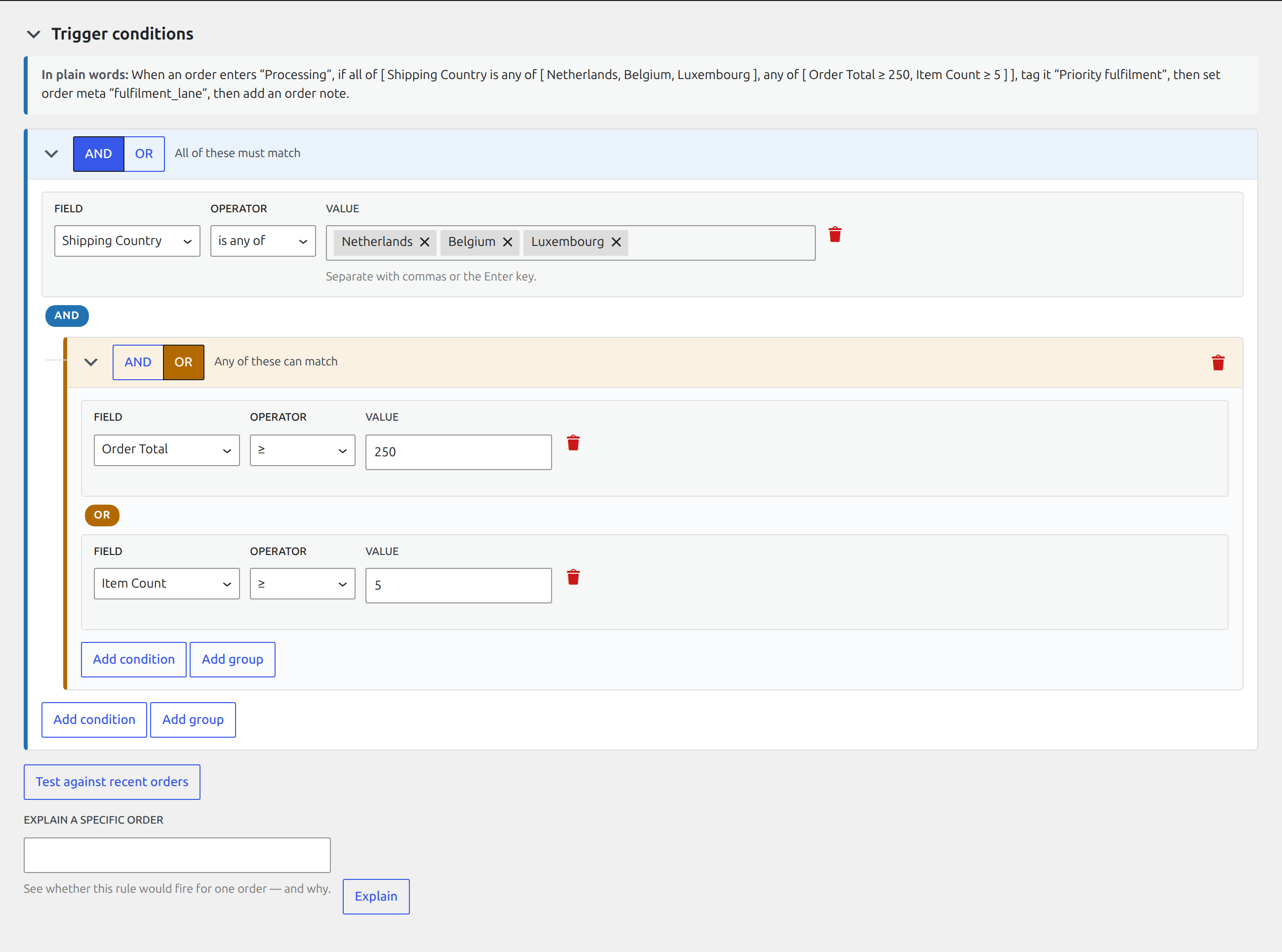
Under Trigger conditions, require:
- Shipping country is any of Netherlands, Belgium, or Luxembourg.
- Add a nested OR group.
- In that group, set Order total ≥ 250 and Item count ≥ 5.
The resulting logic is: Benelux AND (total ≥ 250 OR item count ≥ 5).
4. Add the fulfilment actions
Under Then:
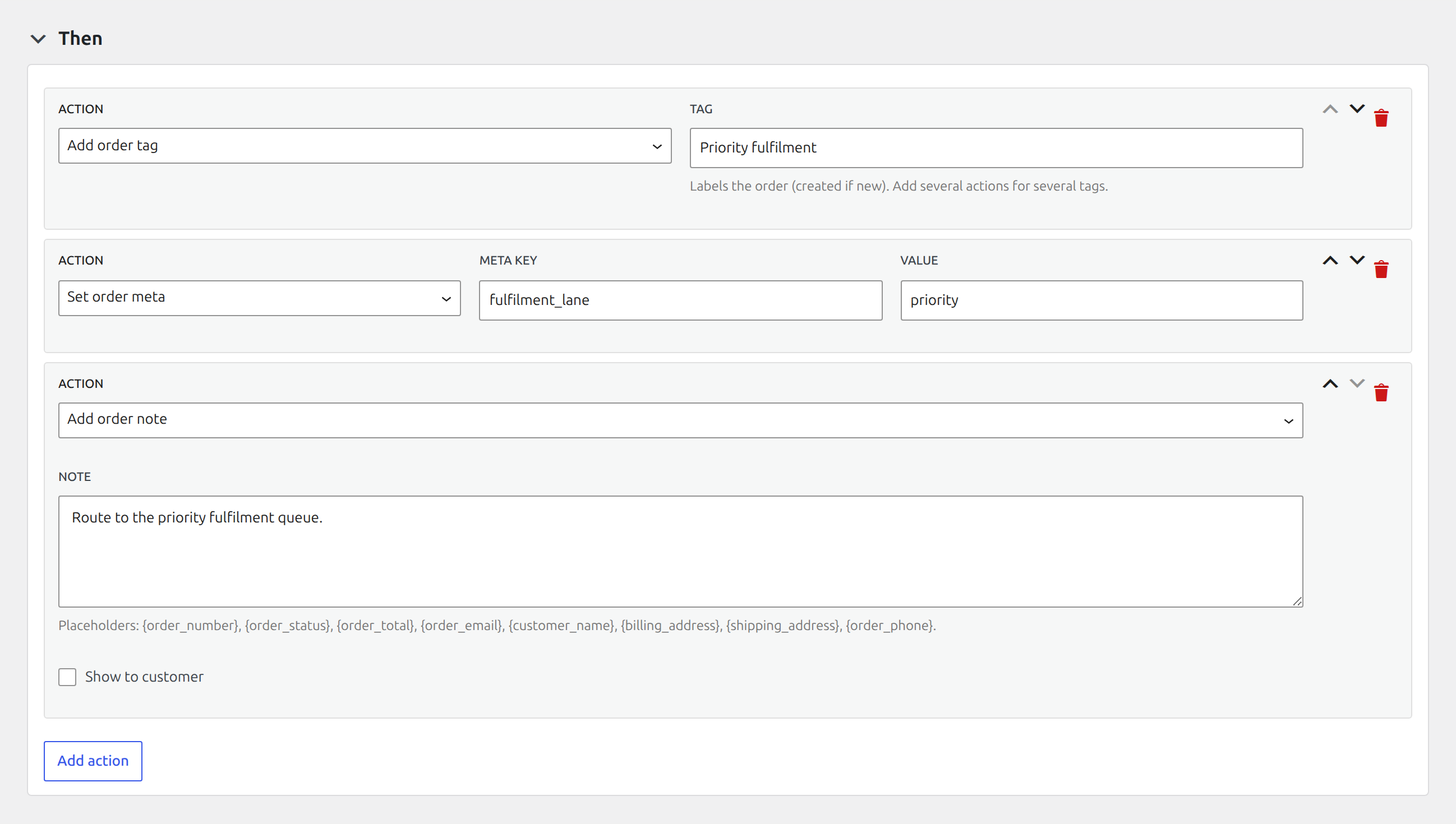
- Choose Add order tag and enter Priority fulfilment.
- Choose Add action.
- Select Add order note and enter Route to the priority fulfilment queue.
Actions run from top to bottom. Choose Save rule after reviewing the plain-language summary above the condition builder.
5. Create a matching WooCommerce order
Create an order with:
- a Netherlands, Belgium, or Luxembourg shipping address;
- an order total of at least €250; and
- an initial status other than Processing.
Save it, then change its status to Processing. The transition is the event that starts this rule. Editing an order that is already Processing does not reproduce an “enters Processing” event.
6. Verify the result
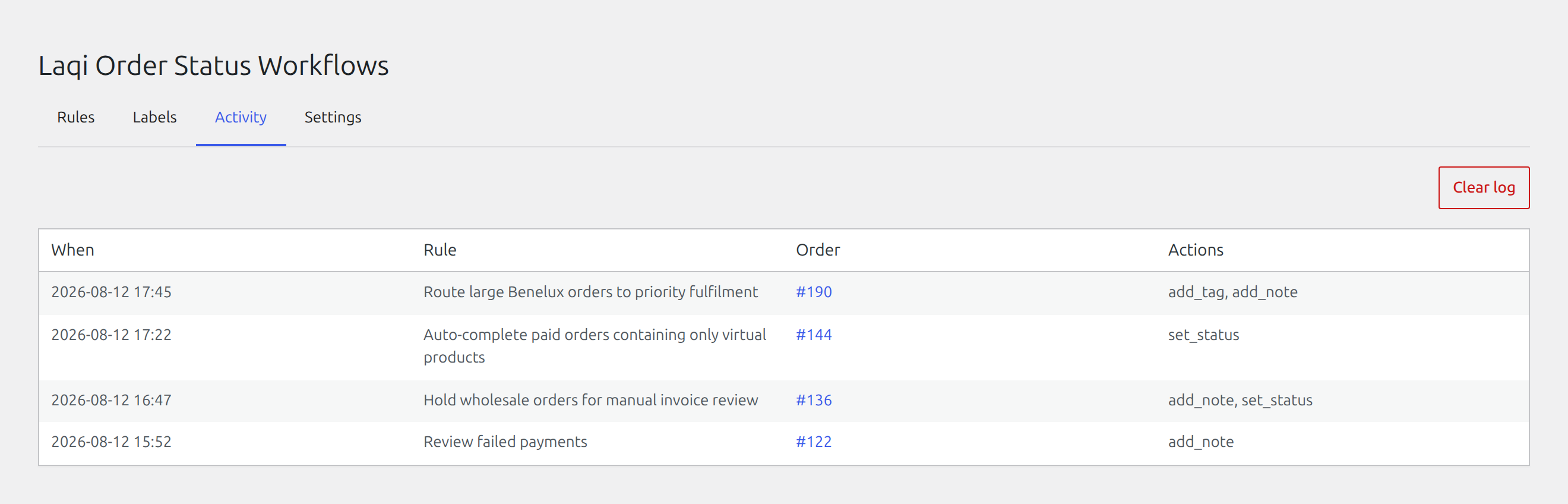
Open the order and confirm the Priority fulfilment tag and private note. Then
open WooCommerce → Order Status Workflows → Activity and find the same order,
rule name, and the add_tag, add_note actions.
7. Premium continuation: create an auditable status action
Edition: Premium
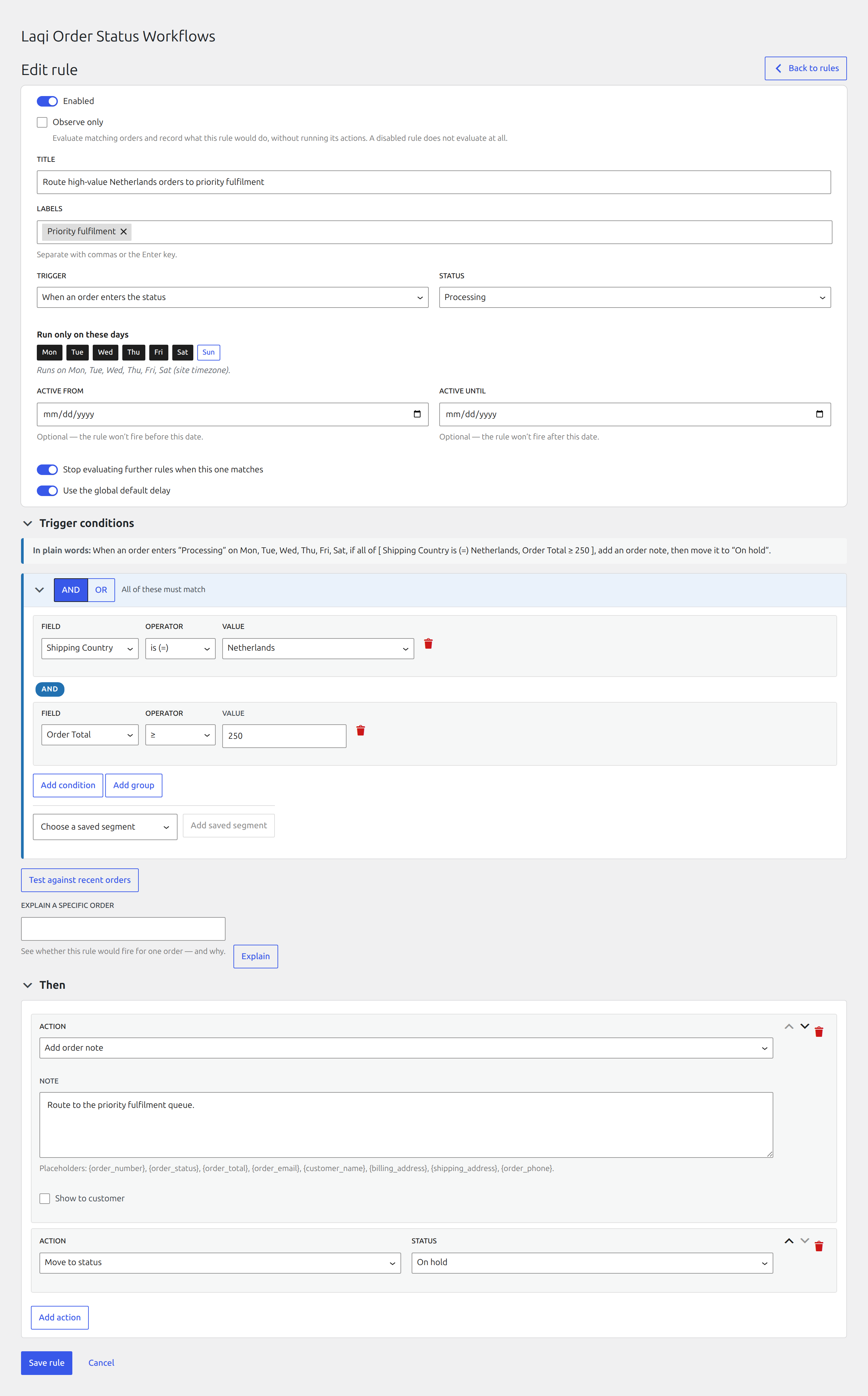
Create a second rule named Route high-value Netherlands orders to priority fulfilment:
- Trigger when an order enters Processing.
- Require shipping country Netherlands and order total ≥ 250.
- Add private note Route to the priority fulfilment queue.
- Add Move to status → On hold after the note.
- Save the rule and move a matching test order into Processing.
This separate rule deliberately includes a reversible status change so the Premium audit workflow can be demonstrated without altering the Free example above.
8. Premium continuation: review and undo safely
Edition: Premium
Open WooCommerce → Order Status Workflows → Audit Trail. Filter for the second
rule or its order number. Confirm separate add_note and set_status records.
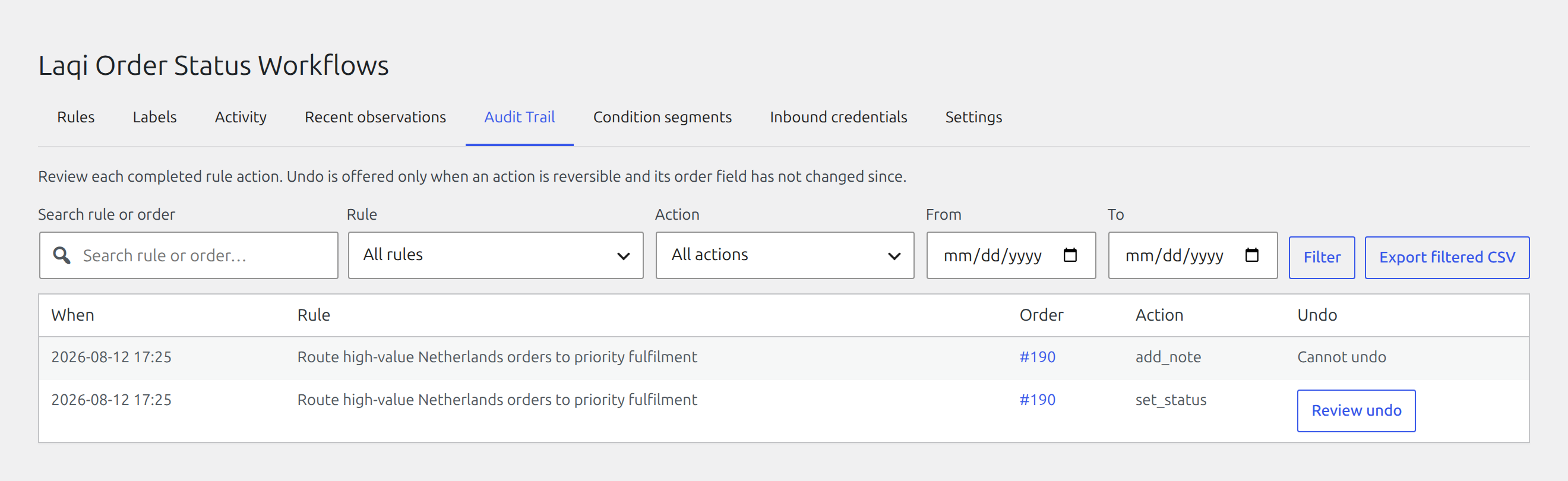
Choose Review undo on the set_status row. Read the current order status and the
proposed restoration before confirming. The private note correctly says Cannot
undo because removing historical notes would destroy evidence. If another person
has changed the order status since the rule ran, leave it unchanged rather than
forcing an outdated restoration.
9. Premium continuation: preview a controlled backfill
Edition: Premium
Return to Rules, open the action menu for Route high-value Netherlands orders to priority fulfilment, and choose Run on existing orders. Select a narrow date range and only the statuses you intend to evaluate. Preview before starting.
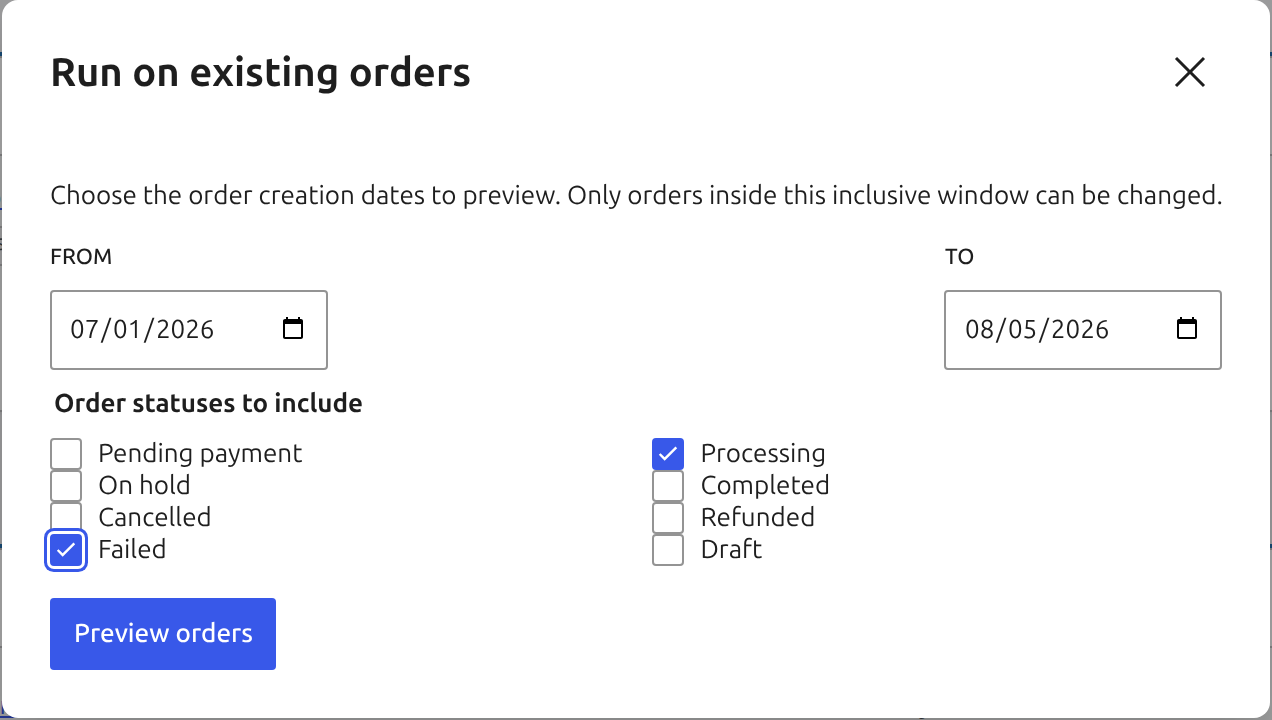
Run the backfill only when its preview count and scope are expected. Return to Activity and Audit Trail afterward to verify the same rule, orders, and actions.
10. Premium continuation: reuse a condition segment
Edition: Premium
Open WooCommerce → Order Status Workflows → Condition segments and create a named segment for the Netherlands fulfilment condition. Save it, then insert that segment into a rule instead of rebuilding the same country logic.
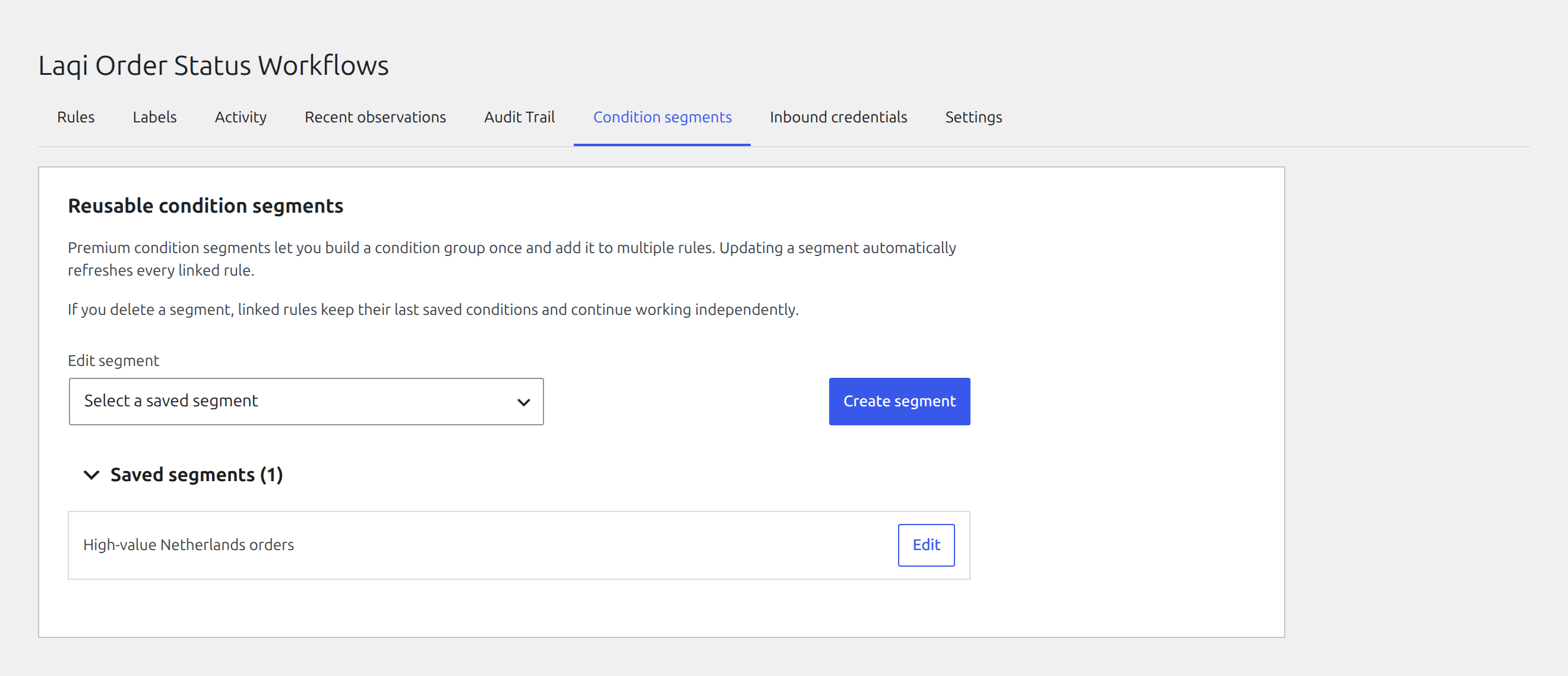
Review every linked rule before changing a widely reused segment. A segment is shared logic, not a hidden global switch.
11. Premium continuation: add an If/Then/Otherwise action
Edition: Premium
Create rule Route Netherlands orders by fulfilment outcome. Add a Conditional action, set its condition to shipping country Netherlands, then configure:
- Then: add private note Netherlands fulfilment route selected for order {order_number}.
- Otherwise: move the order to On hold.
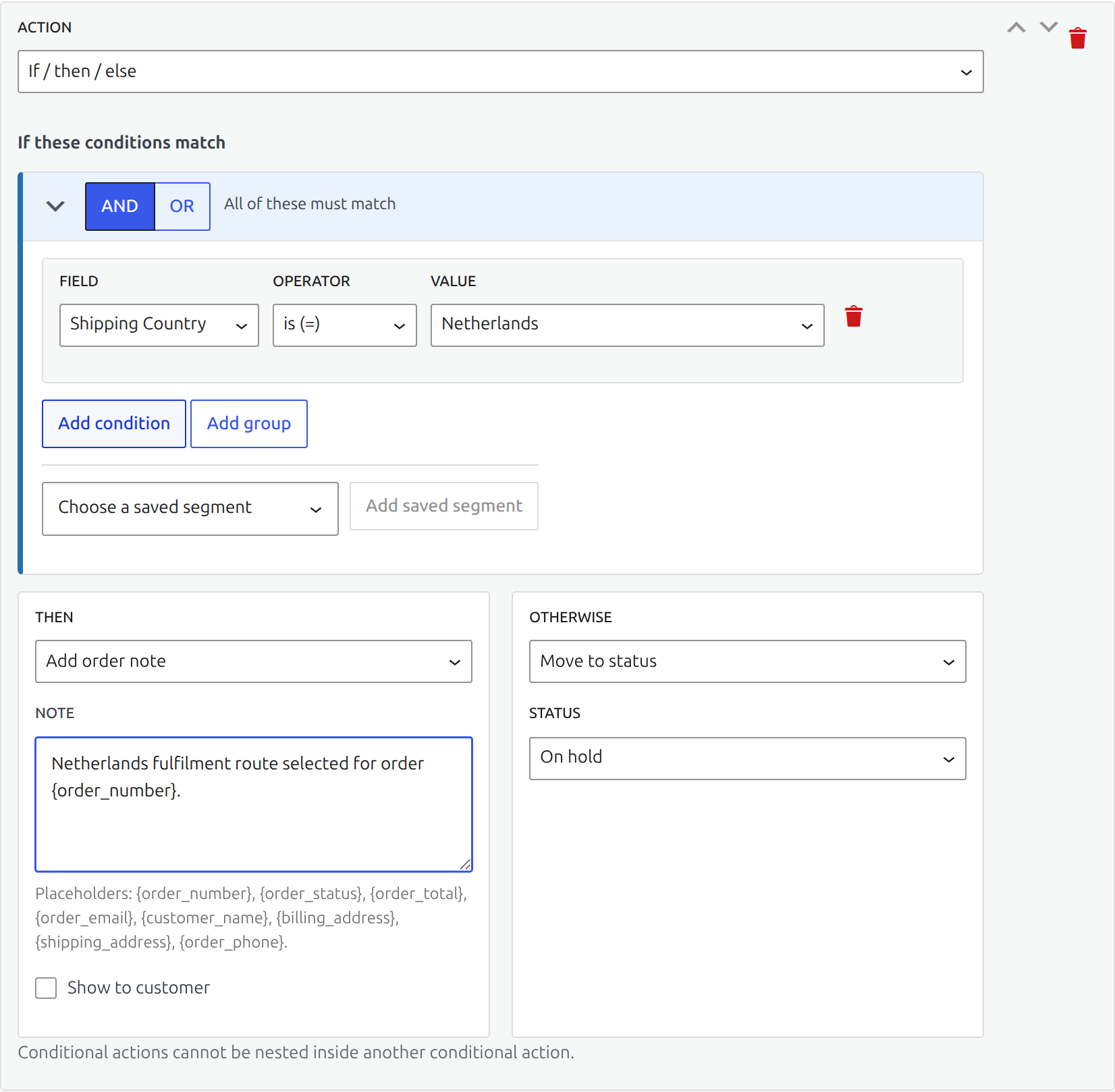
Test once with a Netherlands order and once with a different country so both paths are proven before enabling the rule for live traffic.
12. Premium continuation: build a delayed sequence
Edition: Premium
Create rule Escalate delayed payment orders in two steps and add Start sequence. Configure the first step to wait, add a customer-care note, and move the order to On hold. Add a later second step that moves an unresolved order to Cancelled.
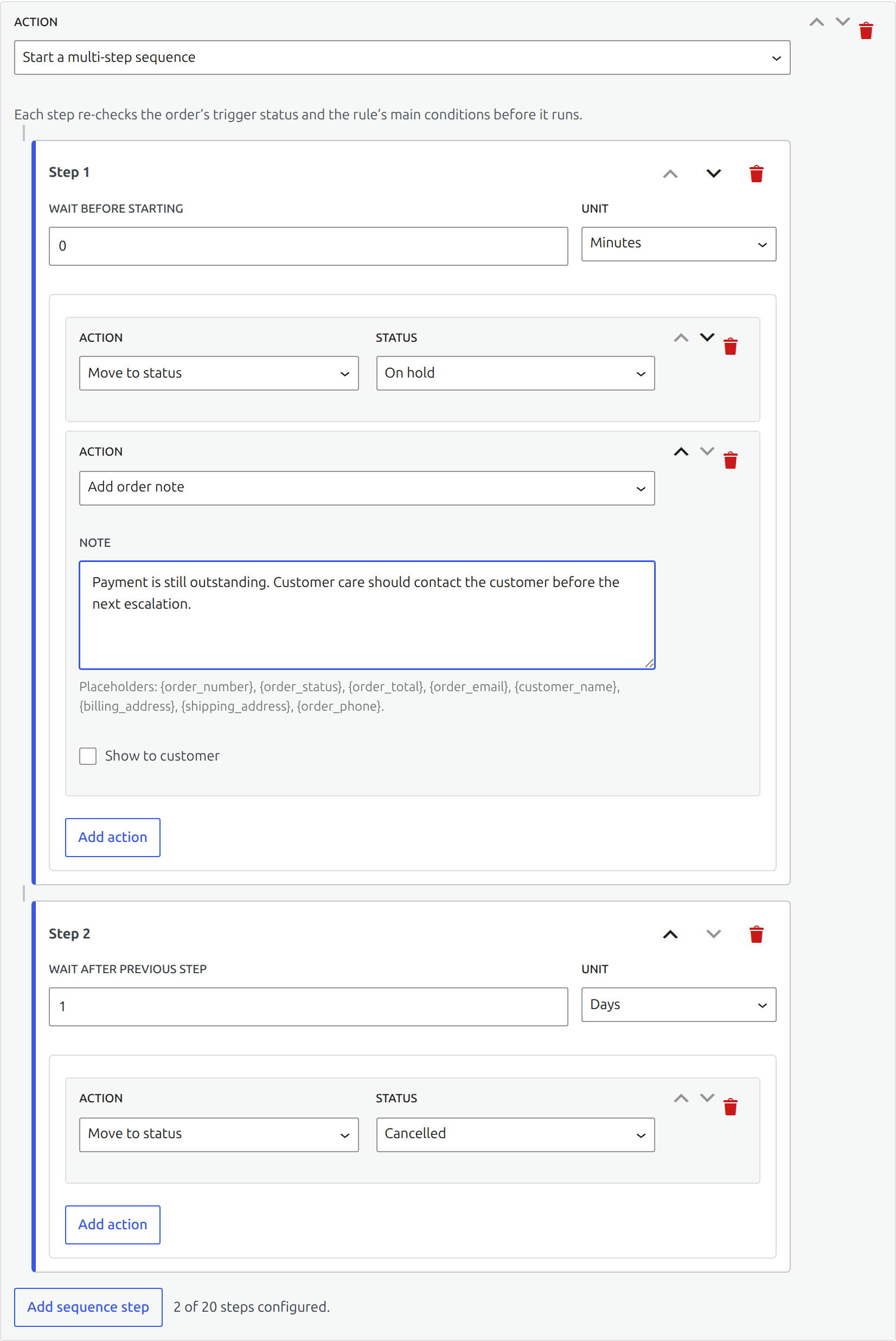
Moving the order out of the trigger status, disabling the rule, or making its conditions false cancels pending work. This prevents an old schedule from acting on an order whose circumstances have changed.
13. Premium continuation: automate elapsed time
Edition: Premium
Create rule Follow up on processing orders after three business days. Choose Time in status, select Processing, enter 3 days, enable Business days only, and add the intended follow-up action.
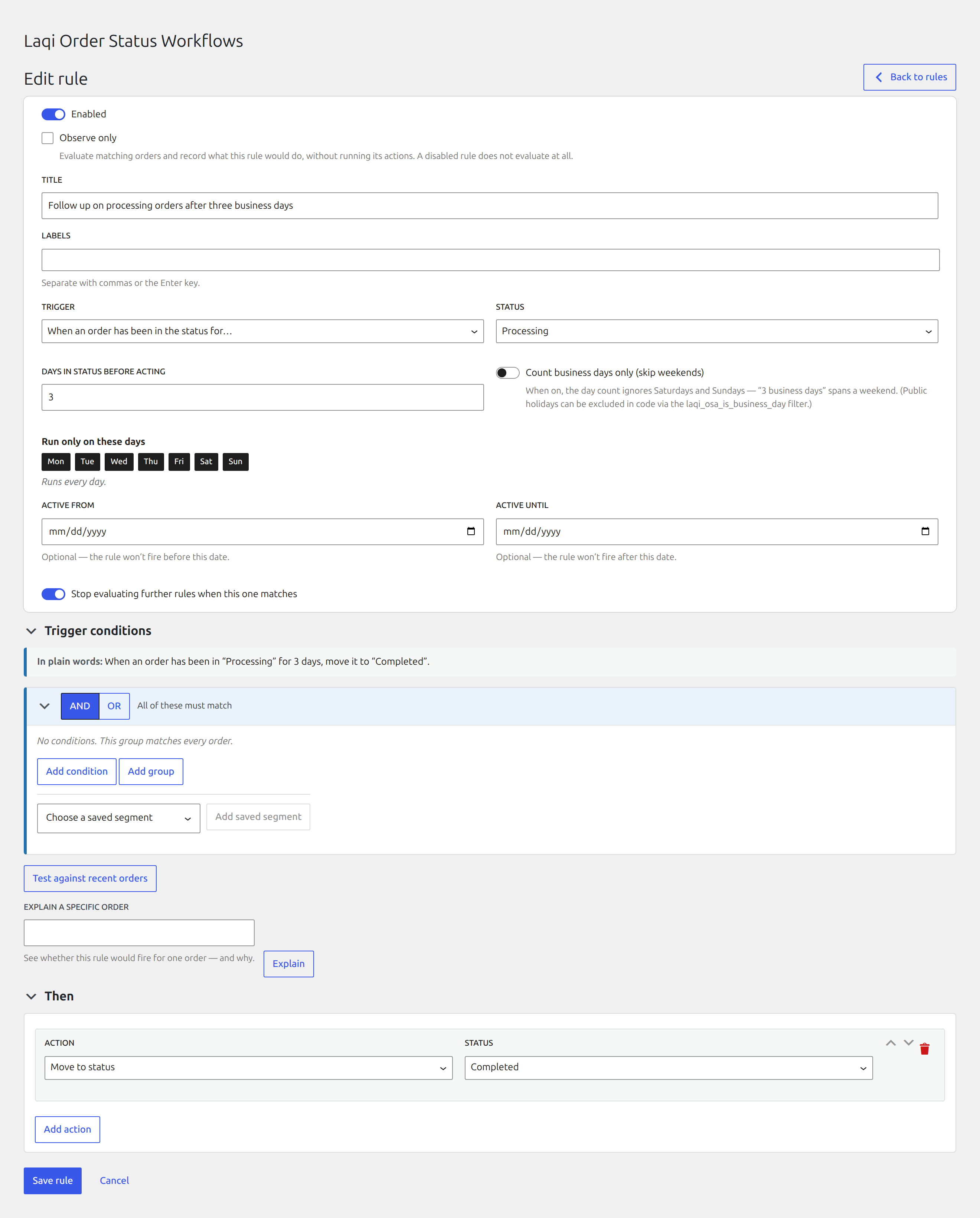
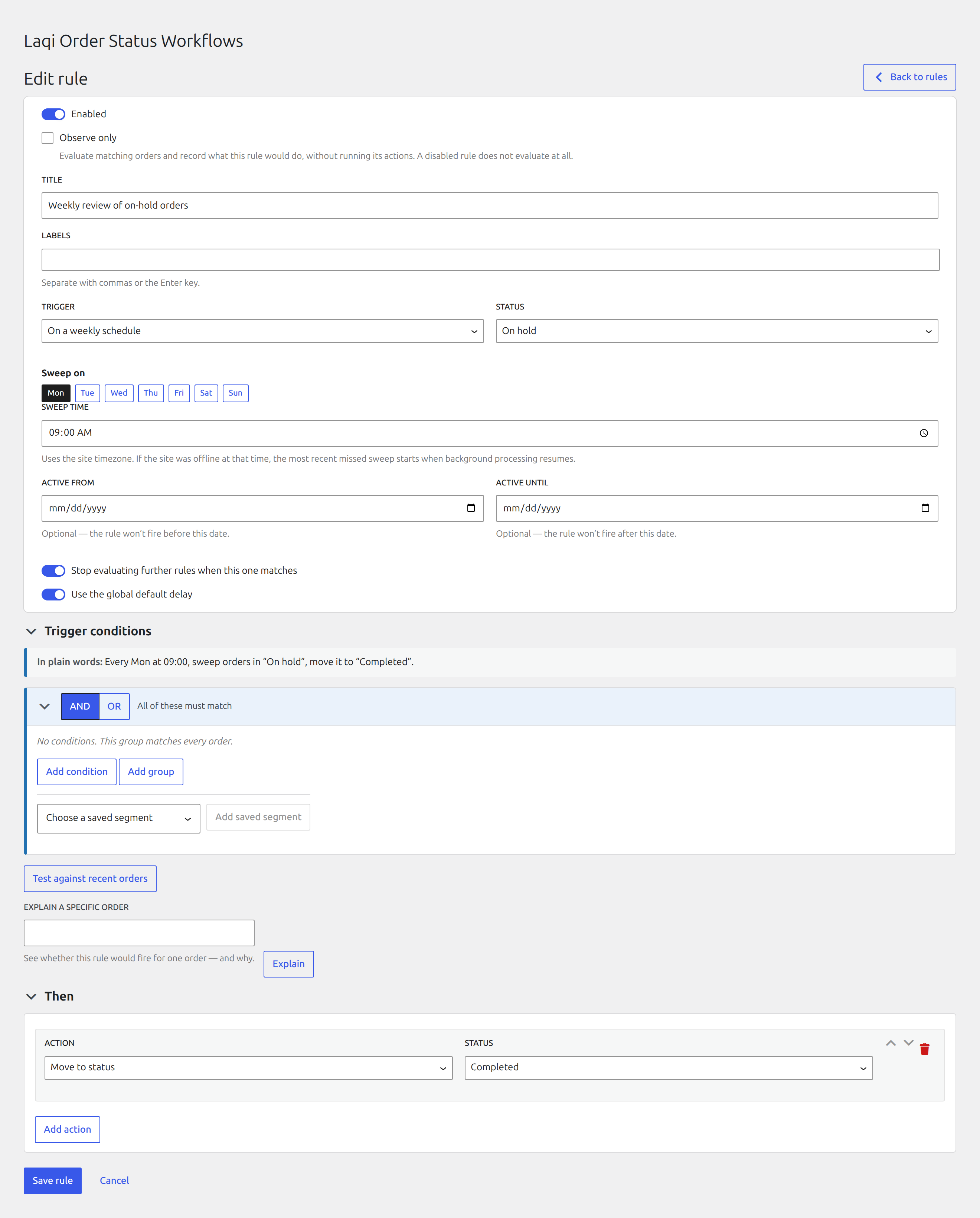
For a recurring operational sweep instead, choose Scheduled sweep, select the statuses, weekdays, and site-local time, then save. Use Activity → Run scan now for a controlled test; do not wait several days to discover a configuration error.
14. Premium continuation: observe before acting
Edition: Premium
Open a saved rule, enable Observe only, and save. Generate a representative test event, then open Recent observations. Confirm the expected rule, order, and suppressed actions.
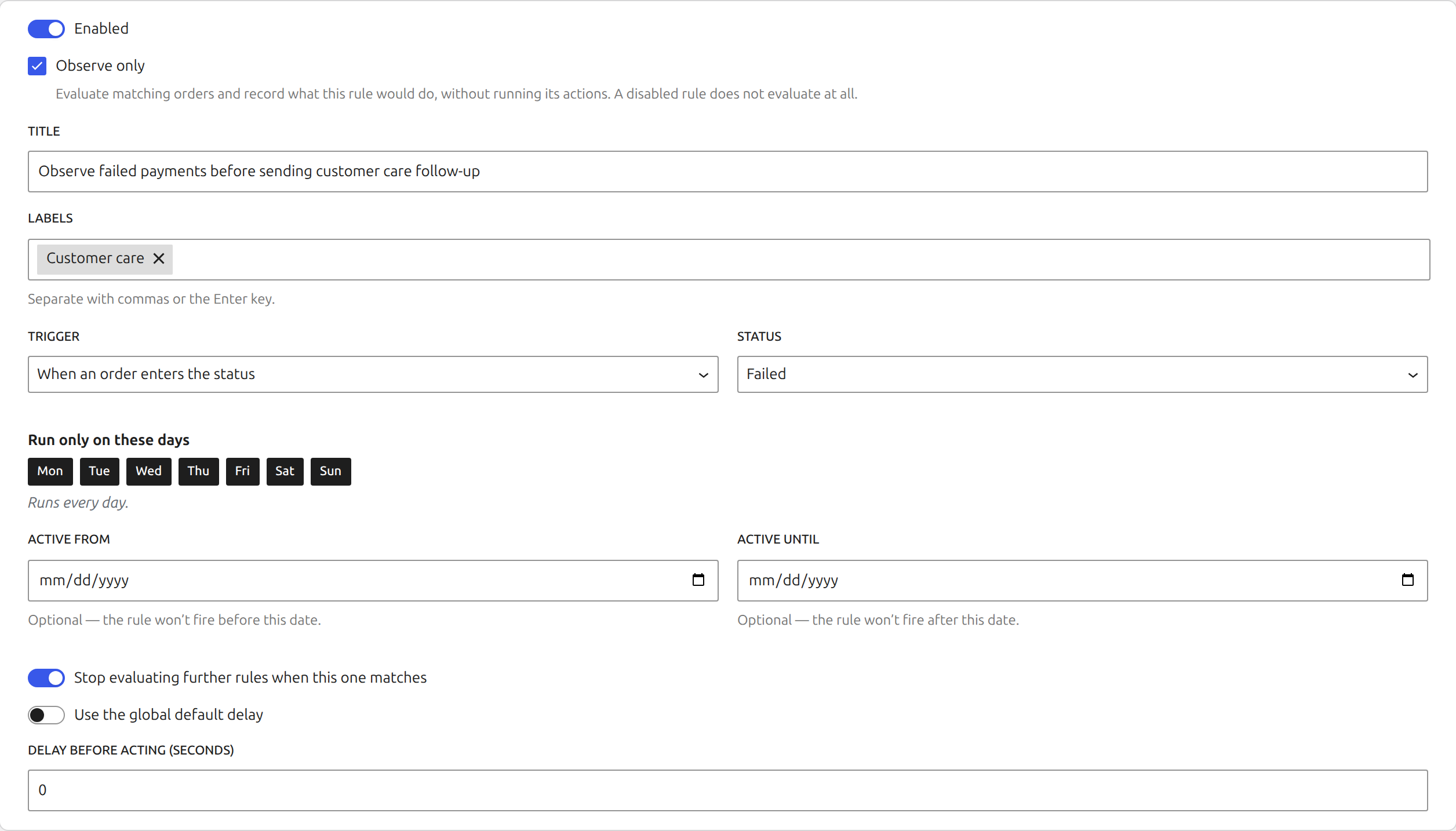
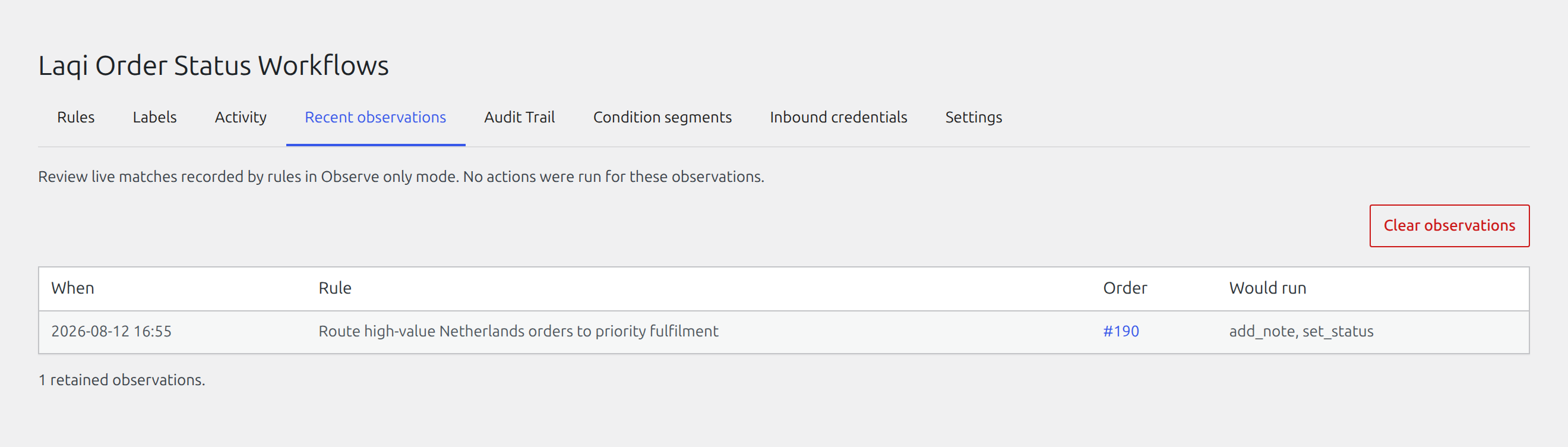
Turn observation off only after the matching pattern is correct.
15. Premium continuation: accept a signed inbound event
Edition: Premium
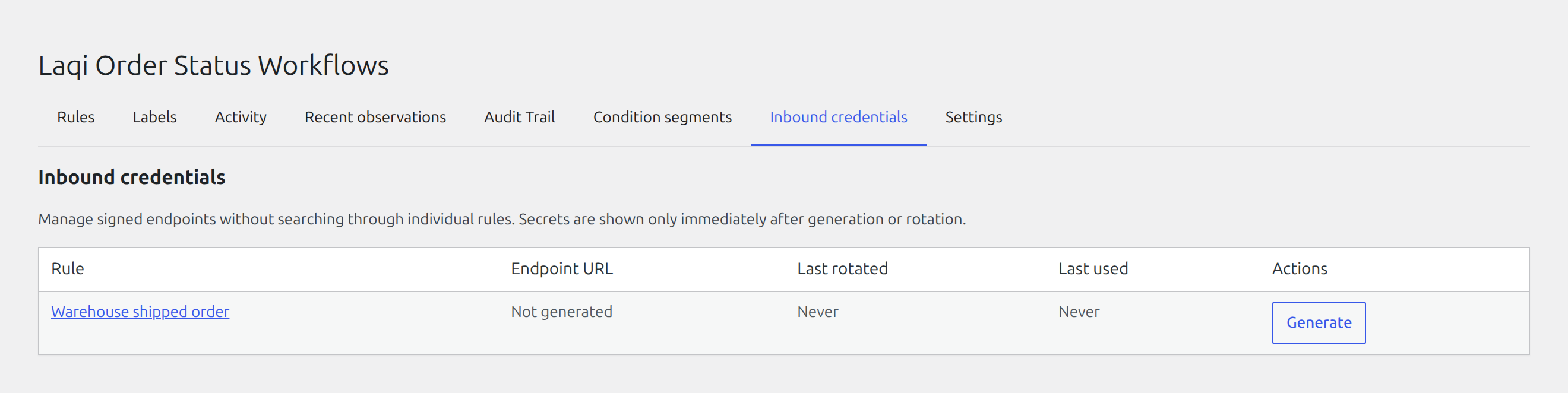
Create rule Process fulfilment updates received from the warehouse system, choose the Inbound request trigger, add the required conditions, and move a matching order to Completed. Save the rule before generating its endpoint and secret.
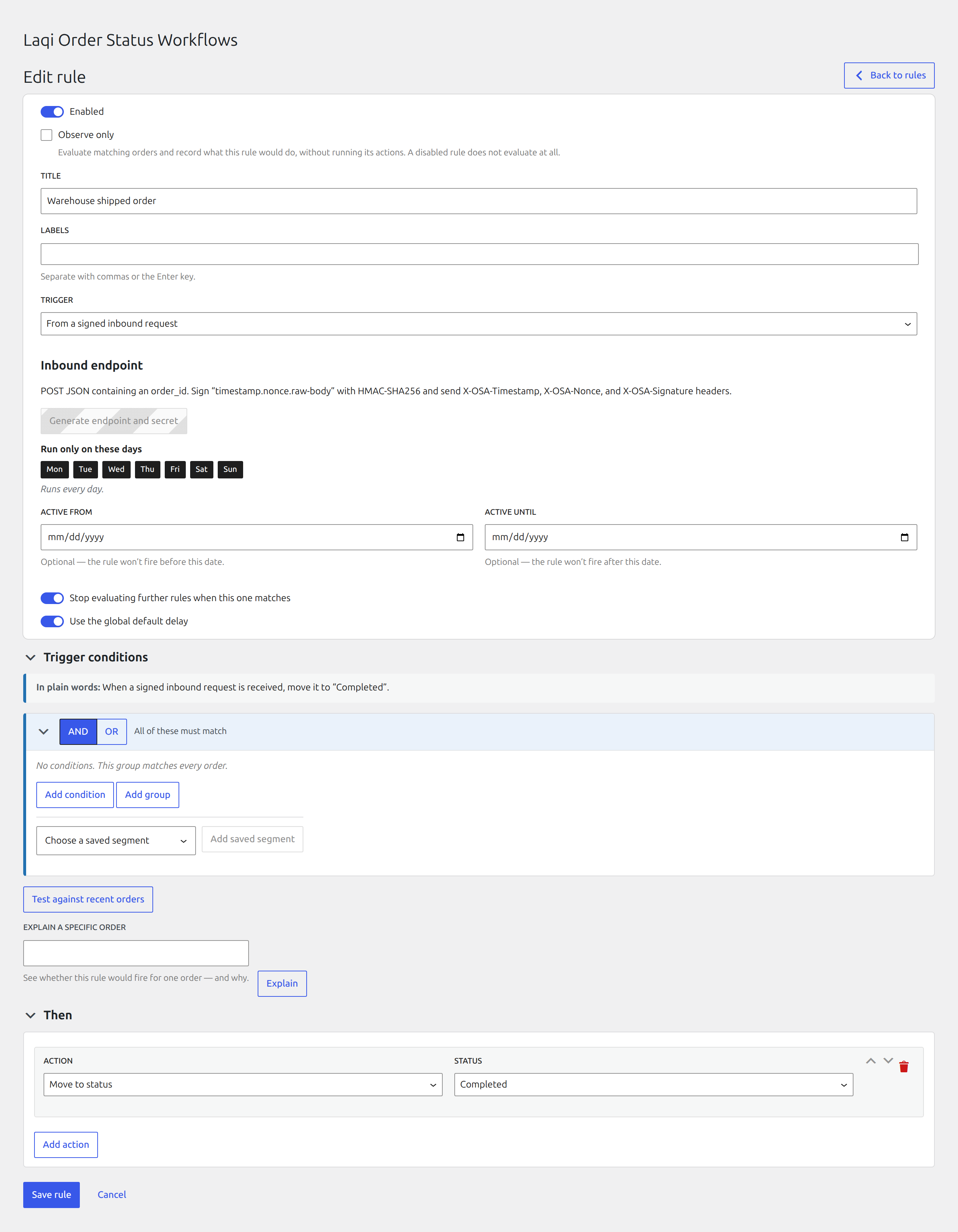
Open Inbound credentials to rotate or revoke access. Copy the secret directly into the trusted warehouse, ERP, or 3PL system. Never place it in screenshots, browser code, support messages, or a repository.