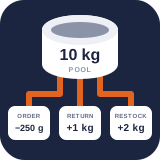
Mobile stock lookup and stocktaking
PremiumScan a mapped SKU or barcode, review pooled demand, and submit an exact accountable stock count from a touch-friendly screen.
Reviewed 2026-08-15
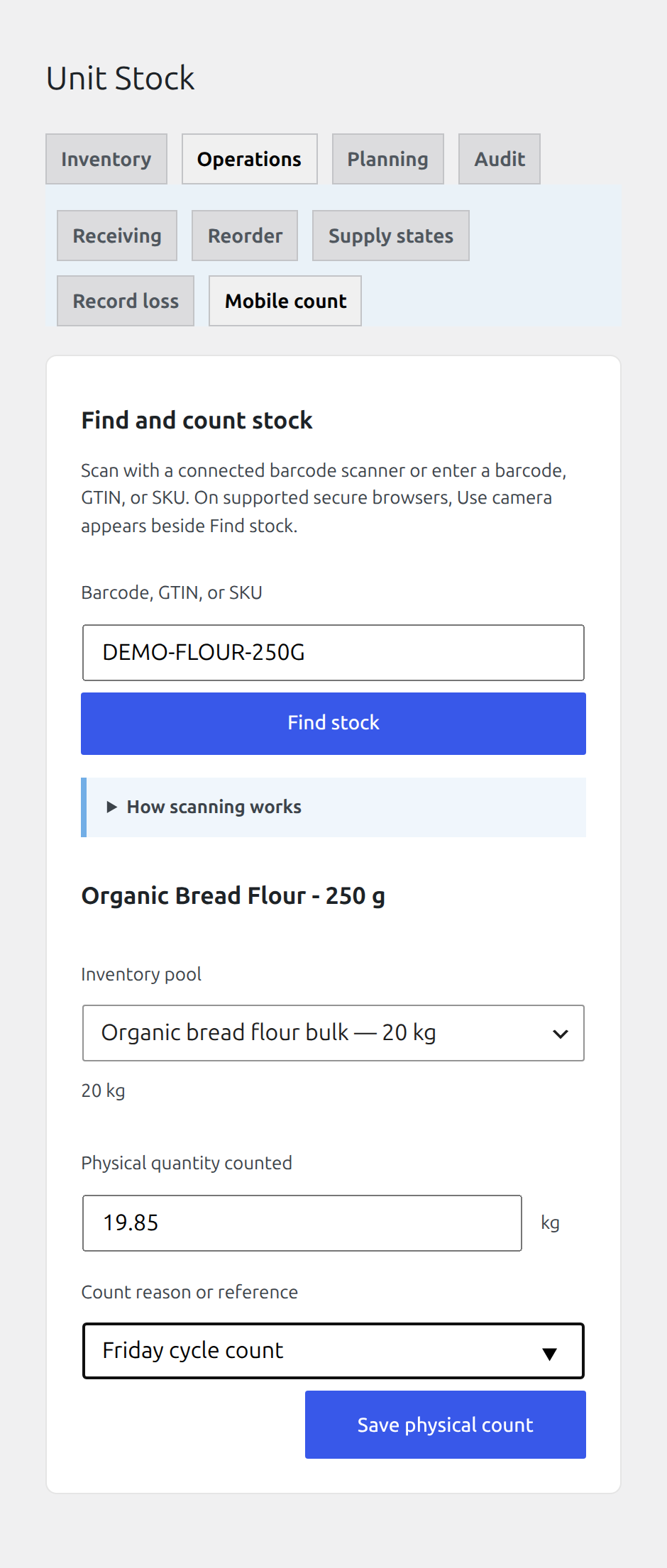
The Mobile count tab provides a focused workflow for authenticated WooCommerce stock managers. It is designed for a phone-sized screen but still runs inside WordPress admin.
Look up an item
Find it in WordPress: Products → Unit Stock → Operations → Mobile count
Enter or scan a WooCommerce SKU. On WooCommerce versions which support global unique IDs, that barcode/GTIN field is also checked. The lookup resolves the exact product or variation, its active mapping, sellable quantity, and every pool consumed by one item.
An unknown code returns No product matches this scan code. A known but unlinked product returns The scanned product is not mapped to pooled stock. Fix the SKU or mapping rather than counting it against an arbitrary pool.
Record a physical count
- Confirm the scanned item and destination inventory pool.
- Read the current balance and unit.
- Enter the complete counted quantity, not only the difference.
- Enter a required reason or choose a configured reason suggestion.
- Submit and confirm the returned pool balance.
The workflow records a stocktake movement through the same atomic service used by Free adjustments. A generated idempotency key prevents an accidental network retry from applying the count twice.
For recipe products, scanning can return several pools. Count the physical pool actually measured; do not assume the product’s sellable-item count is the pool quantity.
Device and access safety
- Use an authenticated account with
manage_woocommerce; do not share an administrator session across devices. - Prefer HTTPS, especially on warehouse Wi-Fi.
- Confirm the SKU/variation and unit before submitting.
- Keep scanner input focused and review the resolved name rather than relying only on the barcode.
- If connectivity is interrupted, reload the pool before trying again and check Activity for the first submission.
The underlying authenticated API routes are GET /wp-json/laqi-lusm/v1/scan?code=… and POST /wp-json/laqi-lusm/v1/pools/{id}/stocktake.