
Create your first order status rule
Build and prioritize a when, if, then rule in the WooCommerce admin.
Reviewed 2026-08-05
Build conditions visually and verify the rule in plain language.
Create the rule
- Go to WooCommerce → Order Status Rules → Add rule.
- Give the rule a name that describes its outcome.
- Choose when it should run and select its starting order status.
- Add the conditions the order must meet.
- Add one or more actions in the order they should run.
- Check the plain-language summary, then save and enable the rule.
The full-width rules table keeps descriptive titles, observation state, and row controls readable. Use a name that states the business outcome rather than shortening it to fit an older layout.
Understand the builder
Every rule follows the same three-part model:
- When chooses the event that evaluates the rule. In Free, this is an order entering a selected status.
- Trigger conditions decide which of those orders match. An empty group matches every order entering the trigger status.
- Then contains the actions that run for a matching order, from top to bottom.
The remaining fields control how the rule operates:
| Field | What it controls |
|---|---|
| Enabled | Whether the rule evaluates at all. Keep it off while a new workflow is being reviewed. |
| Title | The business outcome shown in rule lists, activity, and audit records. |
| Labels | Reusable organisational tags used for searching and grouping rules. |
| Status | The order status associated with the selected trigger. |
| Run only on these days | The weekdays on which the rule may run. |
| Active from / until | Optional date boundaries for seasonal or temporary workflows. |
| Stop evaluating further rules | Prevents lower-priority rules for the same status from also running after a match. Rules with this enabled show a skip-forward icon in the rule list, so blocked rules are easier to diagnose. |
| Delay before acting | Waits before re-checking the order and running its actions. |
The In plain words summary combines the trigger, condition logic, and actions. Read it before saving. If it does not describe the intended business decision, adjust the rule rather than relying on its title.
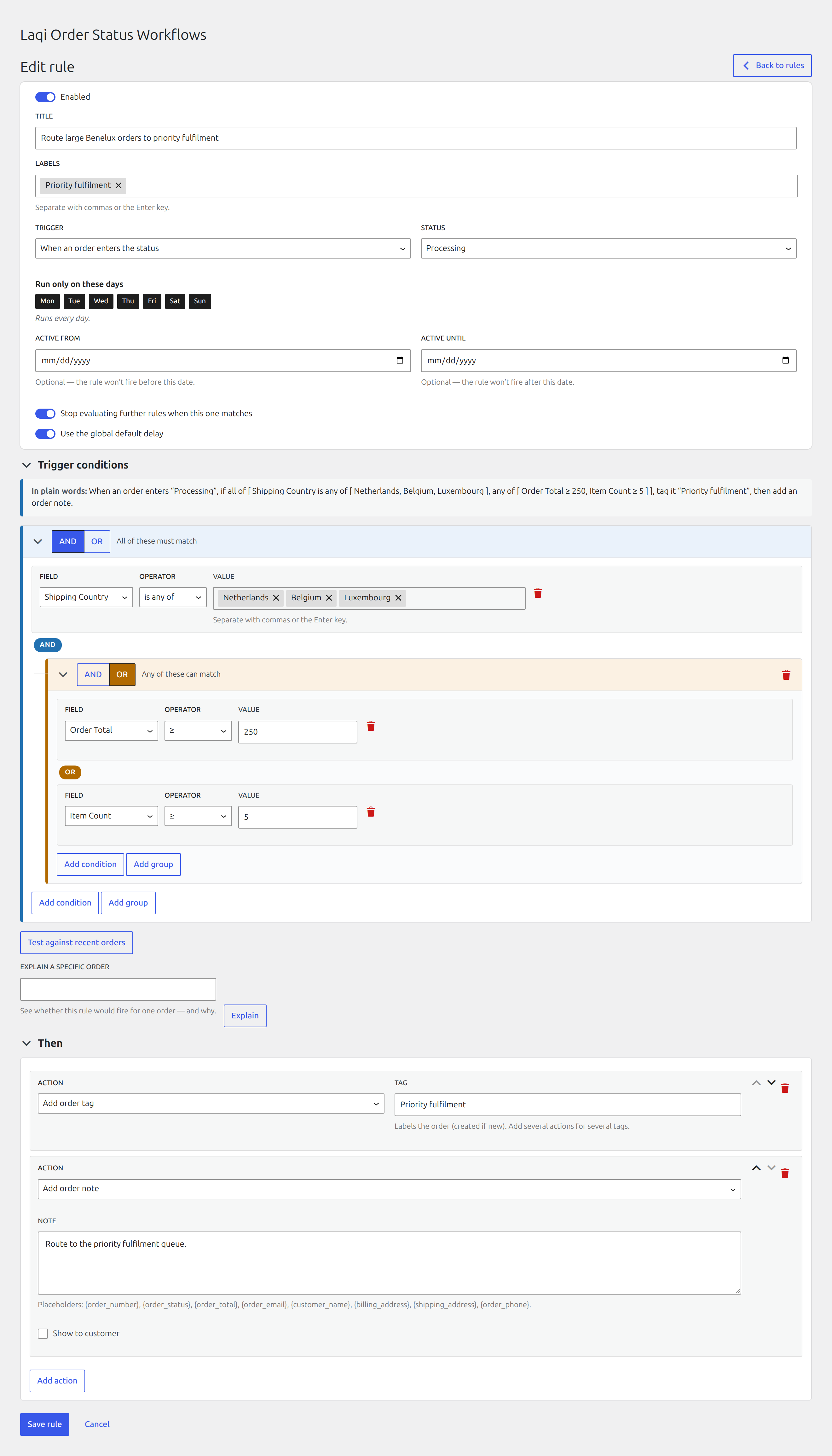
Route high-value Netherlands orders
This Free rule catches valuable orders that need priority fulfilment.
- Set Title to
Route high-value Netherlands orders to priority fulfilment. - Set When to When an order enters the status and Status to Processing.
- Under Trigger conditions, keep AND selected.
- Add Shipping country · is (=) · Netherlands.
- Add Order total · ≥ · 250.
- Under Then, add a private order note explaining why the order was routed.
- Add Move to status · On hold after the note.
- Use Test against recent orders, check the matching rows, then save and enable the rule.
Expected result: only Processing orders shipping to the Netherlands with a total of at least 250 receive the note and move to On hold.
Compare with the completed rule
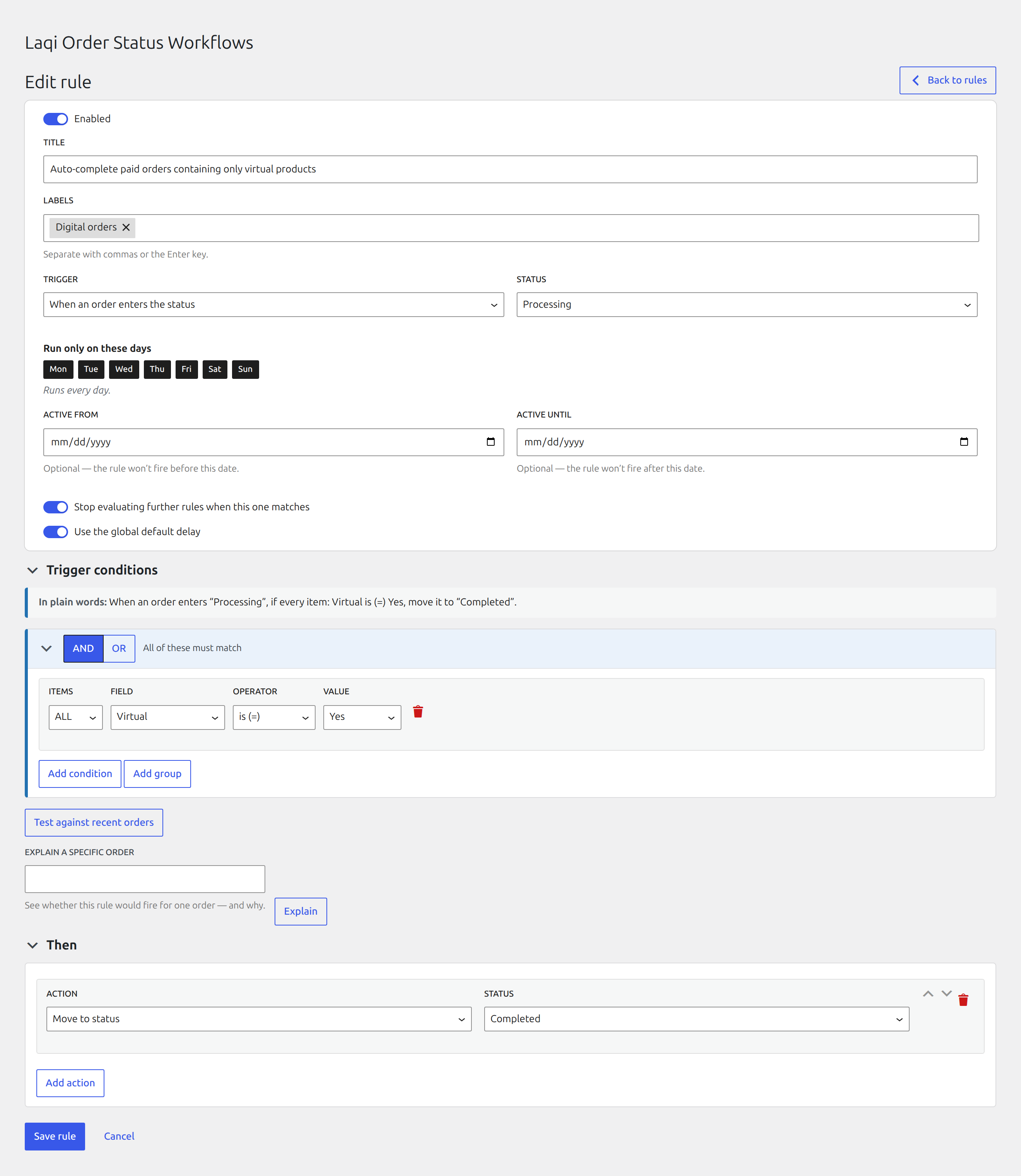
Complete virtual-only orders
This Free rule removes manual work from paid digital fulfilment.
- Trigger the rule when an order enters Processing.
- Add the item condition All items · are virtual.
- If downloadable products must also be present, add All items · are downloadable to the same AND group.
- Add Move to status · Completed under Then.
- Test against recent orders before enabling it.
Use All items, not Any item. An order containing one virtual product and one physical product must remain in fulfilment.
Compare with the completed rule
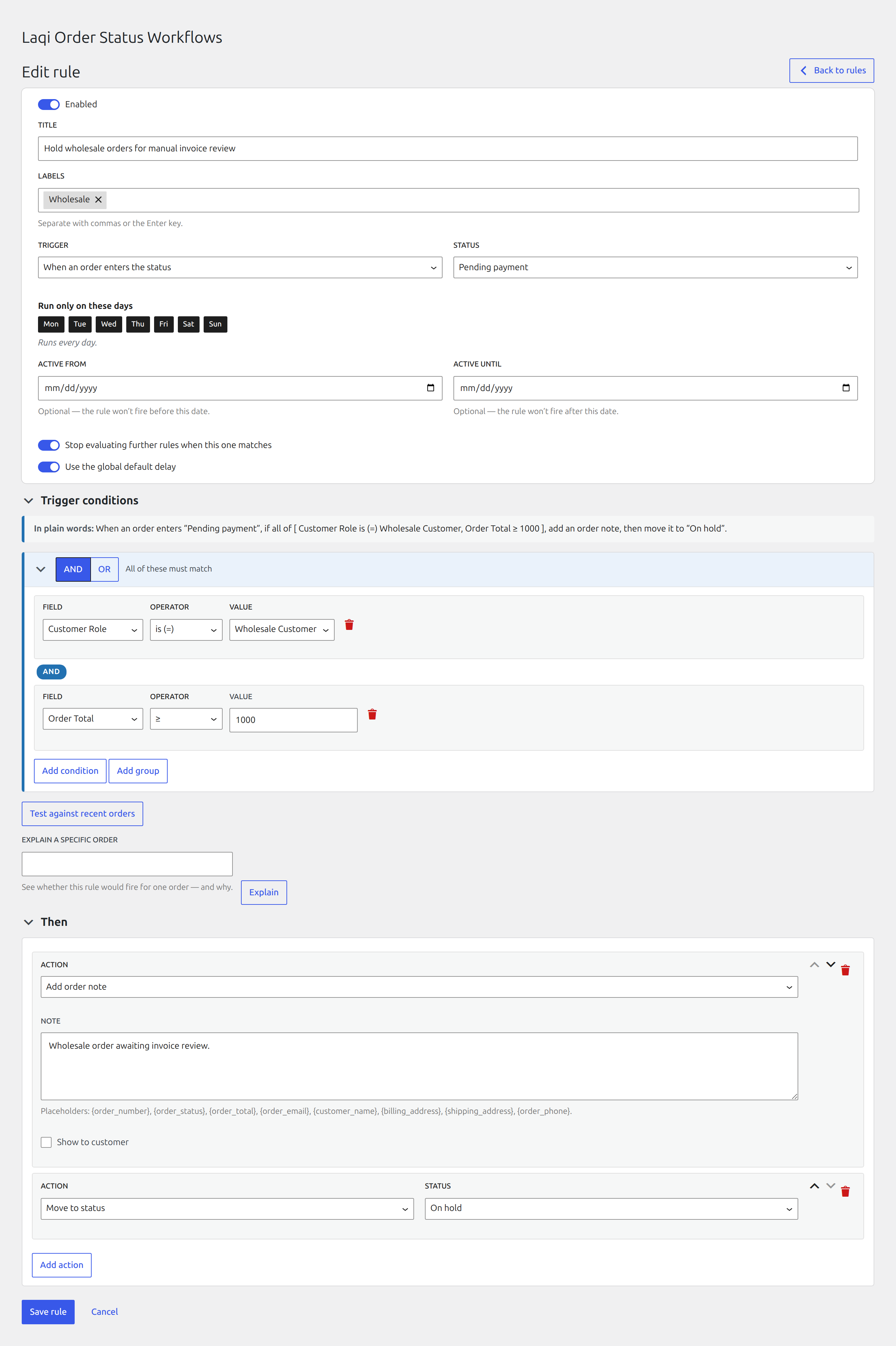
Hold wholesale invoices for review
This Free rule creates a staff checkpoint without affecting ordinary customers.
- Trigger the rule when an order enters Pending payment.
- Add Customer role · is (=) · Wholesale customer. Use the exact role registered by the wholesale extension on the store.
- Add a private note such as
Wholesale invoice requires manual payment review. - Add Move to status · On hold.
- Add the
Wholesalelabel to the rule so it is easy to find later.
Expected result: wholesale orders are held for staff review, while other Pending payment orders continue normally.
Compare with the completed rule
Check before enabling
Use this short review for every new rule:
- Does the title state the outcome?
- Is the trigger status the status the order has before the actions run?
- Should every condition match (AND) or only one (OR)?
- Are item conditions using Any, All, or None intentionally?
- Are actions ordered correctly?
- Could the status change trigger another rule?
- Did the recent-order test match the orders you expected?
- Should lower-priority rules still evaluate after this one matches?
Start from a template
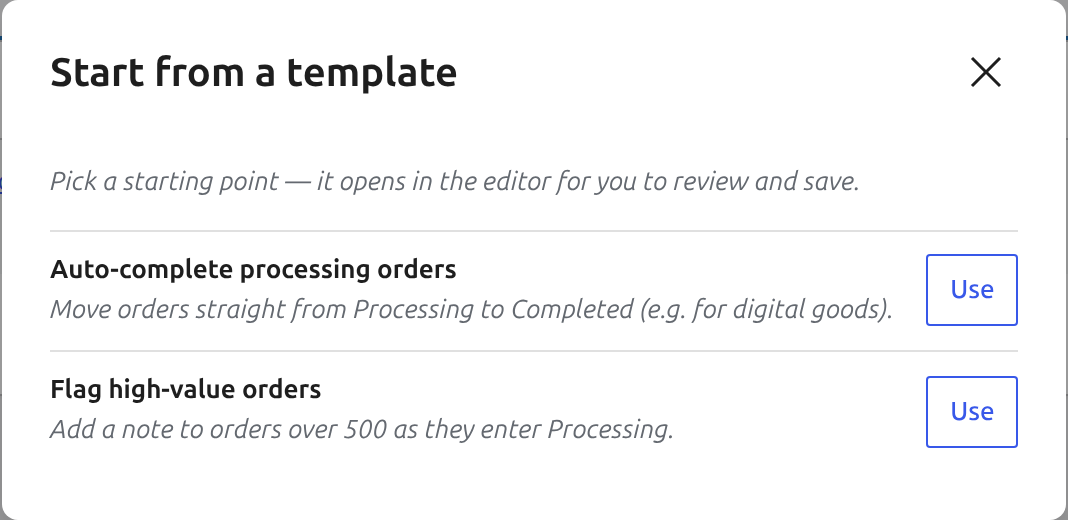
Choose a starter template when one matches the workflow. Free templates fill in a complete on-entry draft but do not silently activate it. Review the trigger, conditions, actions, delay, and status values in the editor before saving.
Templates are a starting point, not a separate automation mode. After opening one, every part can be edited like a rule created from scratch.
Add conditions
Each condition has a field, operator, and value. For example: Shipping country · is (=) · Netherlands.
Use AND when every condition must match. Use OR when any condition may match. Groups can be nested, and item conditions can check whether any, all, or none of the order items match.
Inputs use real values from your store where possible. Products and coupons use type-ahead search, which prevents rules from relying on misspelled free text.
Add actions
A rule can change the order status, add an order note, add or remove a tag, assign the order, set safe custom meta, send email, post to Slack or Teams, or send a signed webhook.
Several actions can run in sequence. Review the summary to confirm their order before saving.
Set priority
Rules are checked from top to bottom within their trigger status. Drag rows to change priority. When a matching rule has Stop evaluating further rules enabled, lower-priority rules in that status are skipped. The rule list marks that behaviour with a skip-forward icon.