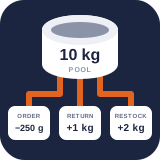
Start-to-finish Unit Stock demo
Follow one bakery example from an empty inventory pool through product sales, order changes, recipes, supplier receipts, and replenishment planning.
Reviewed 2026-08-17
This walkthrough builds one connected example instead of explaining each screen in isolation. The demo store sells organic bread flour in three package sizes. All three consume one physical flour balance. Premium then extends the same example with a recipe, suppliers, receipt batches, forecasting, and purchase orders.
Complete the Free foundation first. Continue into the clearly marked Premium continuation only when Pro is installed and active.
What you will build
- One Organic bread flour bulk pool, counted in kilograms.
- 250 g, 500 g, and 1 kg variations drawing from that pool.
- A sale, quantity edit, and refund visible in the immutable stock history.
- A Premium recipe using flour, yeast, a jar, a lid, and a label.
- A 25 kg supplier sack and traceable received lot.
- Safety stock, a forecast, a reorder policy, and a purchase-order draft.
- Holds, incoming deliveries, batch controls, losses, mobile counts, costs, reporting, scenarios, and operational data exchange.
Use the names and quantities below if you want your screens to match the screenshots.
1. Create the flour pool
Edition: Free
Open: Products → Unit Stock → Setup → Inventory pools
- Enter pool name Organic bread flour bulk.
- Enter internal SKU RAW-FLOUR-ORG.
- Choose kg as the stock unit.
- Enter opening balance 25.
- Choose Create pool.
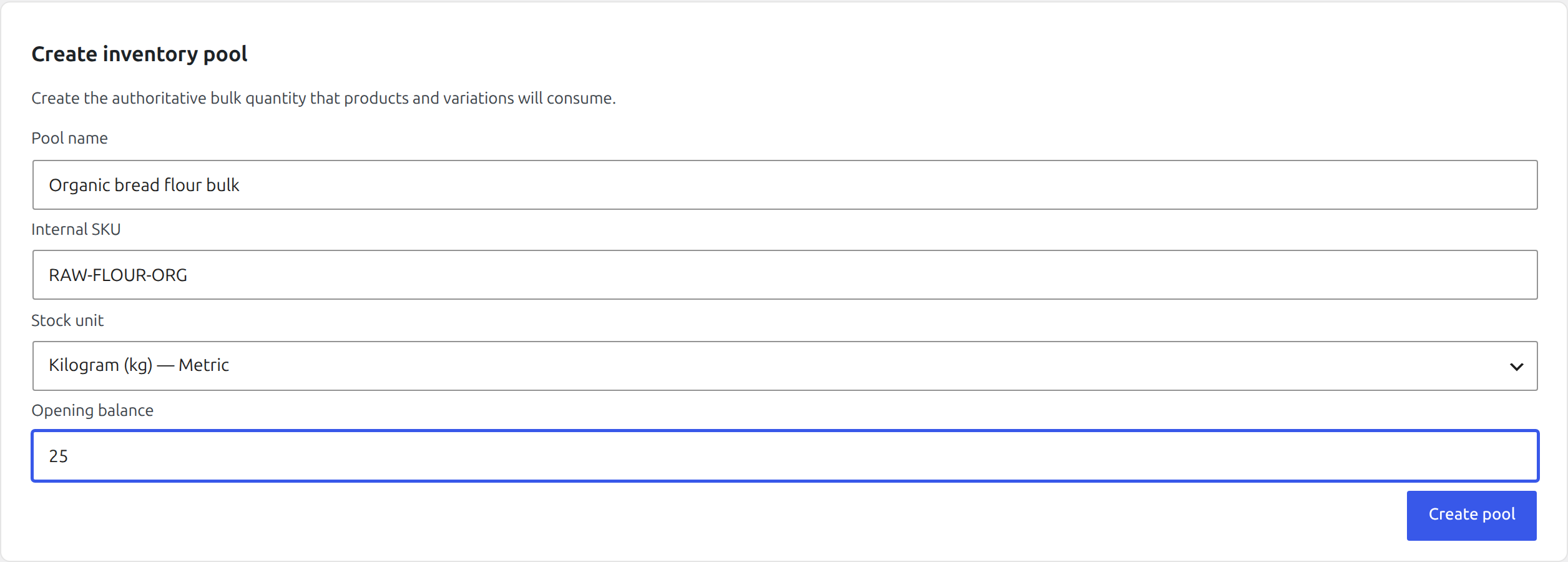
The authoritative balance is now 25 kg. Every linked package will consume from this same quantity.
Define and verify a custom receiving unit
Open Products → Unit Stock → Setup → Custom units. This example makes the supplier’s sack a selectable unit while keeping kilograms as the underlying Mass measurement:
- Unit key:
sack - Label:
Flour sack - Symbol:
sack - Equivalent quantity:
25 - Of unit:
Kilogram (kg)
Choose Create custom unit. The sack inherits the Mass family from kilograms, so it can convert to grams, kilograms, pounds, and other mass units, but never to a Length, Volume, Area, or Count unit.
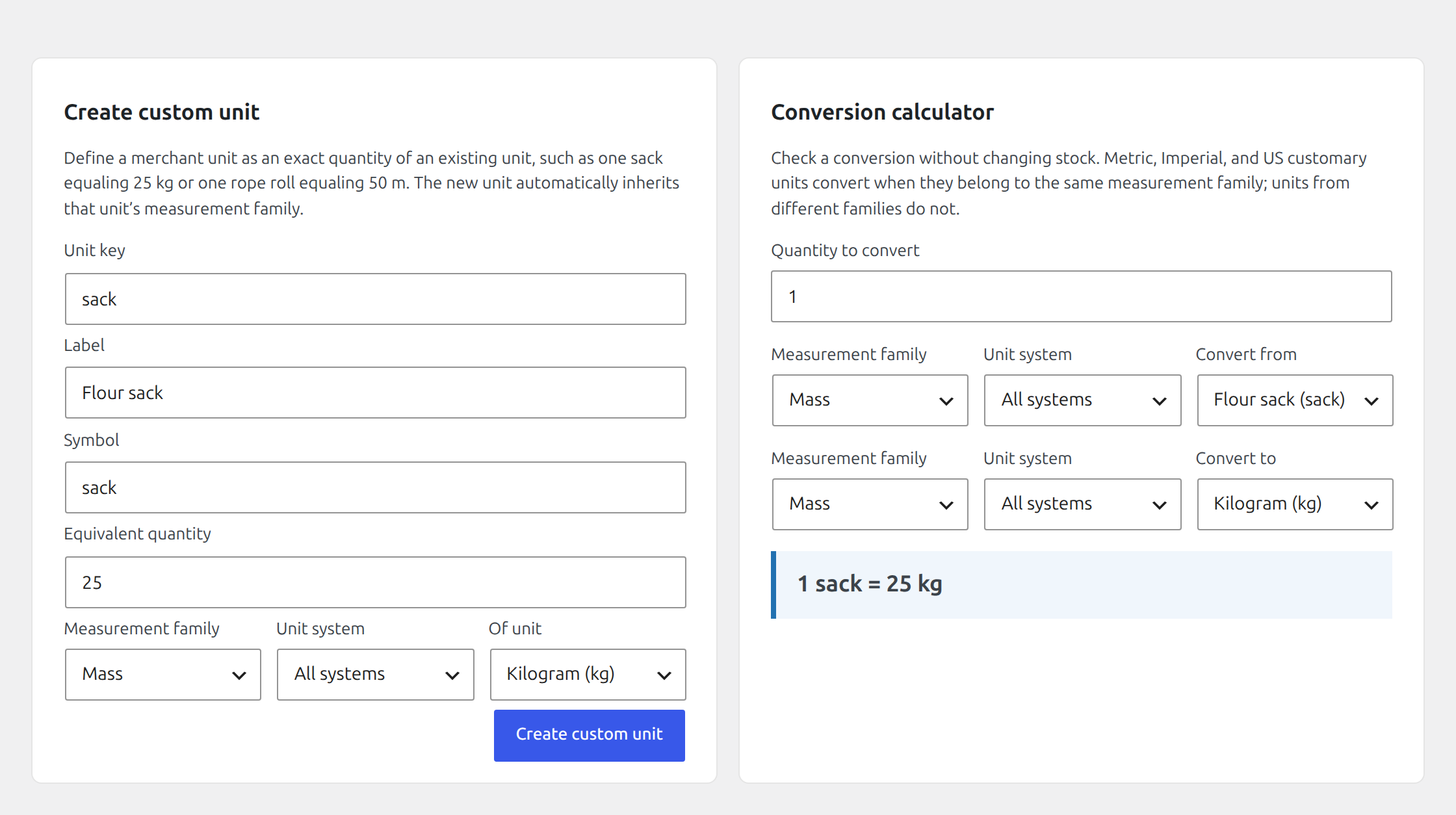
Use the Conversion calculator beside the form to enter 1, choose Flour sack
as Convert from, and Kilogram (kg) as Convert to. Confirm the result is
1 sack = 25 kg. The calculator only checks the definition; it never changes stock.
2. Link each sellable package
Edition: Free
Open: Products → Unit Stock → Setup → Product links
Create these mappings one at a time:
| Product or variation | Consumption | Unit |
|---|---|---|
| Organic Bread Flour, 250 g | 250 | g |
| Organic Bread Flour, 500 g | 500 | g |
| Organic Bread Flour, 1 kg | 1 | kg |
The mapping unit does not need to be identical to the pool’s display unit. It must
belong to the same measurement family. A product can consume 250 g, 500 g,
1 kg, ounces, or pounds from a pool displayed in kilograms because all are mass
units and normalize exactly. A product cannot consume millilitres or item counts
from a mass pool because Volume and Count are different families. The form rejects
incompatible combinations.
For a new demo product, choose Disable native quantity management. Use the transfer option only when an existing WooCommerce quantity has been physically verified and should be added to the pool once.
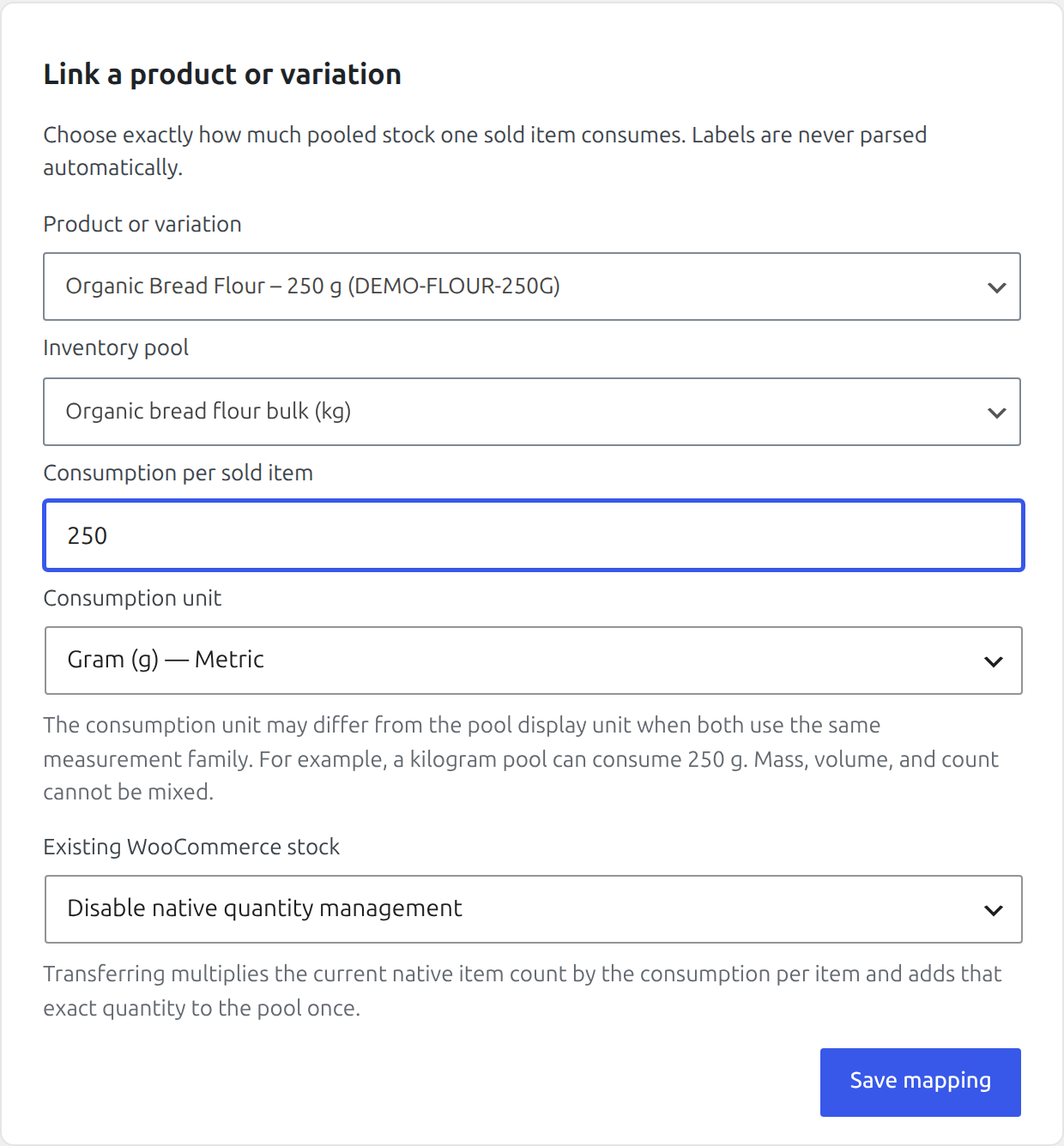
Save this first mapping, then open that exact variation and confirm its Unit Stock controls. The tutorial deliberately shows only the product configured in this step.
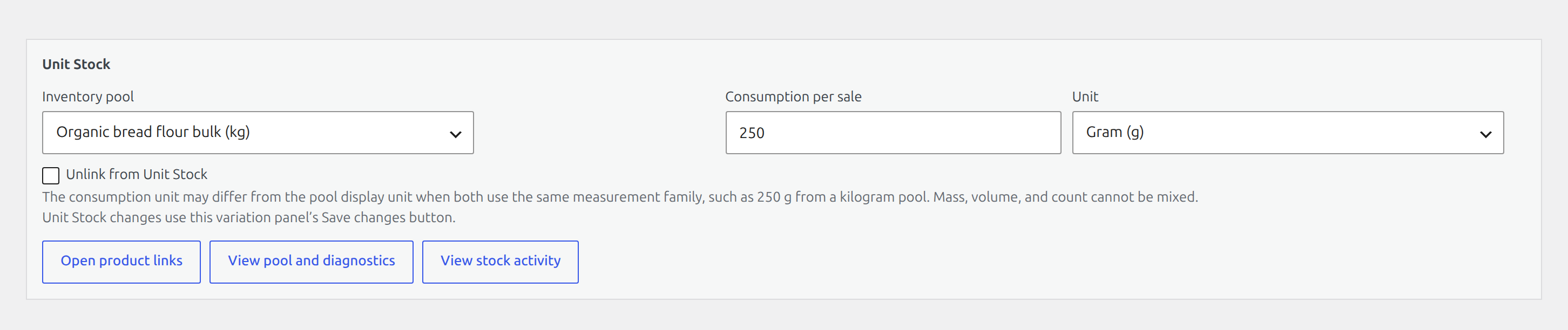
Now repeat the mapping for the 500 g and 1 kg variations. Different package sizes can share one physical balance without duplicating stock.
3. Verify availability
Edition: Free
Open: Products → Unit Stock → Stock
With a 25 kg balance, the screen can express availability as 100 packages of 250 g, 50 packages of 500 g, or 25 packages of 1 kg. These are alternative views of the same stock, not three independently sellable quantities.

4. Sell a product and inspect the change
Edition: Free
Open: Storefront, then WooCommerce → Orders
- Add 2 × Organic Bread Flour, 500 g to the cart.
- Complete checkout using a test payment method.
- Open the new order and confirm quantity 2.
- Inspect the Unit Stock panel on the order itself.
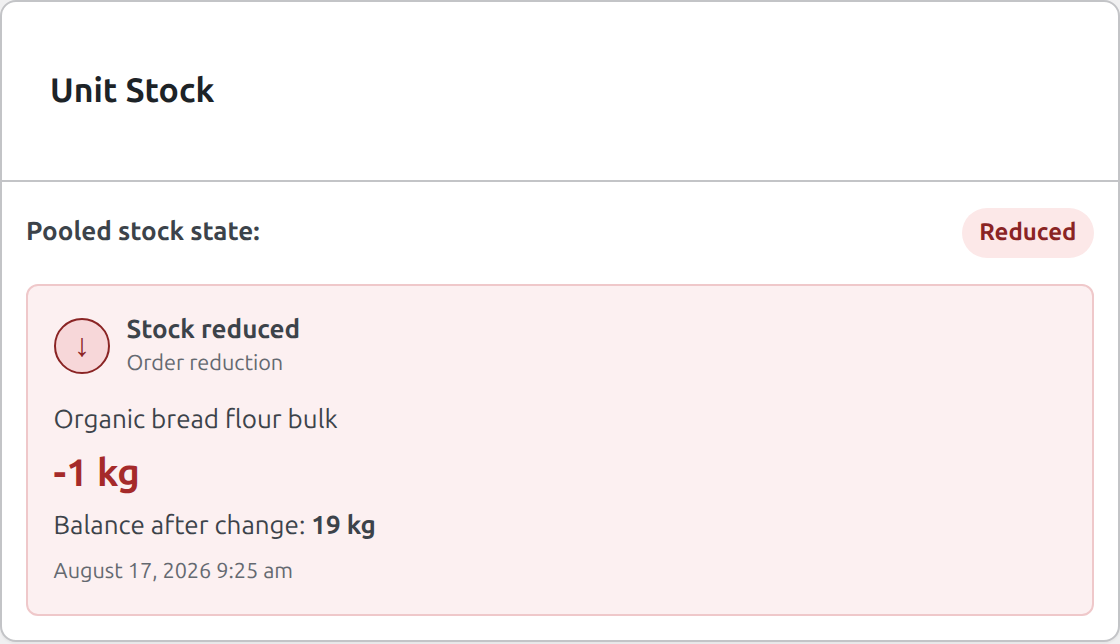
- Open Products → Unit Stock → Activity to see the same movement in the store-wide ledger.
The order consumes 1 kg: 2 × 0.5 kg. Activity records an Order reduction of
-1 kg, the resulting balance, timestamp, and order number. Reopening or saving the
same order cannot reduce it twice.
Change and refund the order
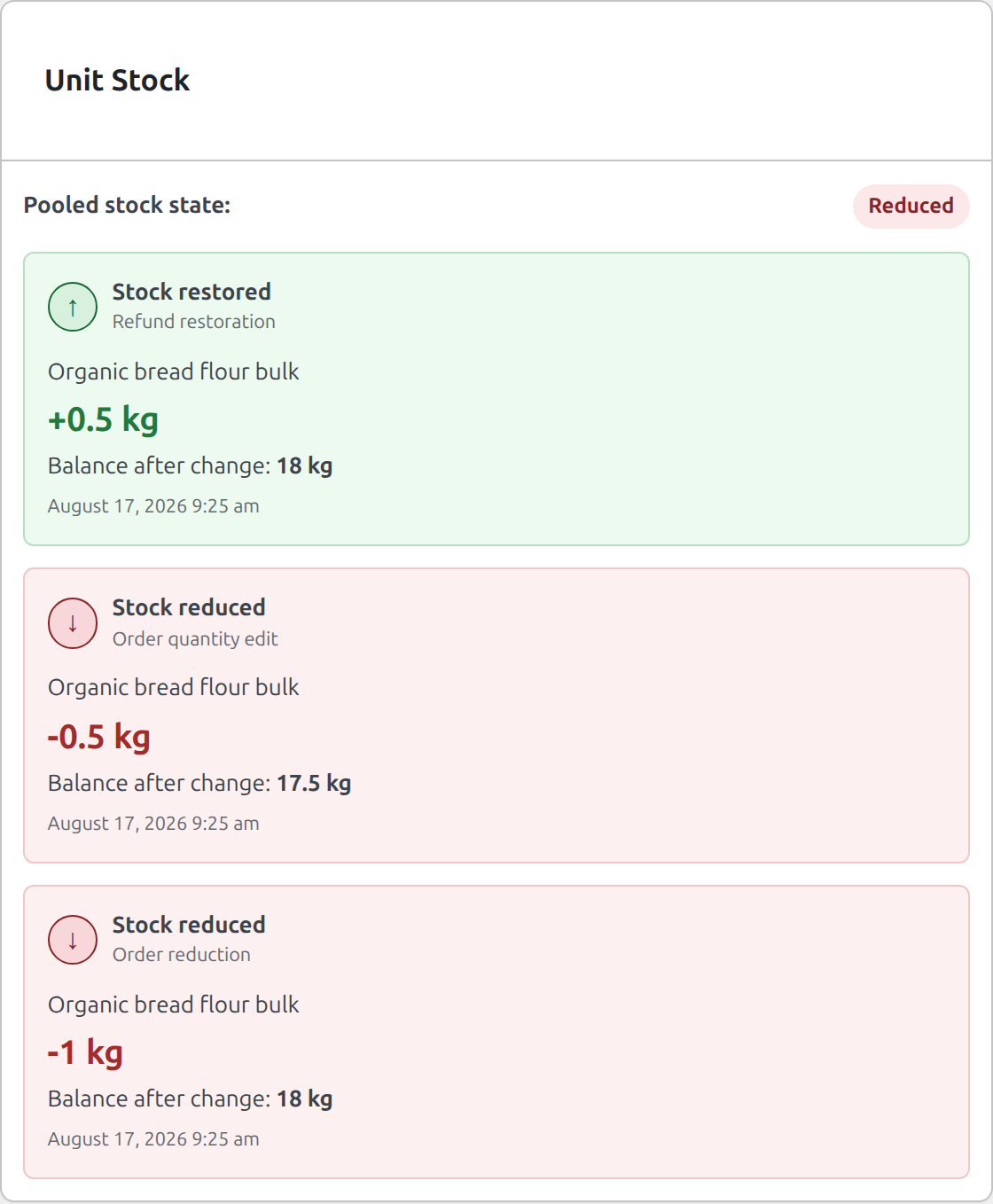
- Change the 500 g line from quantity 2 to quantity 3 and save the order items.
- Confirm an Order quantity edit of
-0.5 kgin Activity. - Choose Refund, enter quantity 1, and select Restock refunded items.
- Complete the refund and confirm a Refund restoration of
+0.5 kg.
A refund without Restock refunded items returns money but does not change physical stock. A status that restores WooCommerce stock creates an Order restoration for the remaining demand. Every calculation uses the mapping snapshot stored with the order item, even if the product mapping changes later.
5. Record a physical correction
Edition: Free
Open: Products → Unit Stock → Stock
Choose Subtract, enter 0.25 kg, enter reason Quality-control sample, and choose Apply. Use Set to after a full physical count. Use Add or Subtract when the exact difference is known.

6. Premium continuation: build a recipe
Edition: Premium
First open Products → Unit Stock → Inventory → Stock. Choose Create pool and create each pool below. Return to the Stock screen after saving each one.
| Pool | Unit | Opening balance |
|---|---|---|
| Active dry yeast bulk | kg | 2.5 |
| Amber glass jars | unit | 240 |
| Metal jar lids | unit | 300 |
| Kraft product labels | unit | 500 |
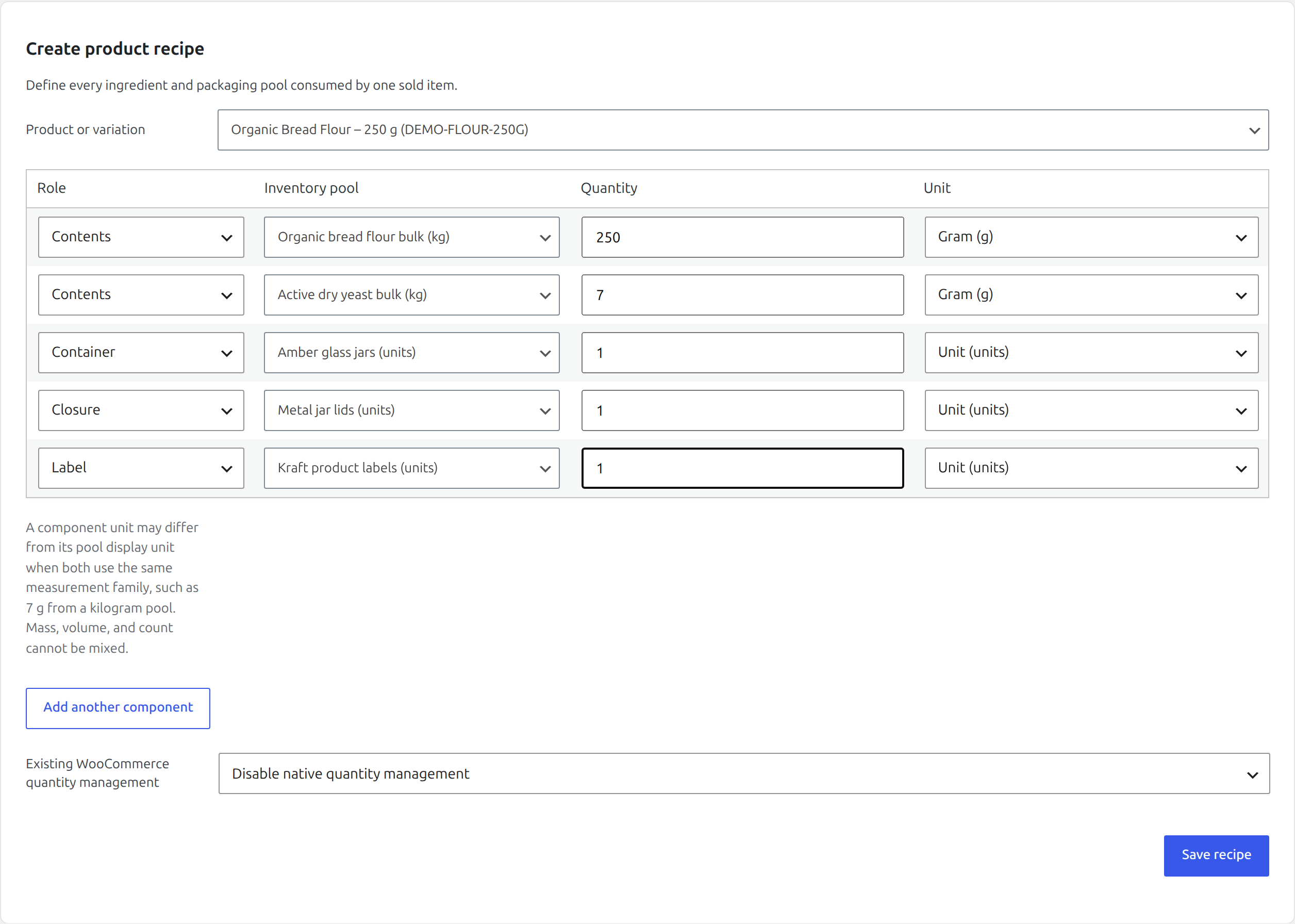
Next open Products → Unit Stock → Inventory → Recipes and choose Create recipe.
Select the 250 g flour product and add:
| Role | Pool | Quantity per item |
|---|---|---|
| Contents | Organic bread flour bulk | 250 g |
| Contents | Active dry yeast bulk | 7 g |
| Container | Amber glass jars | 1 unit |
| Closure | Metal jar lids | 1 unit |
| Label | Kraft product labels | 1 unit |
Choose Save recipe. Checkout validates all components together and a sale changes all five pools atomically.
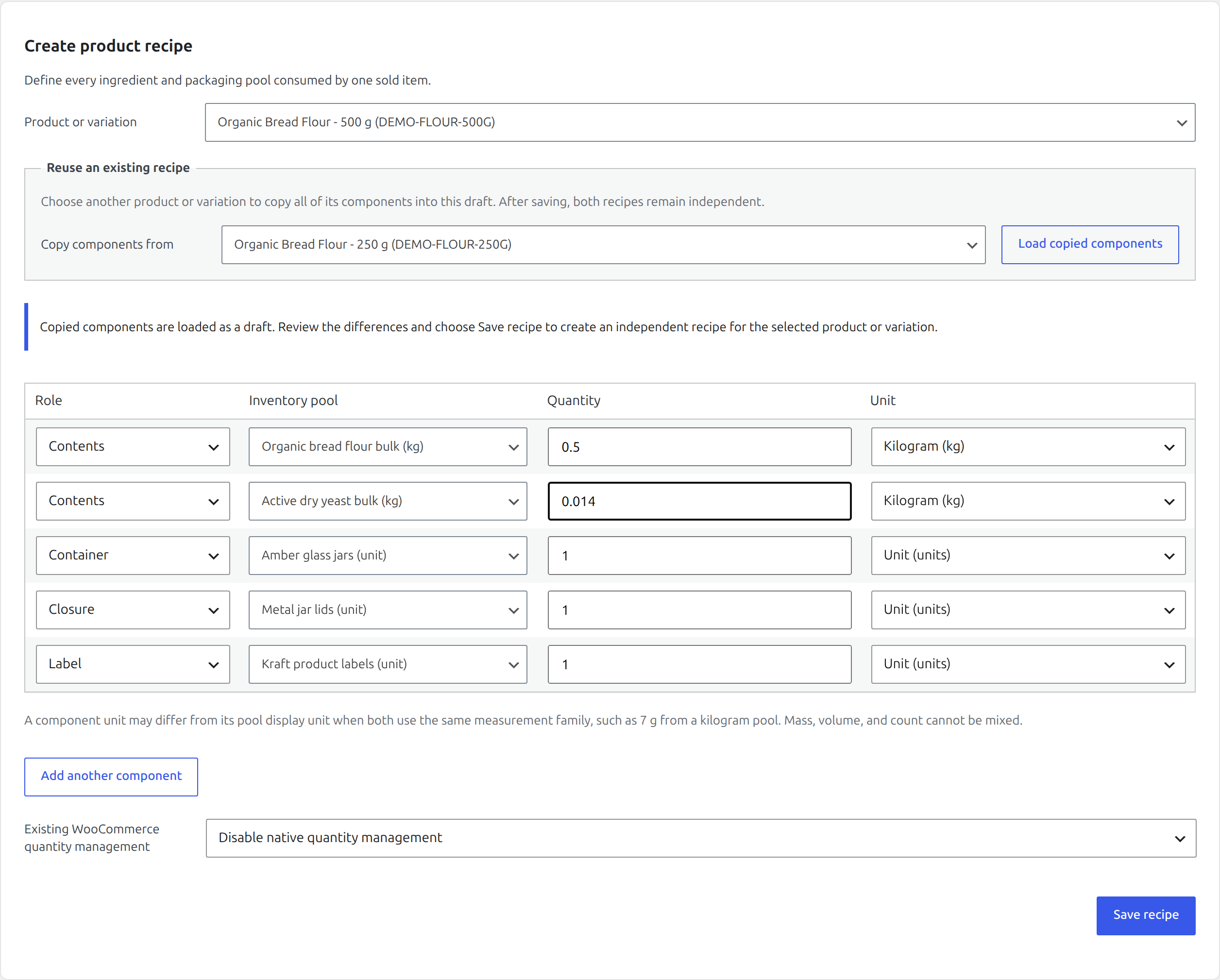
Reuse the recipe for the 500 g variation
Stay in Products → Unit Stock → Inventory → Recipes:
- Select the 500 g variation under Product or variation.
- Under Reuse an existing recipe, choose the 250 g variation.
- Choose Load copied components.
- Change flour from
0.25 kgto0.5 kgand yeast from0.007 kgto0.014 kg. Leave the jar, lid, and label unchanged. - Review every row and choose Save recipe.
The copied rows are only a draft. Saving creates an independent recipe for the 500 g variation, so later edits do not silently change the 250 g recipe.
7. Premium continuation: add and receive from a supplier
Edition: Premium
First open Products → Unit Stock → Operations → Receiving, then choose the Settings tab.
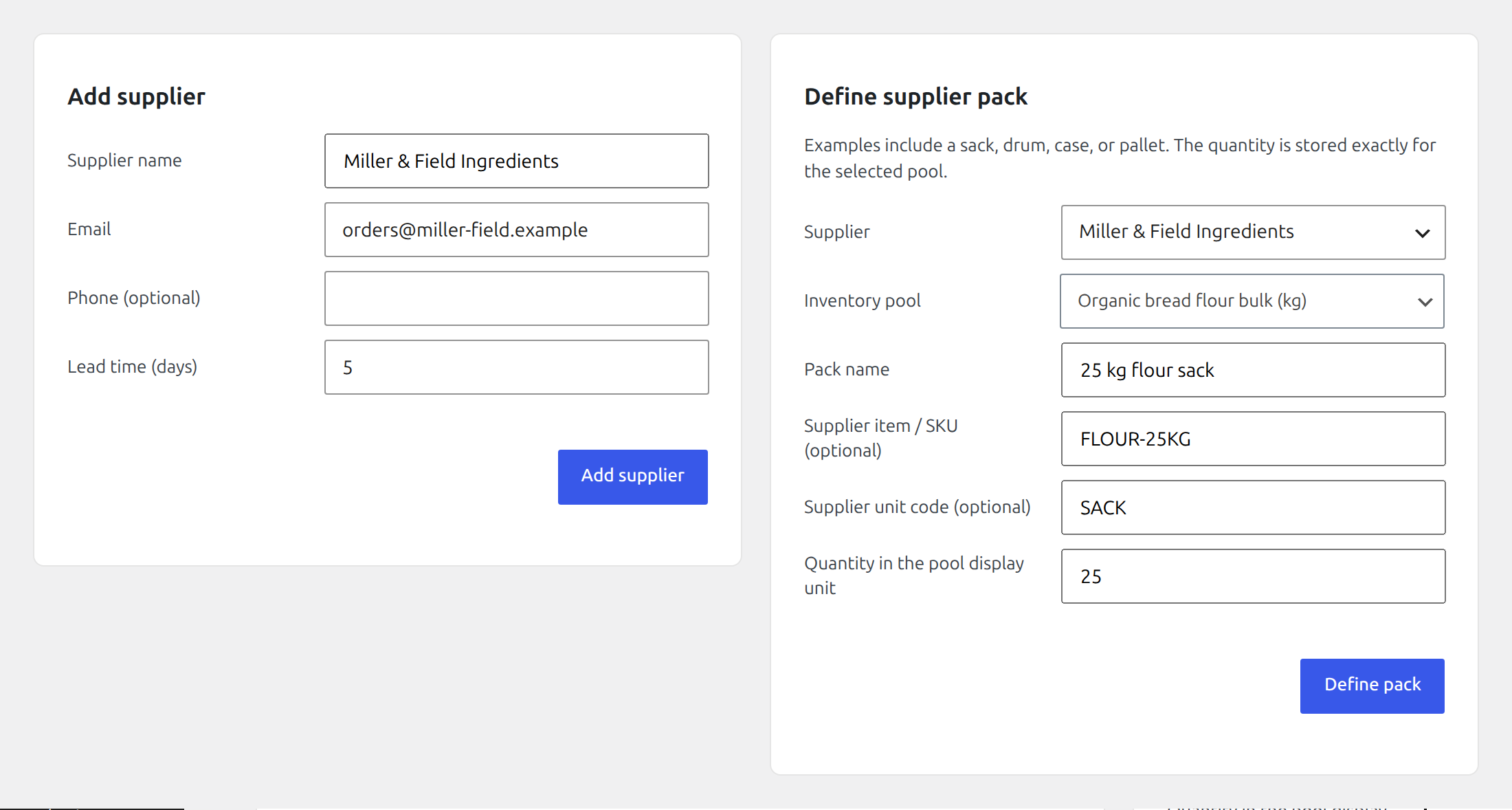
- Add supplier Miller & Field Ingredients with a lead time of 5 days.
- Define pack 25 kg flour sack for the flour pool.
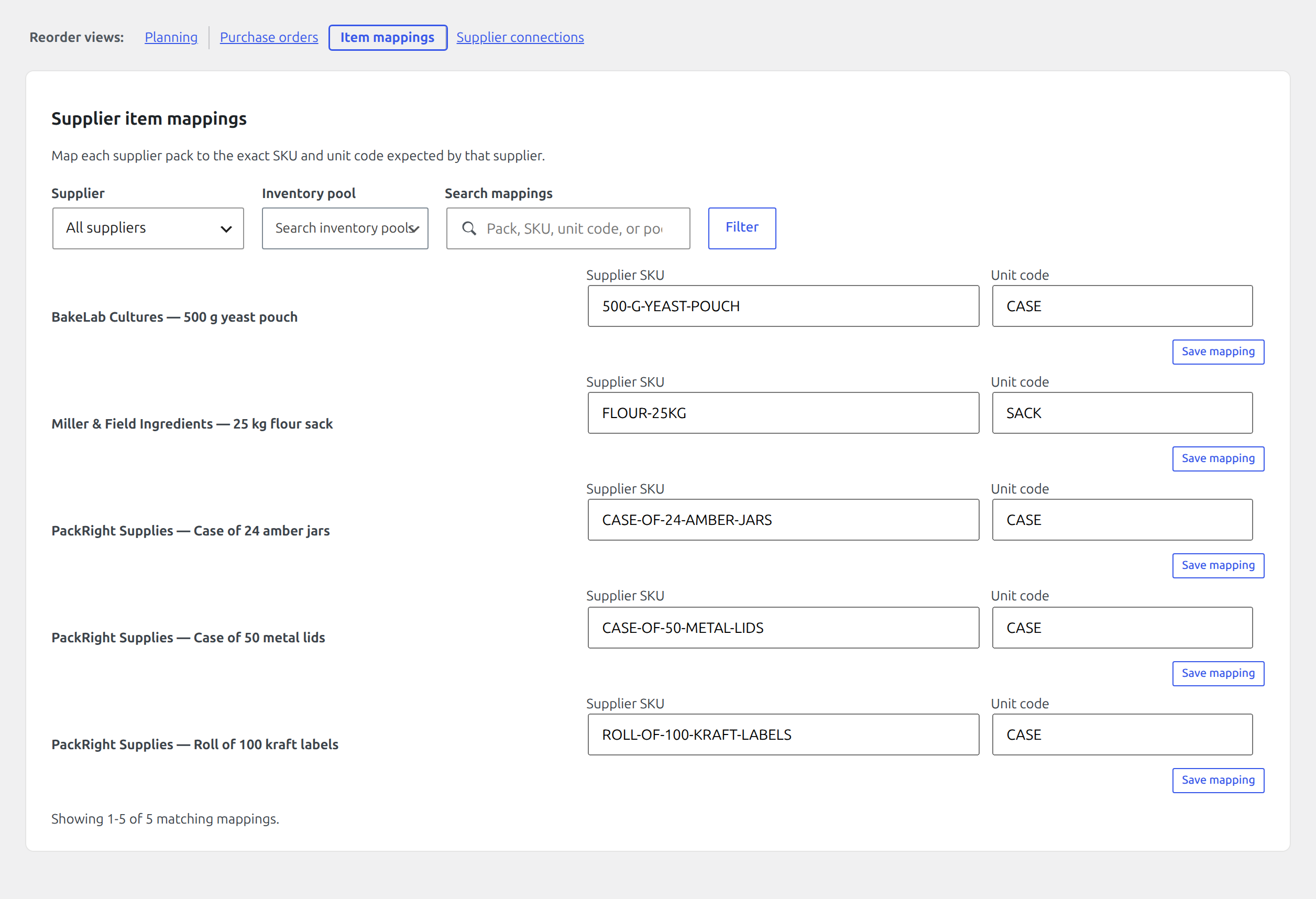
- Enter supplier SKU FLOUR-25KG, unit code SACK, and quantity 25 kg.
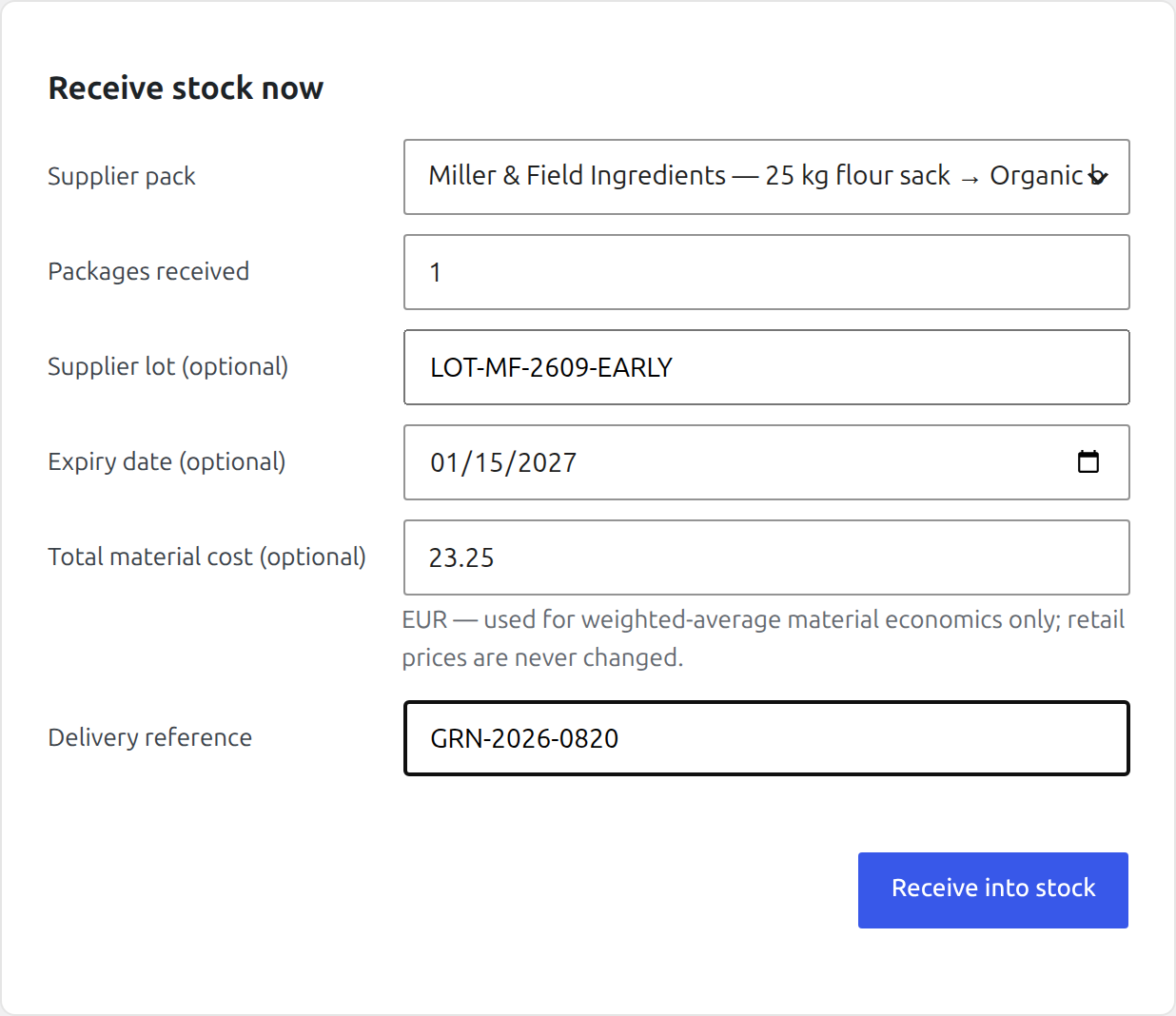
Stay in Products → Unit Stock → Operations → Receiving, then choose the Receive stock tab and enter:
- Pack: 25 kg flour sack
- Pack count: 1
- Supplier lot: LOT-MF-2609-EARLY
- Expiry date: 15 January 2027
- Total cost: €23.25
- Reference: GRN-2026-0820
Choose Receive into stock. The receipt adds 25 kg and creates a traceable batch.
Repeat Receive stock once with lot LOT-MF-2610-LATE, expiry 15 June 2027, total cost €23.25, and reference GRN-2026-0821. Then choose the Batches & lots tab. Verify both lots, their supplier, expiry, received quantity, remaining quantity, and cost.
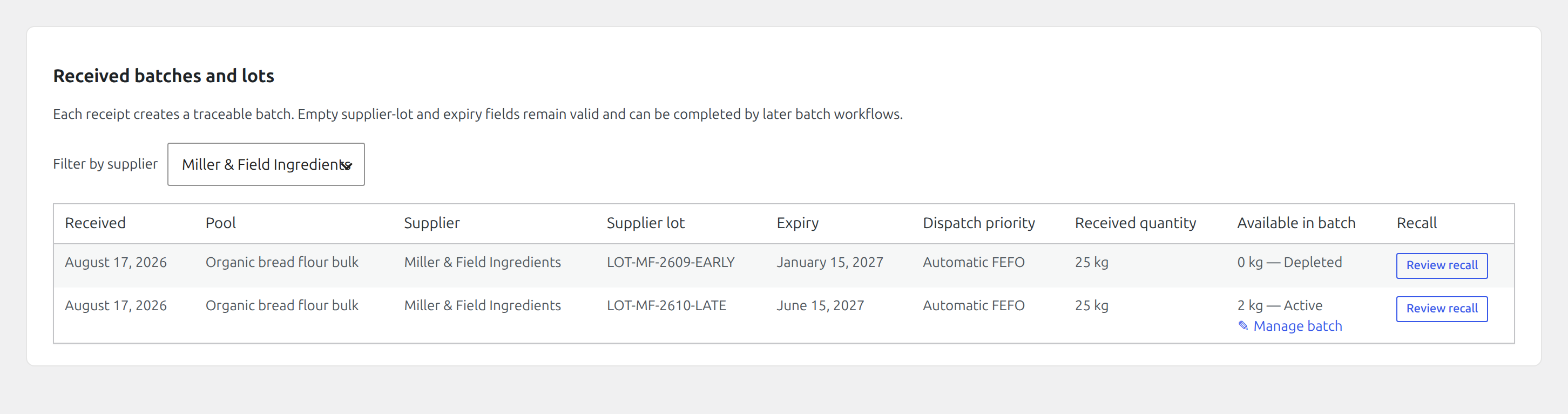
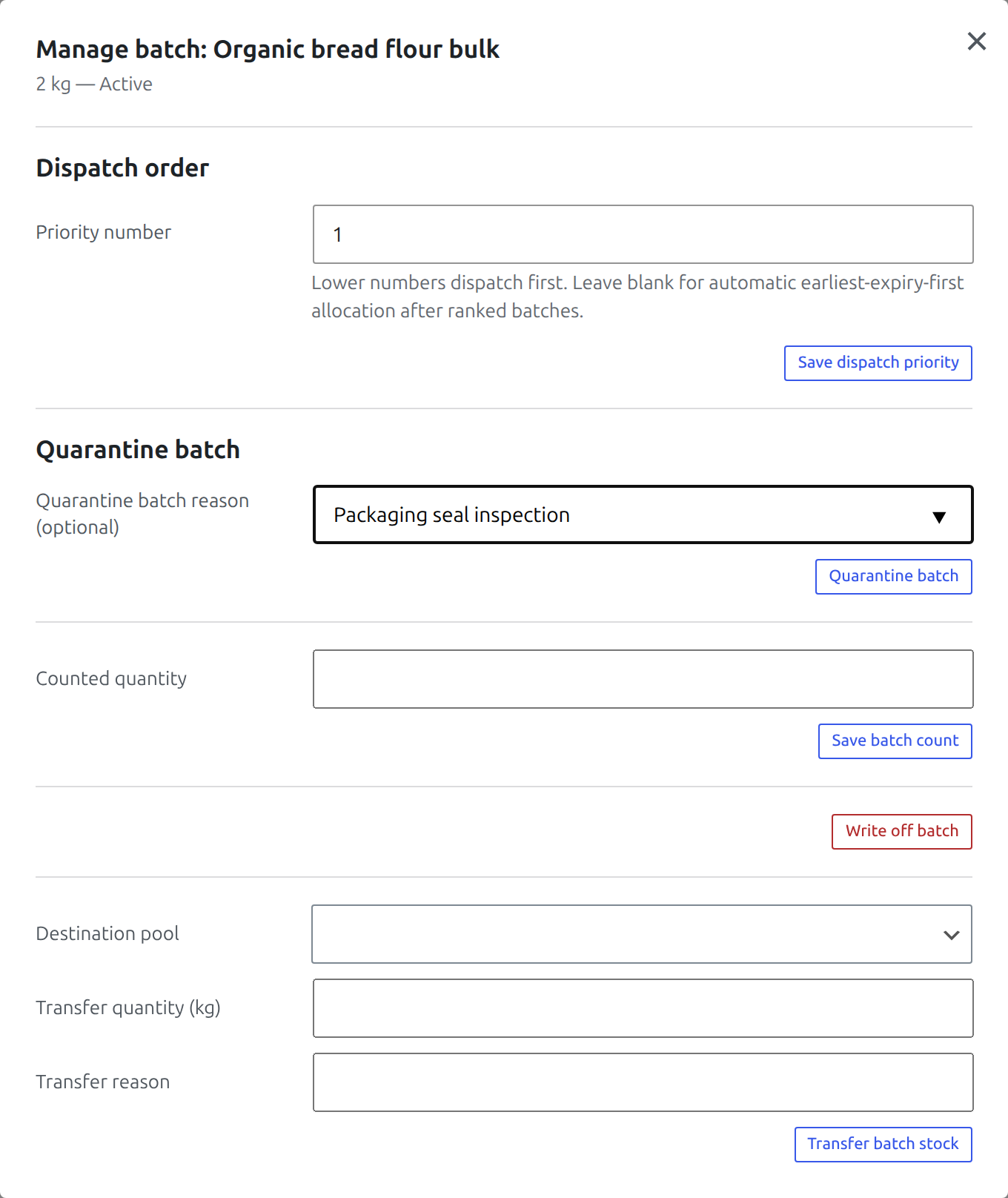
The product or recipe consumes the flour pool rather than selecting a supplier batch itself. Premium allocates that demand using FEFO by default: earliest expiry first, then earliest received, with undated batches last. Warehouse staff can override that default for future orders by opening Manage batch and giving batches positive Priority numbers. Lower numbers dispatch first, while unranked batches follow afterward in FEFO order. Quarantine still skips a ranked batch; releasing it restores its saved position. Existing order allocations are never reassigned when priorities change.
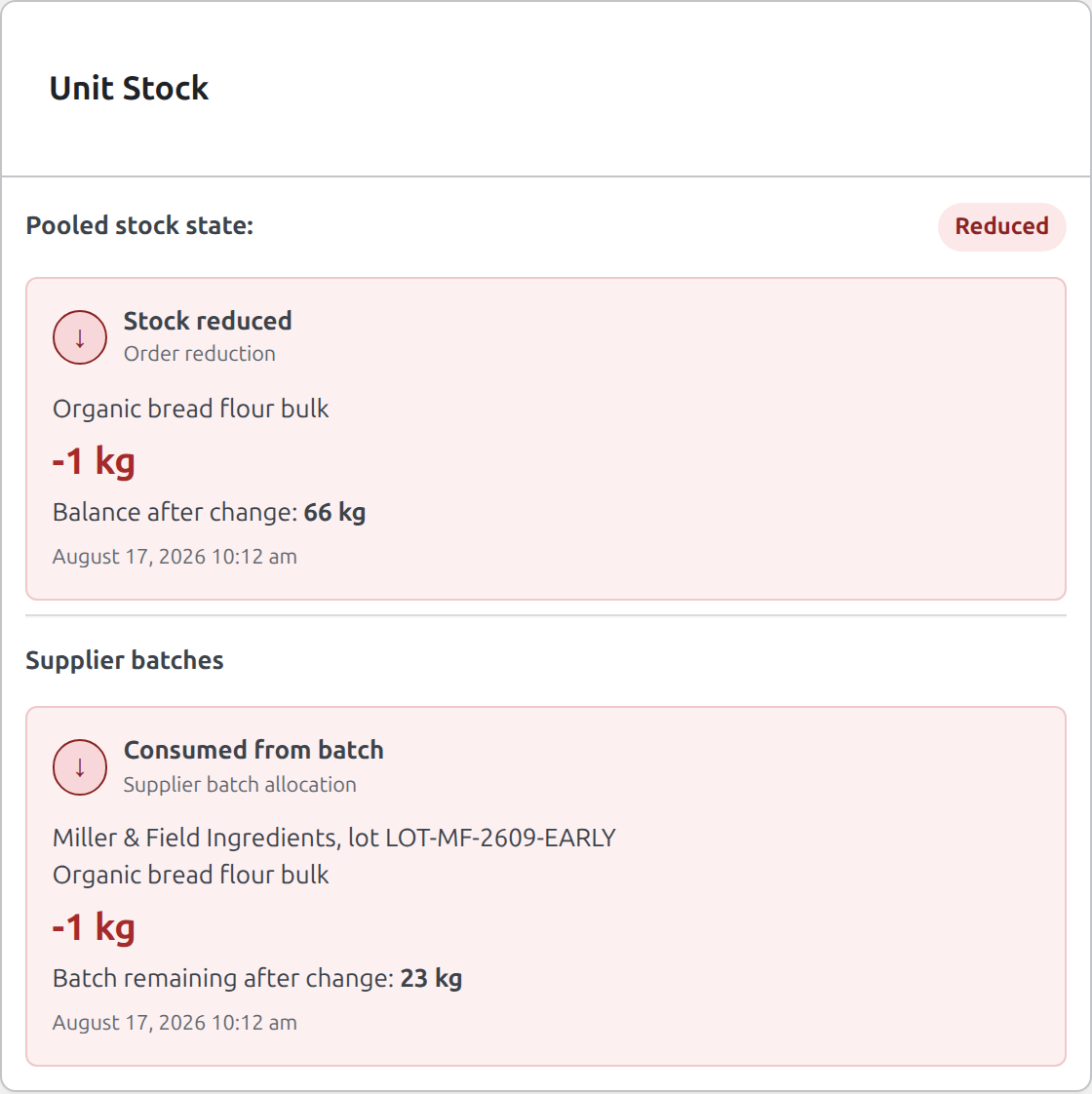
Create one more test order for 2 × Organic Bread Flour, 500 g, then open its Unit Stock panel. The order consumes 1 kg from LOT-MF-2609-EARLY while the later batch remains untouched. The allocation journal ties the order to that exact batch, and a restocked refund returns quantity to the batch originally consumed.
8. Premium continuation: forecast and reorder
Edition: Premium
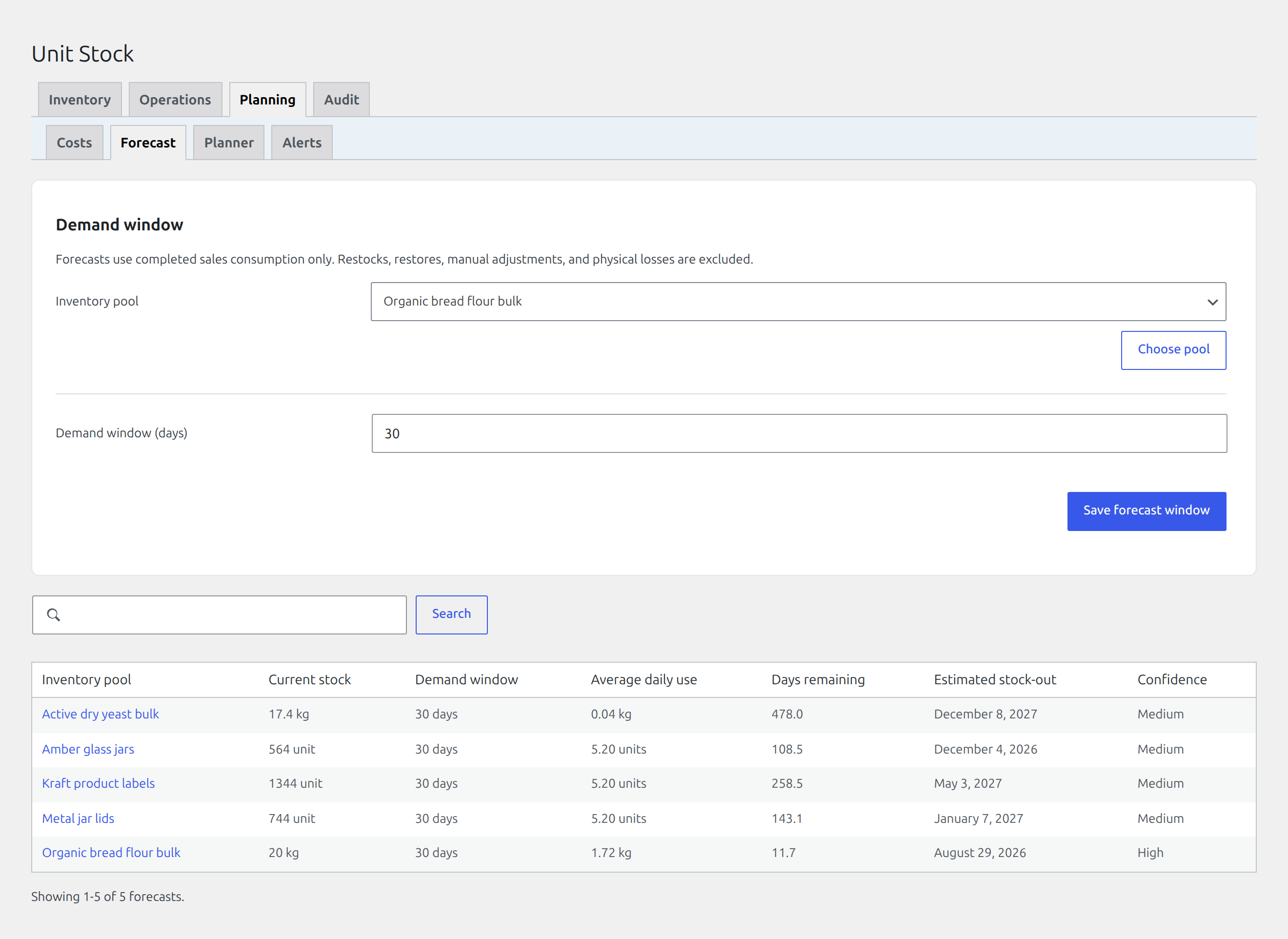
Open Products → Unit Stock → Planning → Forecast.
Select the flour pool and a demand window. Forecasting counts negative order reductions and quantity edits. Receipts, refunds, manual corrections, and losses are not customer demand.
Next open Products → Unit Stock → Planning → Reorder:
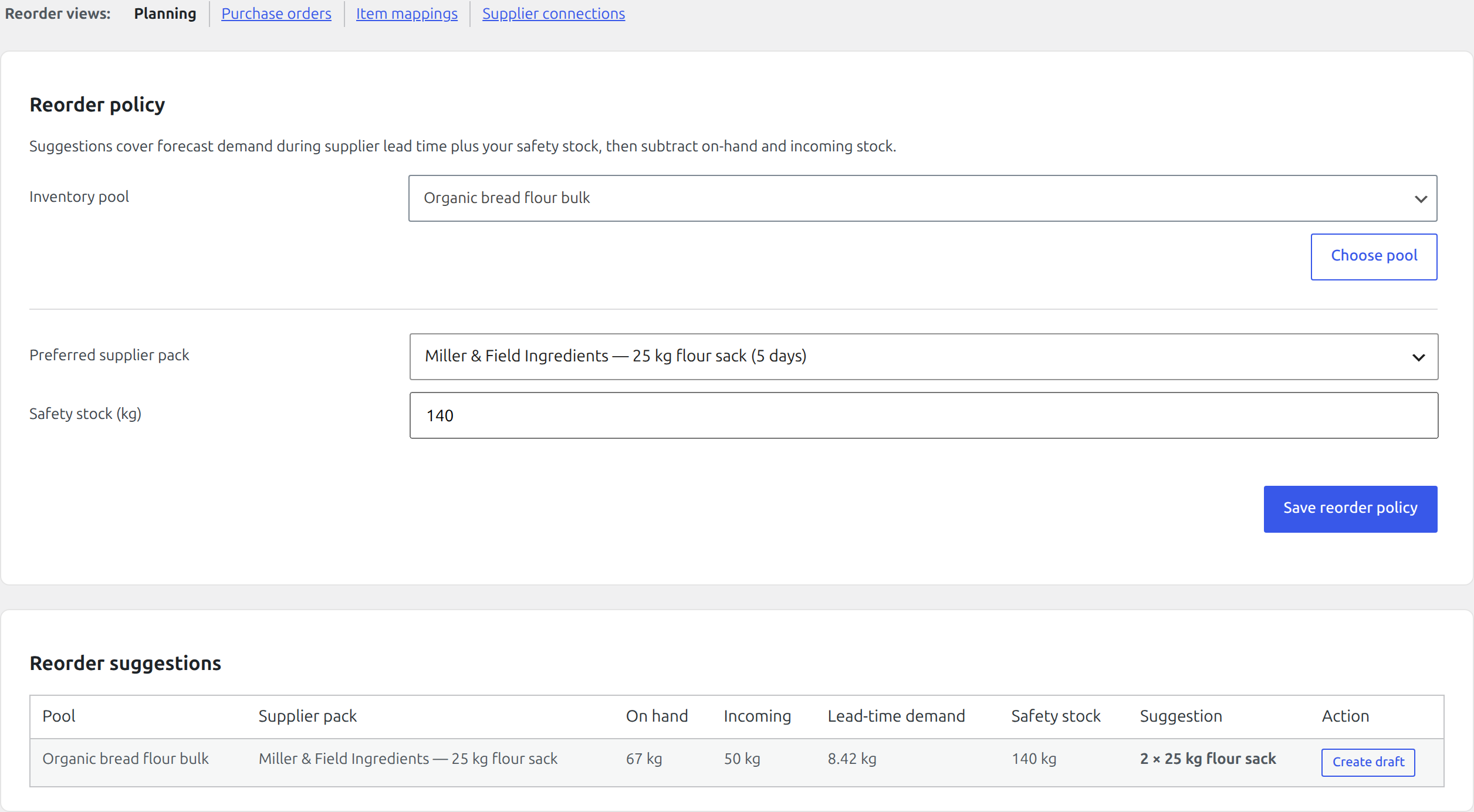
- Select the flour pool.
- Choose 25 kg flour sack as the preferred pack.
- Enter safety stock and save the policy.
- Review the whole-pack suggestion and choose Create draft.
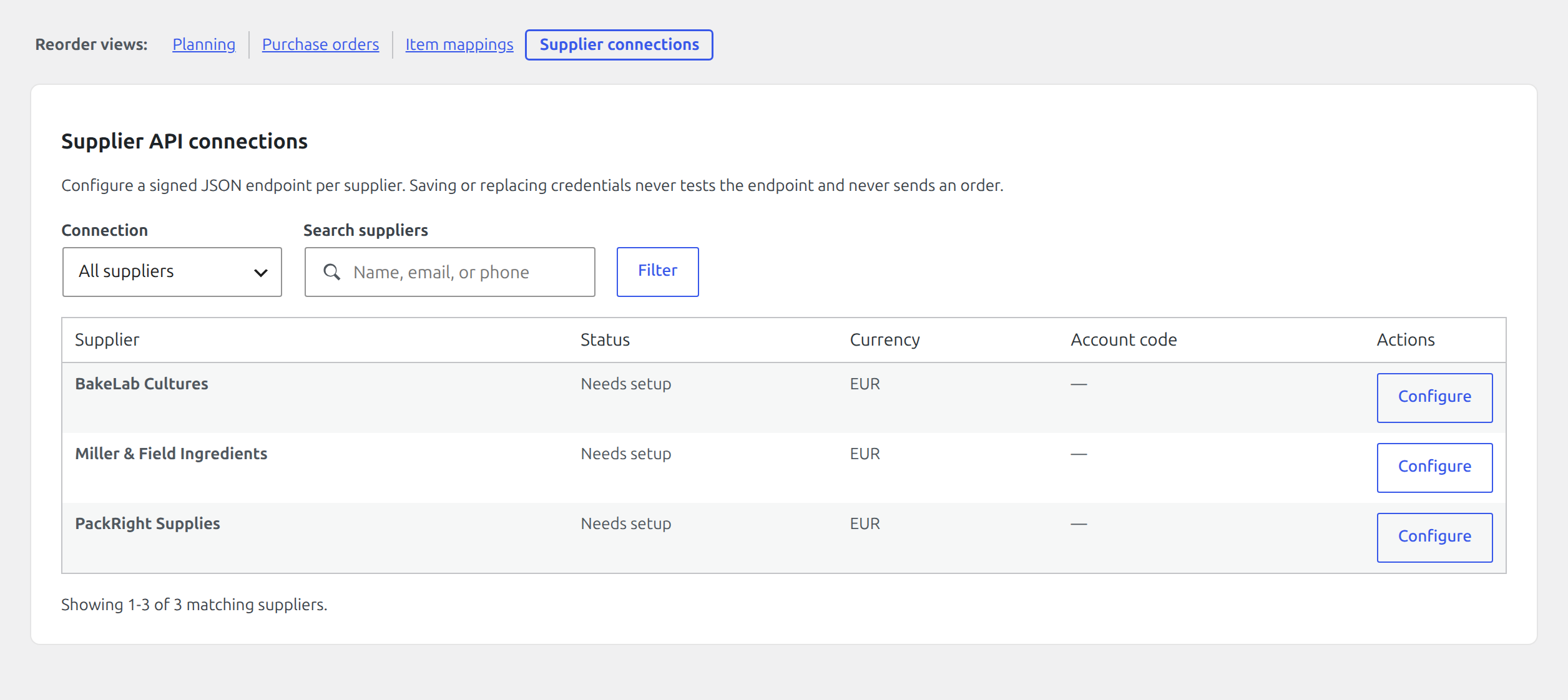
Stay in Products → Unit Stock → Planning → Reorder, then choose the Purchase orders tab to review the immutable draft. Approval does not contact the supplier. Transmission requires an item mapping, a configured supplier connection, and a separate Send now confirmation.

To transmit rather than merely record the draft, open Planning → Reorder → Item mappings and map the flour pool to supplier item FLOUR-25KG. Then open Supplier connections, configure and test the supplier’s supported delivery method, and return to Purchase orders. Review the final payload before choosing Send now. A supplier definition and pack are purchasing data; they do not by themselves authorize external transmission.
9. Premium continuation: protect sellable stock
Edition: Premium
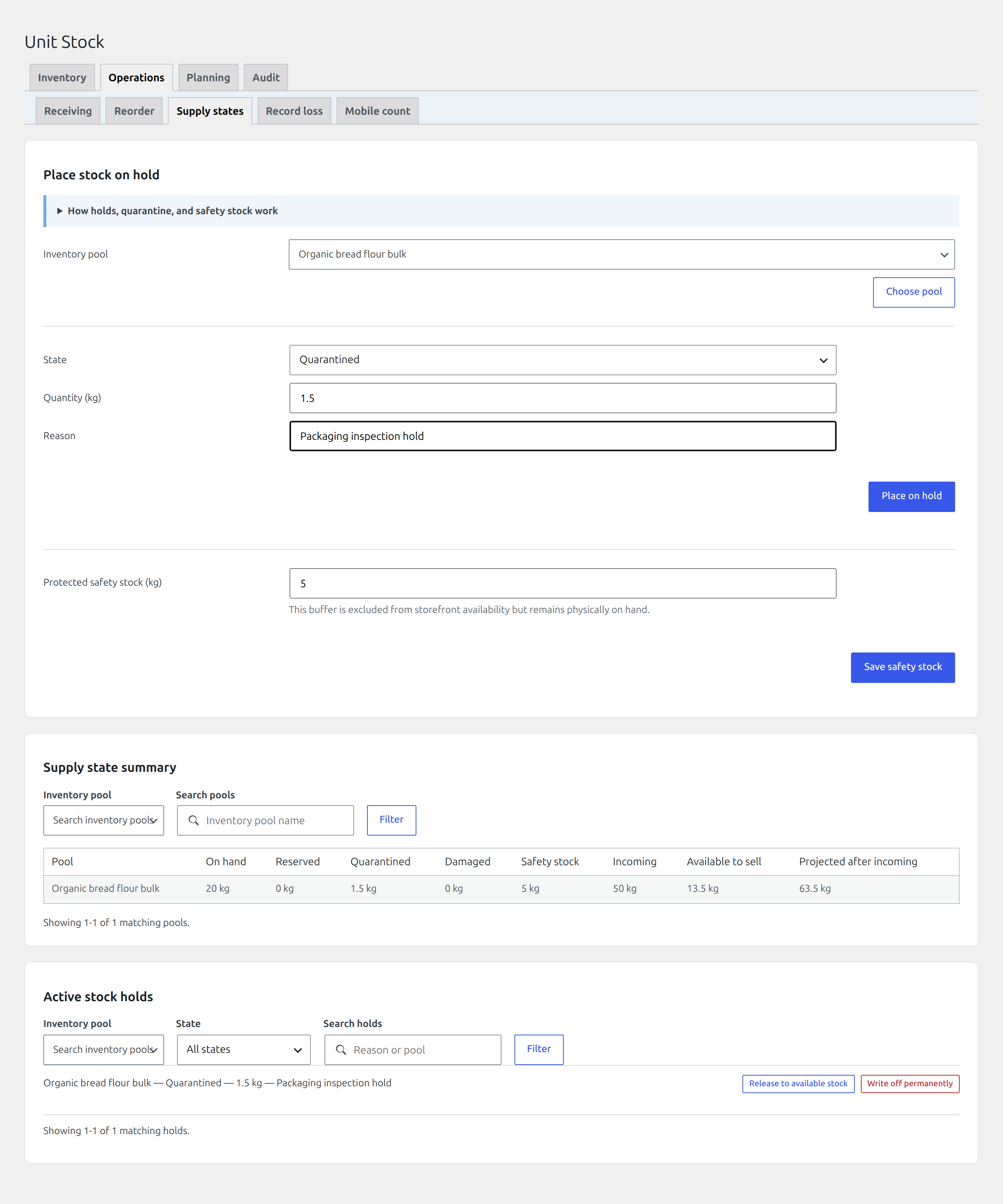
Open Products → Unit Stock → Operations → Supply states and select Organic bread flour bulk. Set a safety-stock quantity, then add a temporary hold or quarantine only when stock must not be sold. Review On hand, Held, Quarantined, Safety stock, and Sellable together before releasing a state.
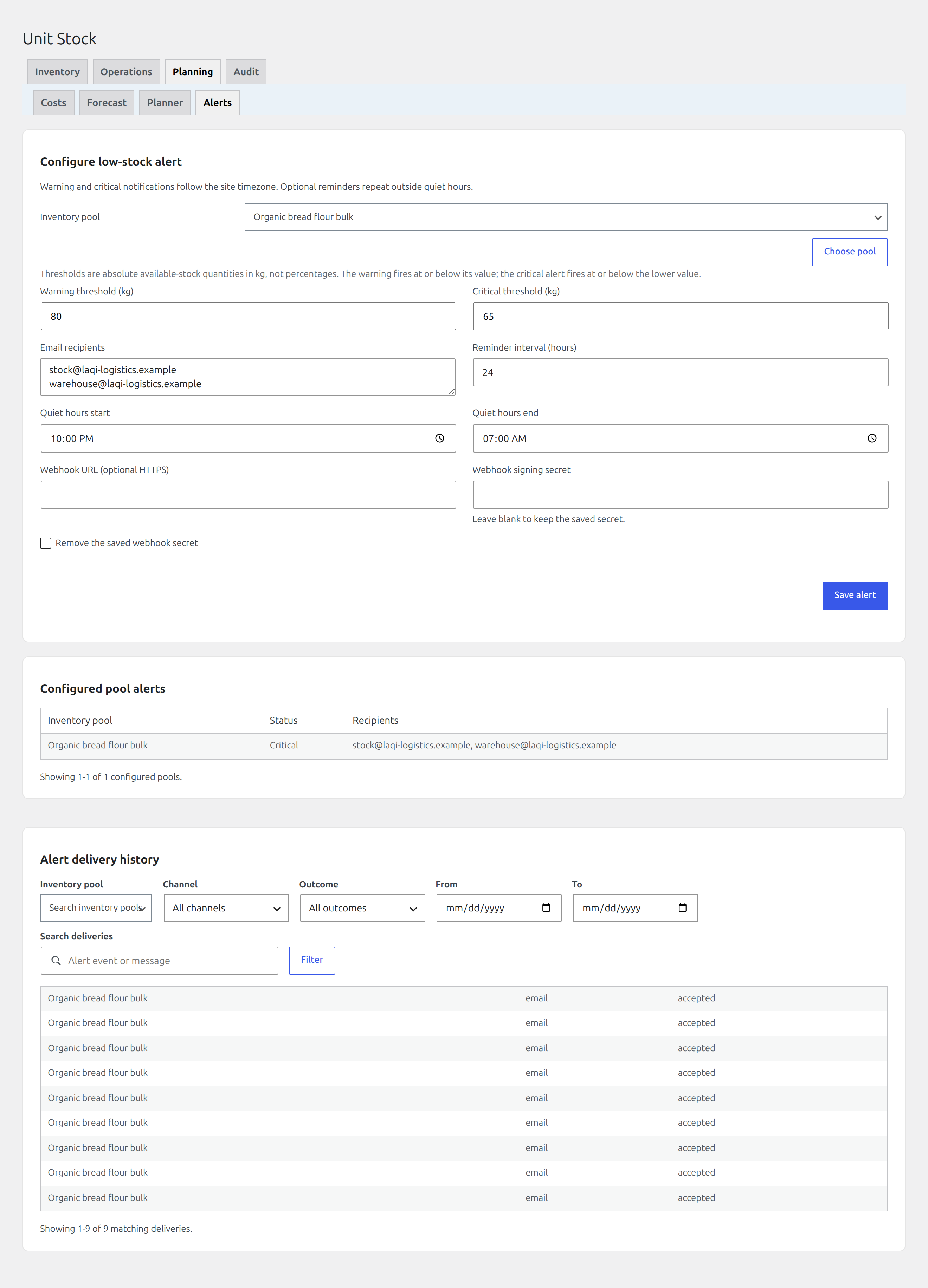
Open Planning → Alerts and configure the warning thresholds staff should act on. An alert reports a condition; it does not silently change stock.
10. Premium continuation: schedule incoming stock and control batches
Edition: Premium
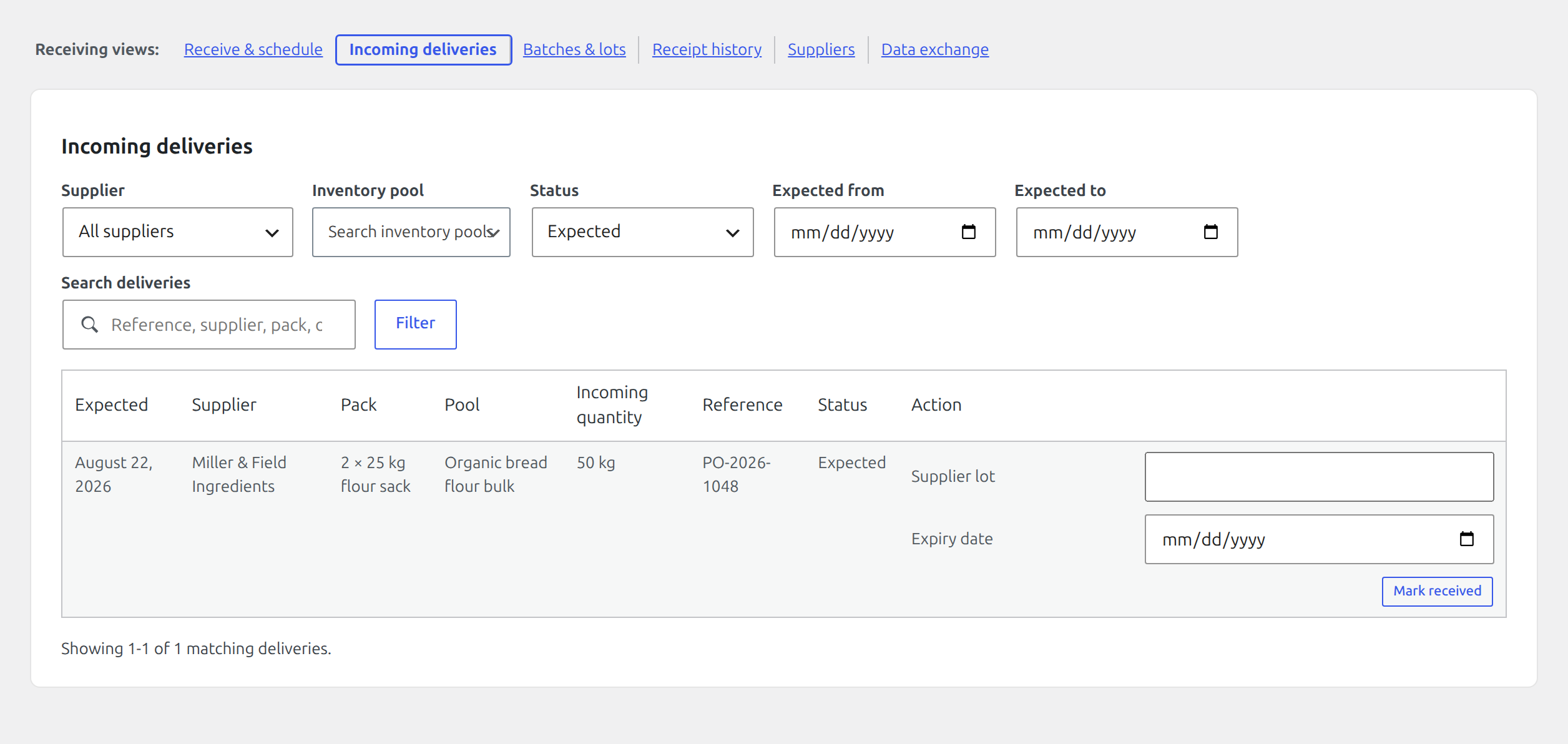
Open Operations → Receiving → Incoming deliveries and schedule the expected supplier pack, quantity, and arrival date. The incoming quantity informs planning but does not increase on-hand stock. When the delivery arrives, receive it through Receive stock so the ledger and batch record are created once.
Open Operations → Receiving → Batches & lots to place a suspect lot on hold, quarantine it, release it, record expiry, or start a recall review. These controls apply to the selected batch, while FEFO continues to allocate only eligible stock.
11. Premium continuation: explain loss and anomalies
Edition: Premium
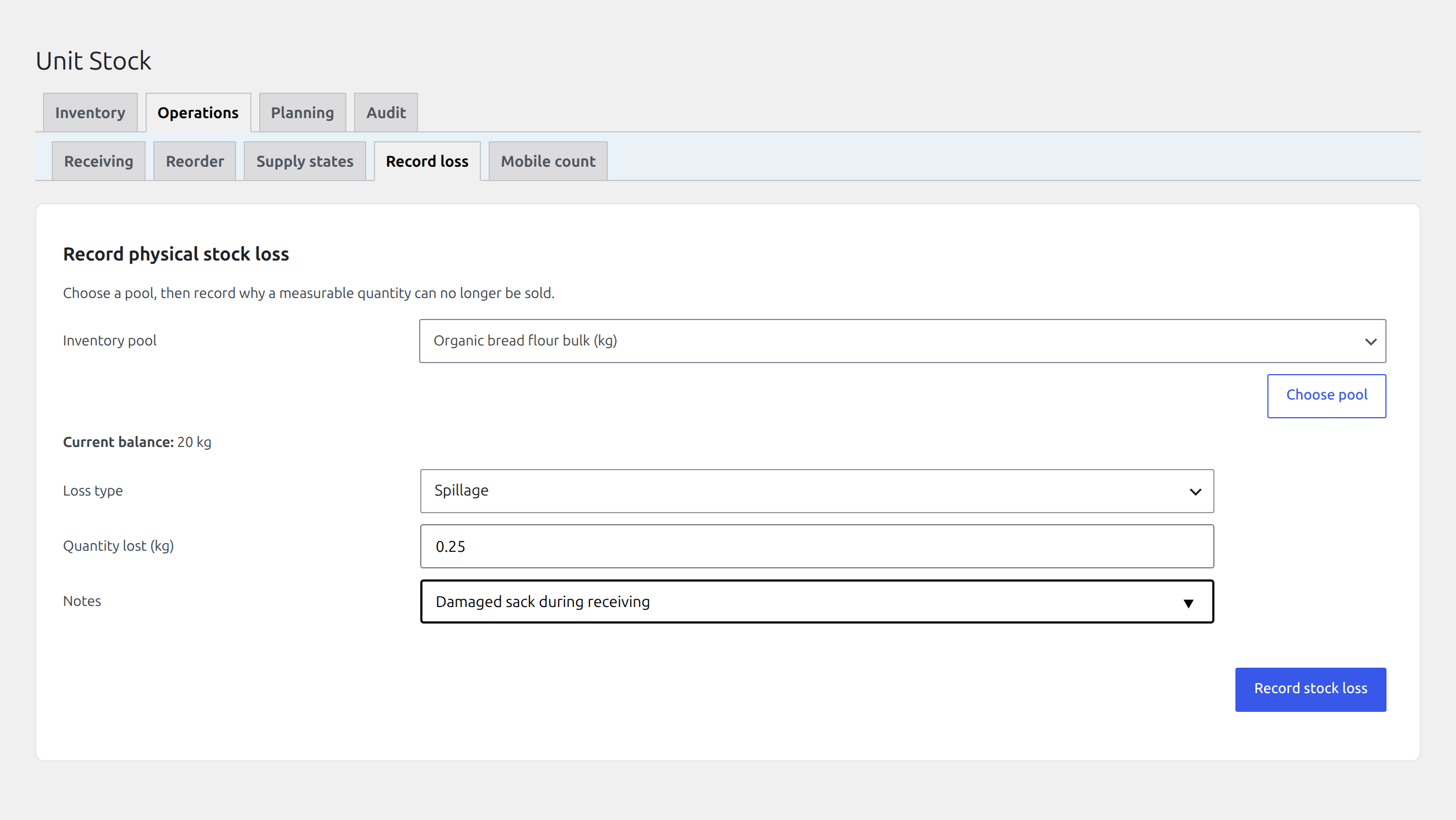
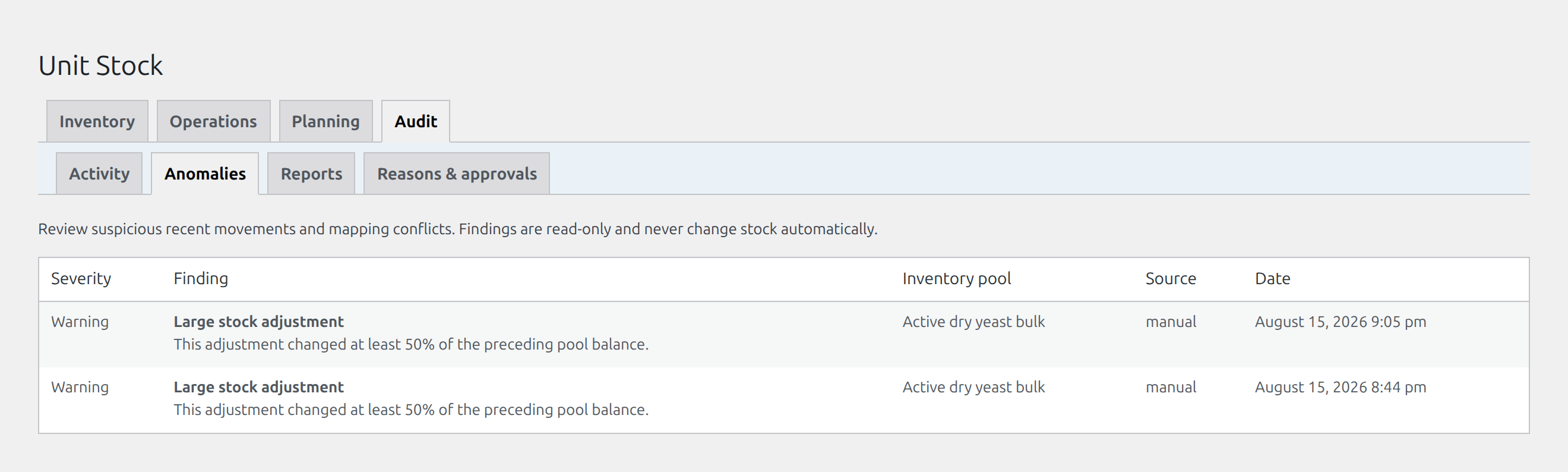
Open Products → Unit Stock → Operations → Record loss and record a known spoiled or damaged quantity with a clear reason. Then review Audit → Anomalies and Audit → Activity to distinguish a recorded operational loss from an unusual movement that still needs investigation.
12. Premium continuation: perform a mobile count
Edition: Premium
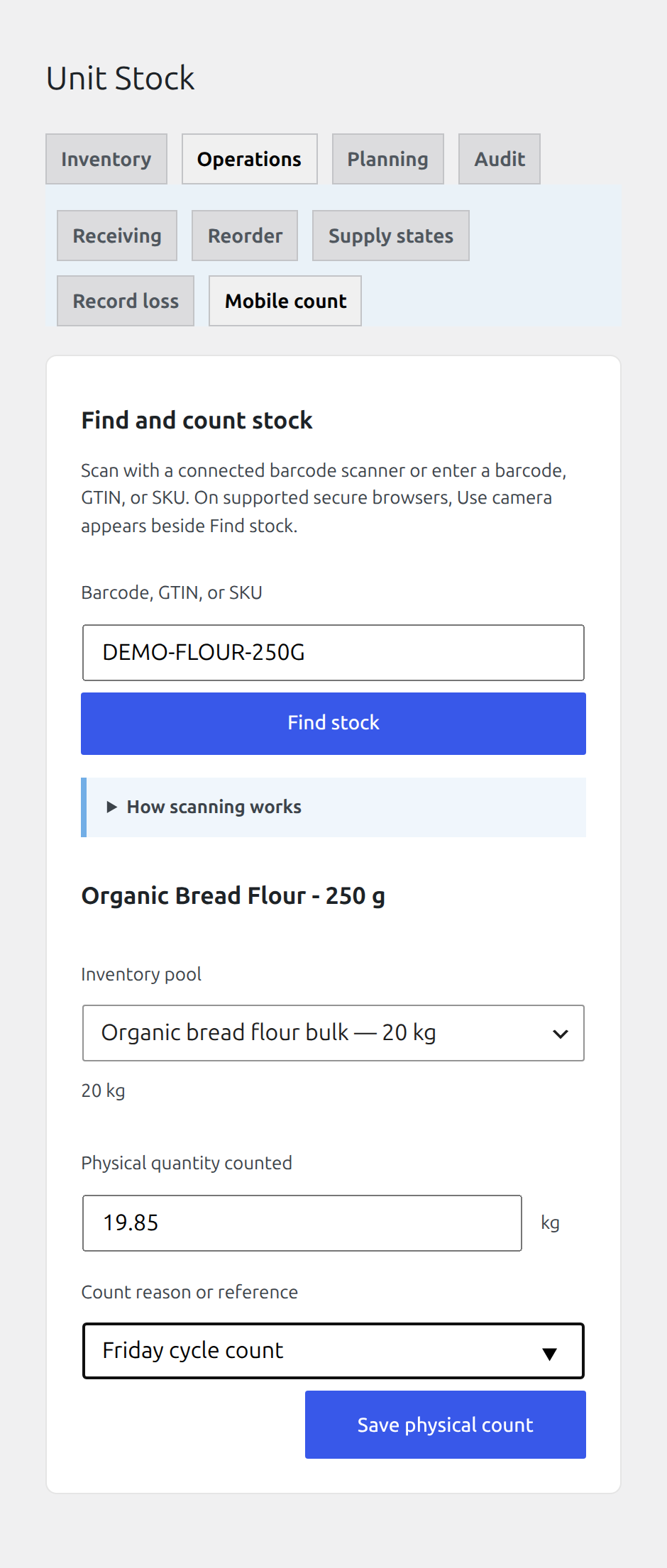
Open Products → Unit Stock → Counting → Mobile count on the counting device. Tap Barcode, GTIN, or SKU, then type the code or scan it with a USB or Bluetooth barcode scanner configured as a keyboard. The scanner enters the code into this same field. On a secure browser that supports barcode detection, Use camera appears beside Find stock; otherwise it remains hidden. Camera scanning uses the browser’s built-in barcode recognition and asks for camera permission. It does not upload the camera feed to the store. Select the resolved flour pool, enter the physically counted quantity, add a staff-readable note, review the variance, and submit only after confirming the product, pool, and unit.
13. Premium continuation: review cost, reports, and scenarios
Edition: Premium
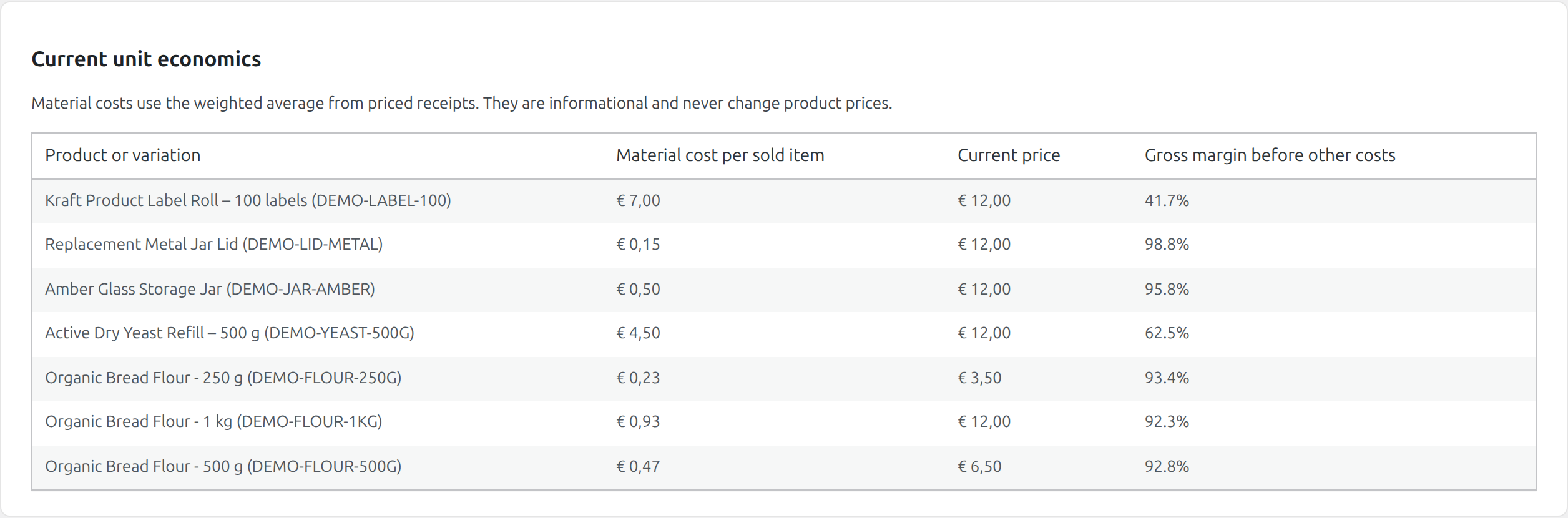
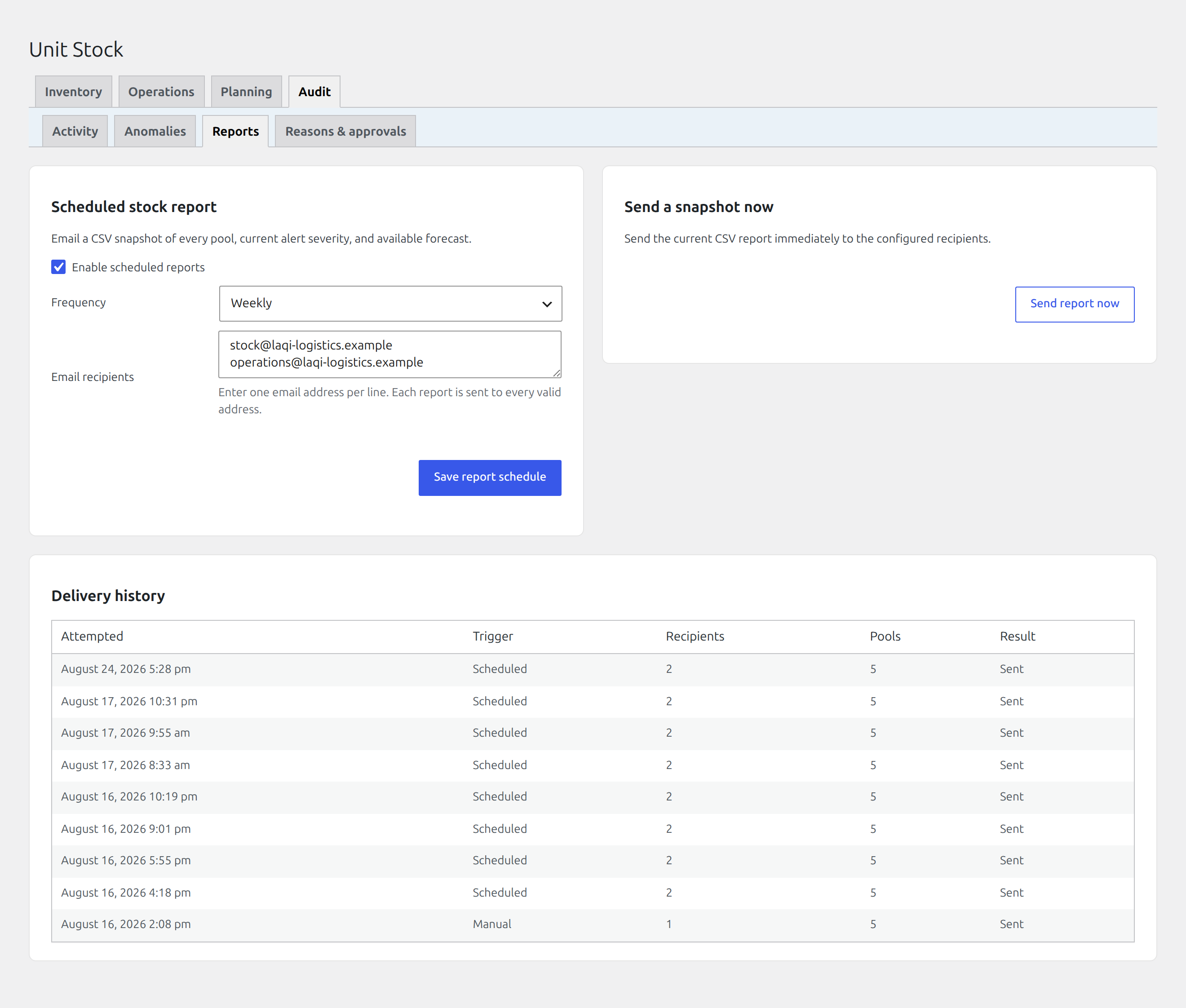
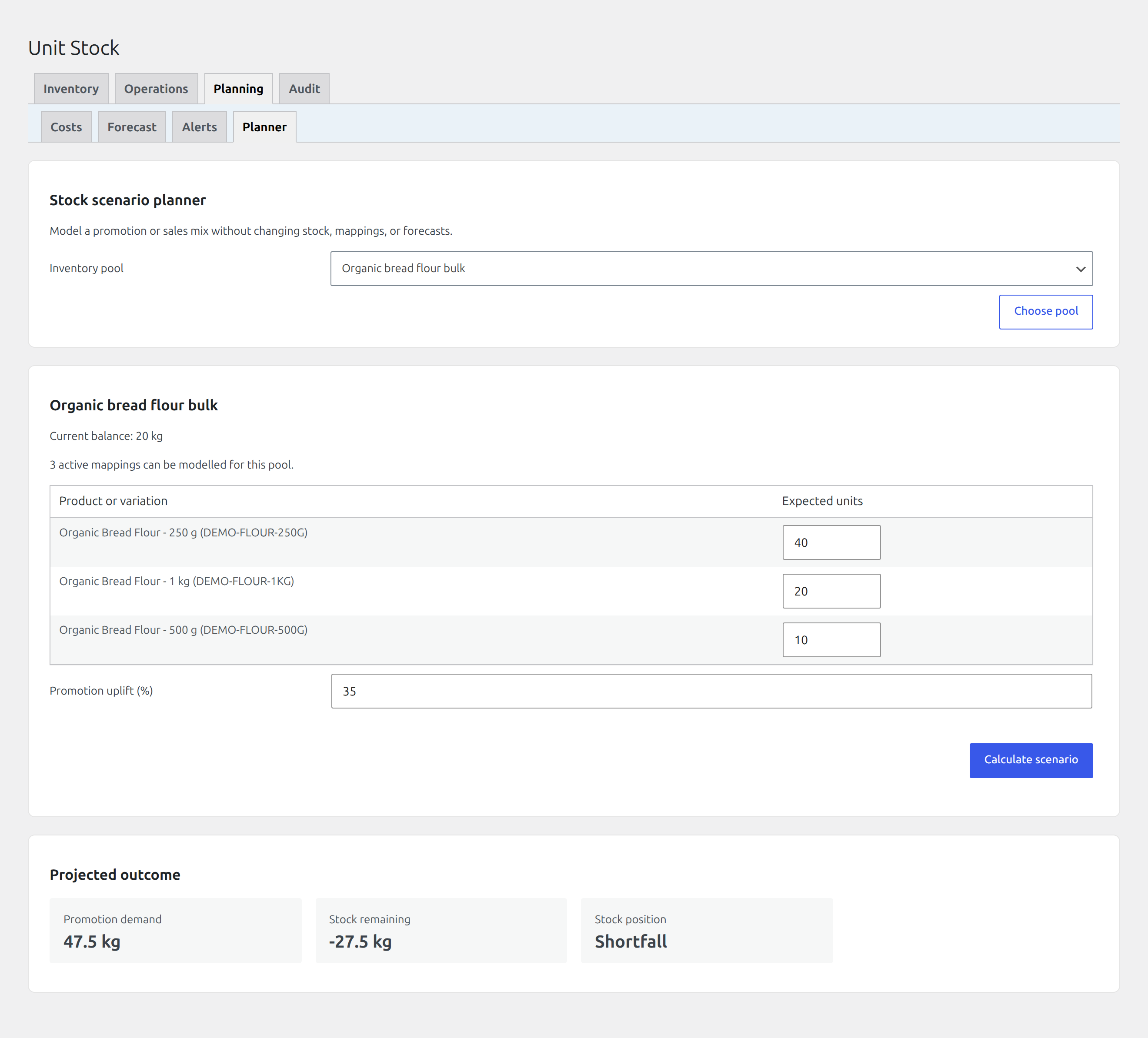
Open Products → Unit Stock → Production → Recipes & costs and inspect the material cost derived from the recipe and received stock. Then open Planning → Reports to configure the operational report and delivery schedule. Use Planning → Planner for a what-if scenario before changing live safety stock, purchasing, or production decisions.
14. Premium continuation: exchange operational data
Edition: Premium
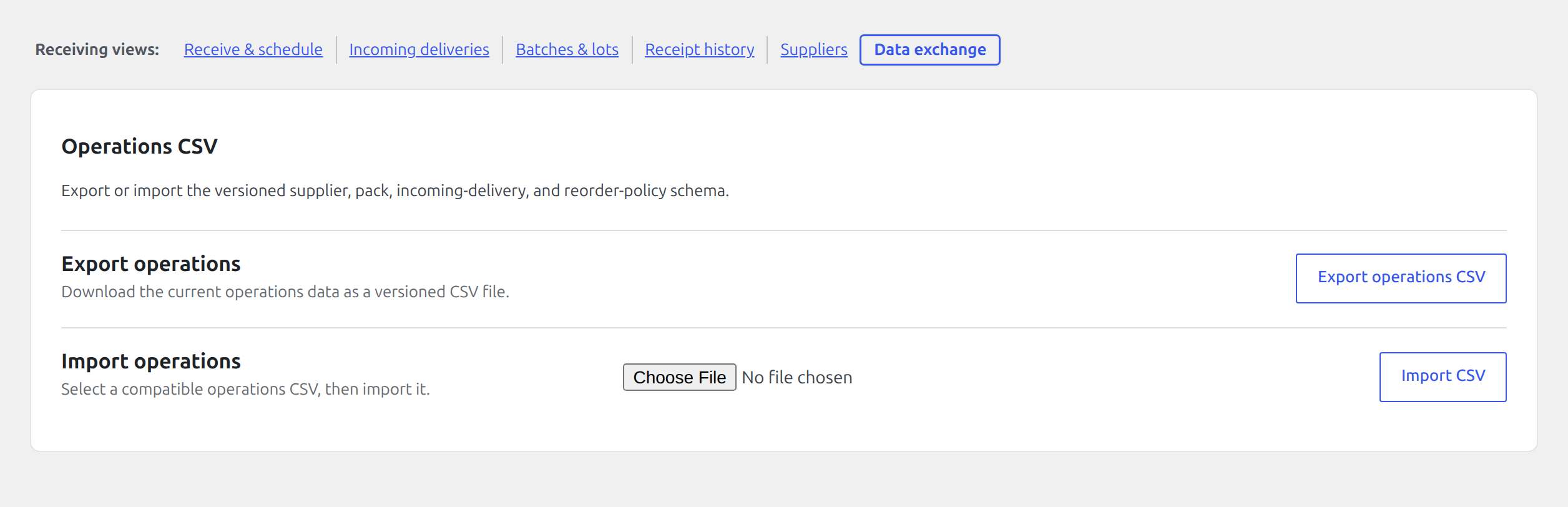
Open Products → Unit Stock → Integrations → Data exchange. Export the relevant records before preparing an import, keep identifiers unchanged, and validate the file before applying it. Use this screen for supported operational CSV exchange; use the developer reference only when building a custom system integration.
Daily workflow after setup
- Review balances and availability under Stock.
- Inspect sales, edits, refunds, and restorations on WooCommerce orders.
- Explain changes in Activity before correcting anything.
- Record deliveries and supplier lots under Receiving.
- Review holds, quarantine, safety stock, and sellable quantity under Supply states.
- Use Forecast, Reorder, and Purchase orders to plan replenishment.
Use the focused documentation pages when you need reference details. Return to this walkthrough when onboarding a store or a new staff member.