
Results and customer emails
PremiumUnderstand each row outcome, export the log, and decide whether customers are notified.
Reviewed 2026-08-02
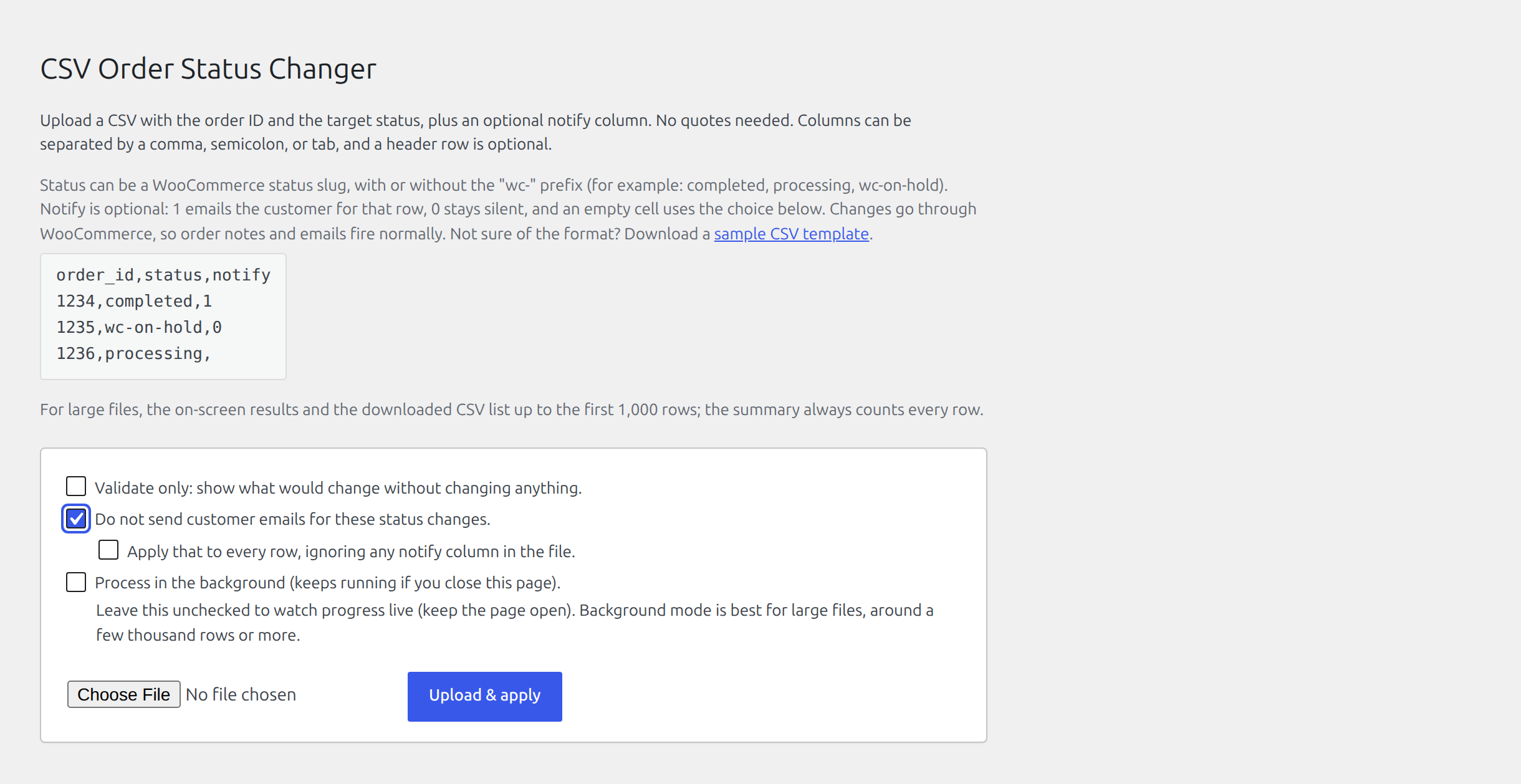
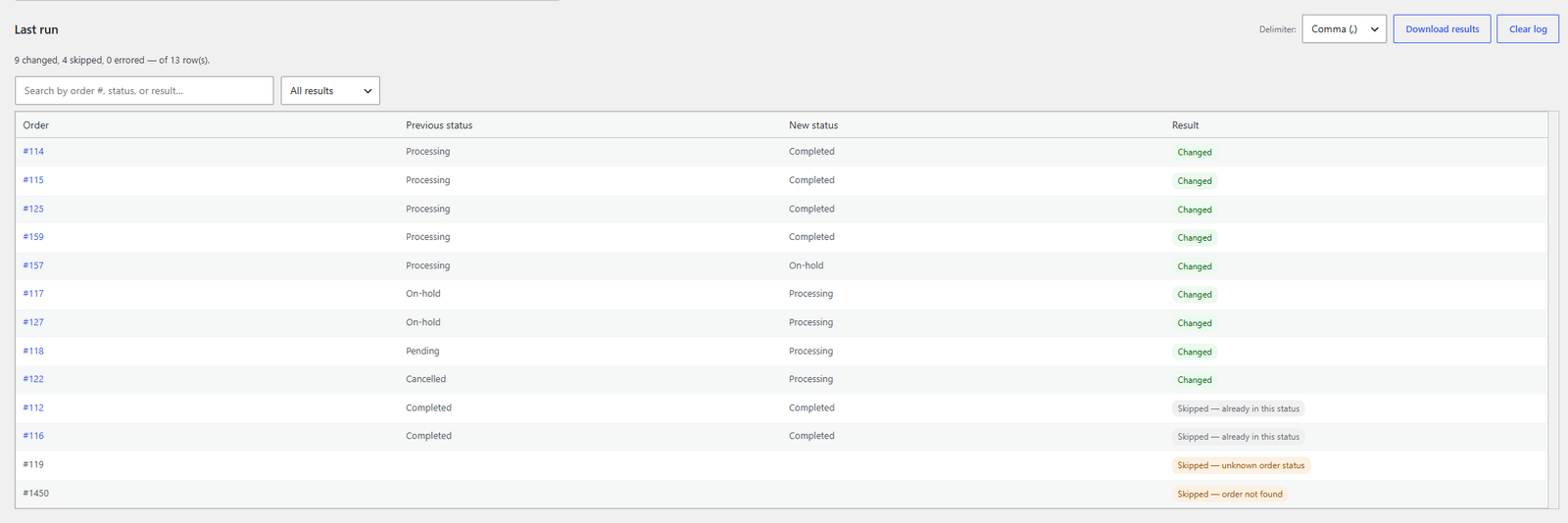
Enabling Do not send customer emails makes Apply that to every row available, which overrides any notify column in the file.
Result outcomes
- Changed: the order moved to the requested status.
- Skipped: no change was needed, often because the order already had that status.
- Needs attention: the order or target status could not be found.
- Errored: WooCommerce could not complete the change.
- Would change: validation confirms the row can be applied in a real run.
Investigate a row
Search by order number, status, or result text. Filter the table by outcome to isolate rows that need work. Open an order from its linked number when you need its history and notes.
Export the result log
Download the result table as CSV for an audit trail or to return outcomes to the source system. Choose the delimiter so it matches the spreadsheet workflow your team already uses.
Control customer emails
By default, the status change behaves like a manual WooCommerce edit, including any email attached to the new status.
Enable Do not send customer emails when correcting old data or when notification is handled elsewhere. Order notes are still recorded.
Decide per row
A file can carry an optional notify column when some orders should notify the customer and others should not. Use 1 to send the email for that row and 0 to stay silent.
The row decides, and Do not send customer emails fills in the rows that leave the cell empty. An empty cell is not the same as 0: an empty cell falls back to the screen, while 0 is an explicit instruction to stay silent.
Apply that to every row ignores the column and keeps every status change silent. It becomes available once Do not send customer emails is enabled, so the column can always ask for silence even when the screen has not.