Laqi Unit Stock Manager documentation
Install the Free inventory engine, connect products to shared stock pools, and understand where Pro extends the workflow.
Reviewed 2026-08-16
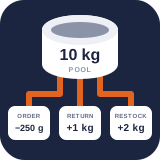
Laqi Unit Stock Manager gives products and variations one authoritative physical stock balance. Start with the Free plugin; install Pro alongside it when you need receiving, batches, planning, alerts, reports, and controlled warehouse workflows.
Requirements
| Component | Minimum version |
|---|---|
| WordPress | 6.8 |
| WooCommerce | 7.1 |
| PHP | 7.4 |
The inventory engine supports High-Performance Order Storage and both classic and block-based Cart and Checkout.
Install Free
- Install and activate WooCommerce.
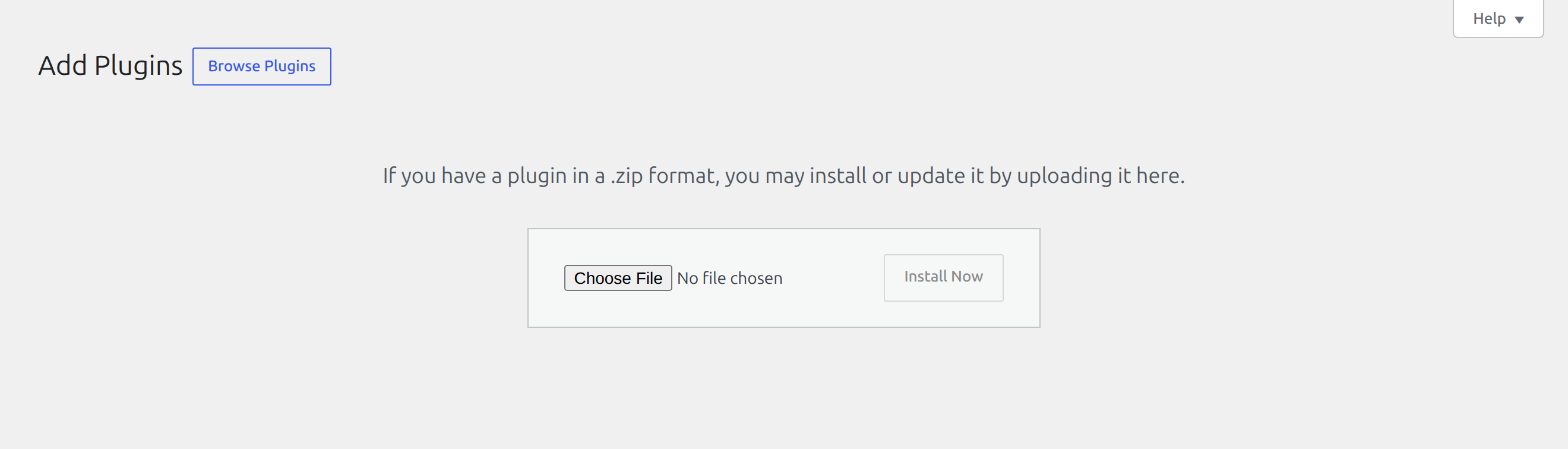
- Go to Plugins → Add Plugin → Upload Plugin.
- Upload and activate Laqi Unit Stock Manager for WooCommerce.
- Open Products → Unit Stock → Setup.
Do not install Pro by itself. Pro extends the Free plugin and does not replace its inventory engine.

Create your first shared stock pool
- Open Products → Unit Stock → Setup.
- Create a pool and choose the unit used for its authoritative balance.
- Enter the opening balance.
- Link a simple product or one individual variation.
- Enter the exact pool quantity consumed when one item is sold.
- Choose whether to disable native WooCommerce quantity management, transfer its existing quantity into the pool once, or leave it unchanged.
- Repeat the mapping for every package size drawing from the pool.
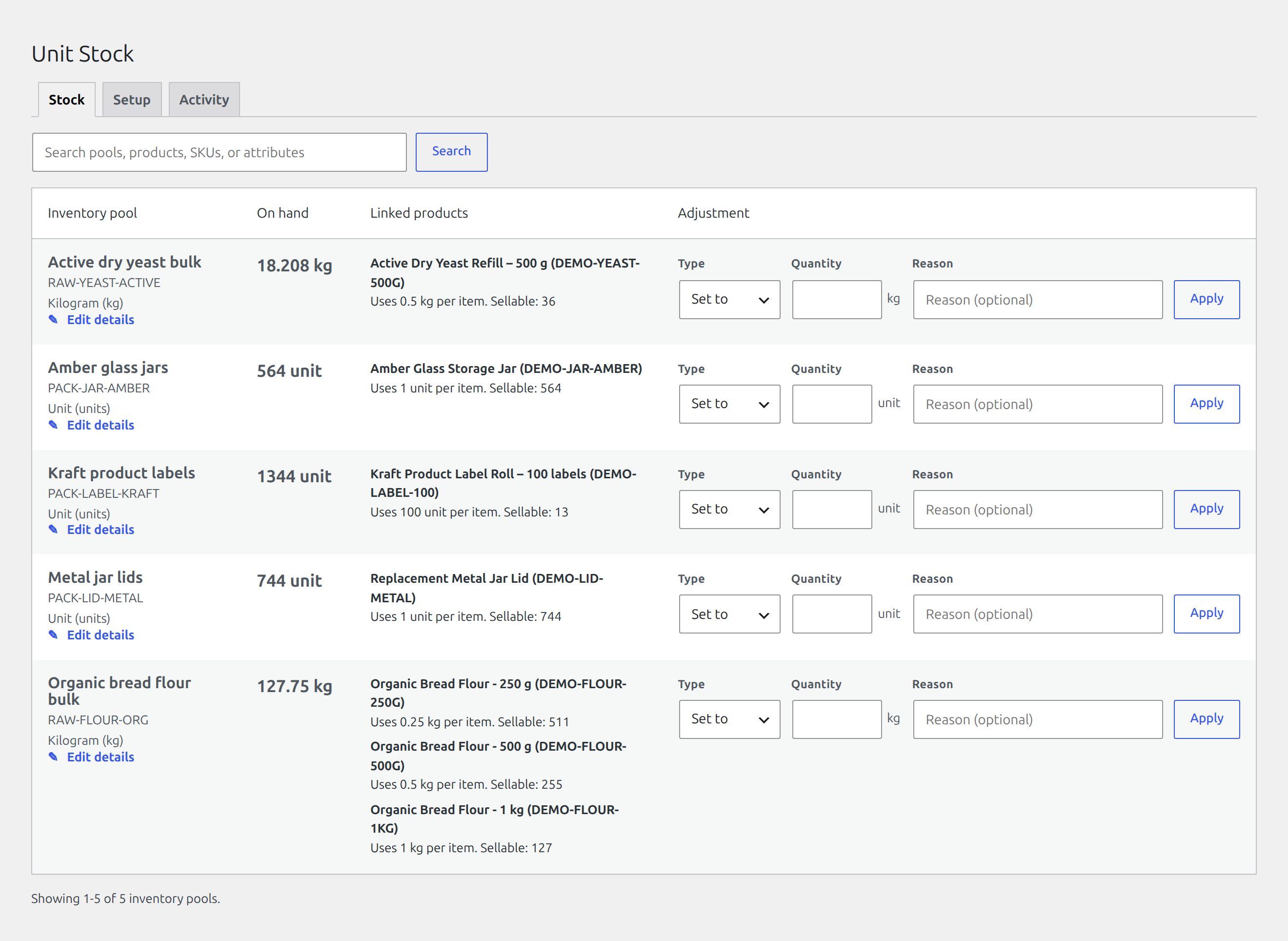
- Open Stock and confirm the linked packages, per-item consumption, sellable quantities, diagnostics, and current balance.
Back up the database before transferring established WooCommerce stock. A transfer multiplies the native item count by the configured consumption, adds that amount to the pool once, and then disables native quantity management for the item.
Daily Free workflow
- Use Stock to search pools, inspect availability, and make accountable inline adjustments.
- Use Setup to create pools, manage links in bulk, and define exact custom units. Use the Unit Stock Product data panel when working on one simple product or the individual variations of a variable product.
- Use Activity to review the append-only history produced by orders, refunds, restorations, migrations, edits, and manual adjustments.
The plugin checks the combined demand of the entire cart. If two cart lines draw from the same pool, their demand is added before availability is accepted. Each order item also stores its mapping snapshot, so a later mapping change cannot alter the stock restored for an older order.
Documentation map
- Start-to-finish demo follows one complete example from pool creation through sales, refunds, recipes, supplier batches, forecasts, and purchase orders.
Free inventory engine
- Free and Premium editions explains the permanent edition boundary.
- Create pools and units covers authoritative balances, unit families, and custom units.
- Link products and variations covers consumption rules and existing-stock migration.
- Manage stock and adjustments covers the Stock tab, search, diagnostics, and corrections.
- Checkout and order stock explains shared availability, order snapshots, refunds, and admin edits.
- Activity and troubleshooting explains the movement history and a safe investigation sequence.
- Free REST API documents authenticated pool, adjustment, and movement endpoints.
Premium operations
- Controls, losses, anomalies, and movement export
- Receiving and batches
- Supply states and alerts
- Forecasting and reordering
- Reports and scenario planning
- Recipes and material costs
- Mobile stocktaking
- CSV and external integrations
Add Pro
- Keep the Free plugin installed and active.
- Upload and activate Laqi Unit Stock Manager Pro for WooCommerce.
- Return to Products → Unit Stock. Pro workflows appear as additional sections in the same screen.
Pro adds Reasons & approvals, Record loss, Anomalies, Receiving, Supply states, Alerts, Forecast, Reorder, Reports, Planner, Recipes, Costs, and Mobile count. Configure only the workflows your operation needs; Free remains responsible for the authoritative balance and order lifecycle.
Units and safe mapping changes
Built-in unit families cover mass, volume, and count. Metric, US customary, and imperial units remain distinct, and custom units can represent exact merchant quantities such as a 25 kg sack or a tray of 24 items.
Before changing a live mapping, check open orders and confirm the intended native stock setting. Existing order items continue using their stored snapshot for refunds and restorations. New orders use the active mapping.
Privacy and data
Inventory pools, mappings, order references, and stock movements stay in the WordPress database. Manual adjustments record the acting WordPress user for accountability. The privacy exporter reports attributed movements and erasure anonymizes that association while retaining the inventory ledger.
The Free plugin does not send store data to Laqi Logistics or another external service, and it does not copy customer contact, address, or payment data into its own tables.
Troubleshooting checklist
- Confirm WooCommerce and the Free plugin are active before activating Pro.
- Check that every package is linked to the intended pool and uses the correct unit.
- Review Activity before correcting a surprising balance; filter it by pool, movement, source, actor, date, or reason to isolate the change.
- Verify the item’s native WooCommerce stock choice if two stock systems appear to disagree.
- Test a cart containing several items from the same pool when diagnosing availability.
- Deactivate an edition when you only need to pause it. Deleting Pro removes its operational settings and tables; deleting Free without another edition installed removes the shared inventory tables. Back up before either deletion.
If the balance still cannot be explained, contact support with the pool name, affected product or variation, order number where applicable, and the relevant Activity entries.