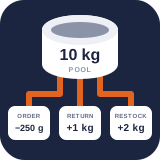
Link products and variations to shared stock
Define exact consumption per sold item and choose how existing WooCommerce stock should be handled.
Reviewed 2026-09-10
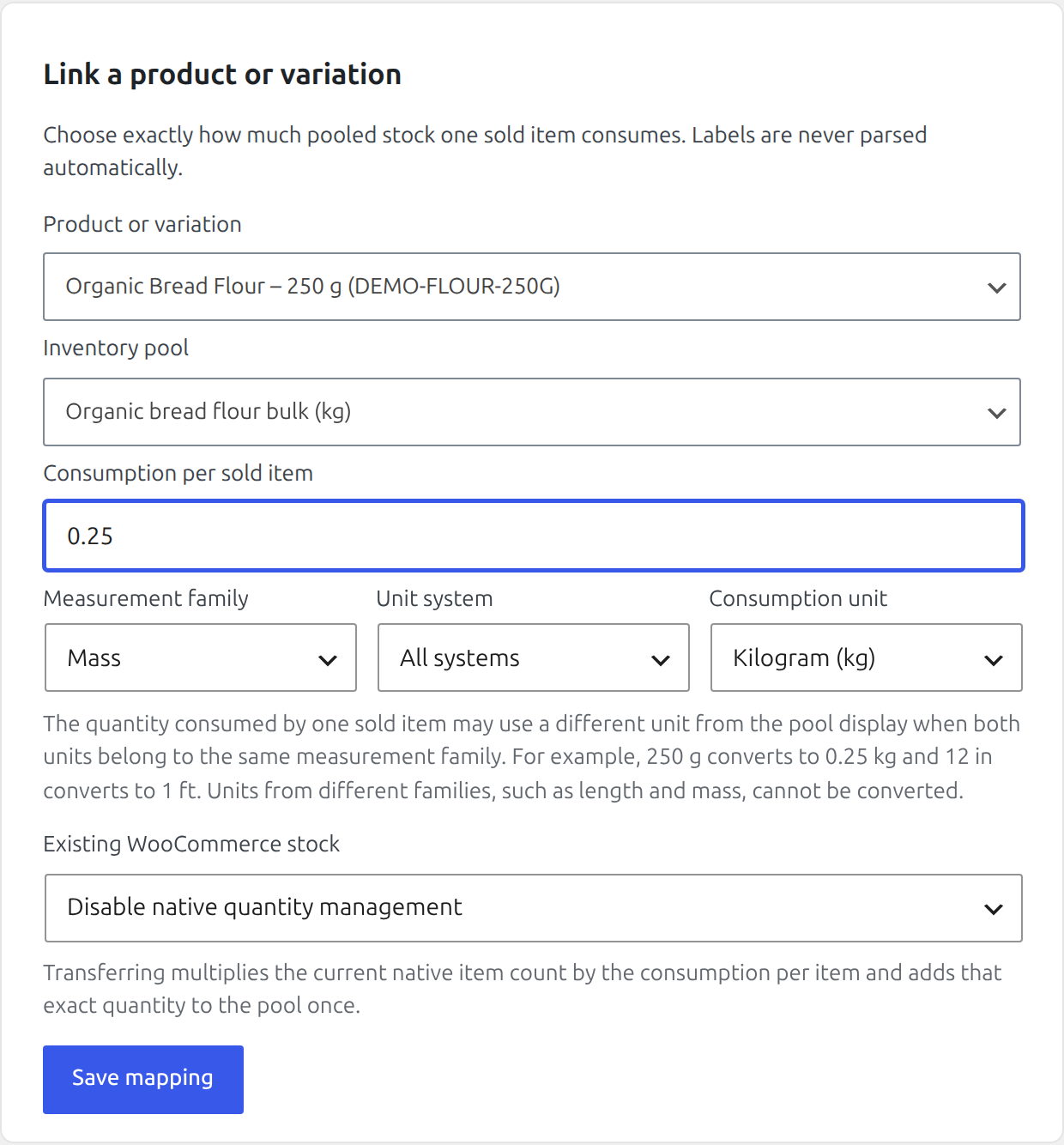

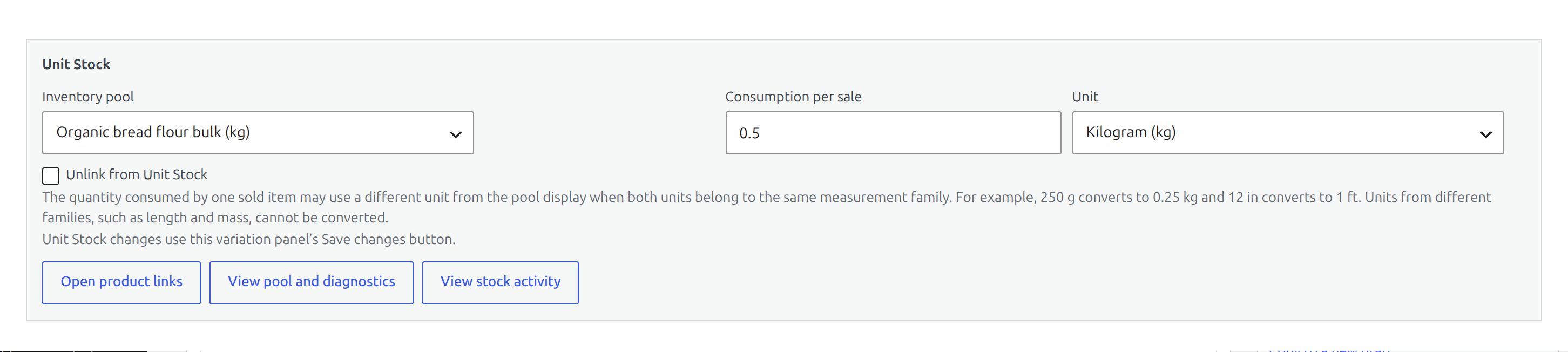
Consumption may use another unit from the same measurement family as the pool.
A mapping connects one purchasable WooCommerce item to one inventory pool and states exactly how much stock one sold item consumes. Product labels and variation attributes are never parsed automatically.
Link an item
Find it in WordPress: Products → Unit Stock → Setup → Product mappings
For an individual product: Products → Edit product → Product data → Unit Stock
- Create the inventory pool first.
- Open Products → Unit Stock → Setup.
- Under Link a product or variation, search for a simple product or an individual variation.
- Search for and select the inventory pool.
- Enter the consumption per sold item.
- Choose the Measurement family, optionally narrow by Unit system, then pick the Consumption unit.
- Make an explicit existing-stock decision.
- Choose Save mapping.
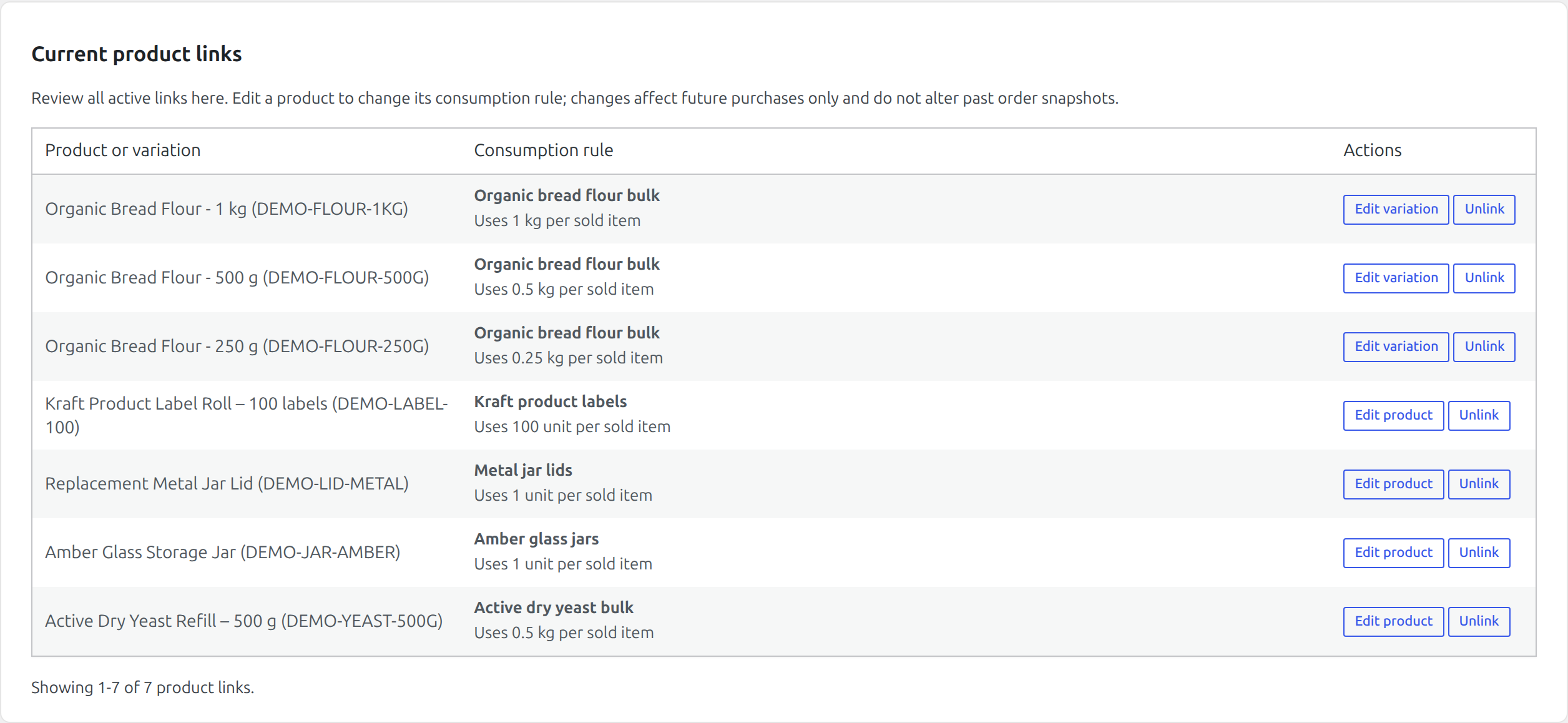
Map individual variations when package sizes consume different quantities. For example, link 250 g, 500 g, and 1 kg variations to the same flour pool with their respective consumption values.
Measurement family and Unit system only filter which units the Consumption unit list offers. Neither is stored on the mapping, and neither changes the saved rule.
- Measurement family lists the families that have units: Mass, Volume, Length, Area, and Count. One is always selected, so pick the family your consumption is measured in.
- Unit system starts on All systems and narrows the list to Metric, Imperial, US customary, International, Count, or Custom. Leave it alone to see every unit in the chosen family, including any you have defined yourself.
The selected consumption unit may differ from the pool’s display unit when both are
in the same measurement family. For example, a pool displayed in kilograms can use
250 g, 1 kg, or 8 oz consumption rules because all are mass. Mass, volume, and
count are different families and cannot be mixed. An incompatible unit is rejected
rather than converted by assumption.
You can also configure the mapping where WooCommerce users naturally manage the item:
- For a simple product, open Product data → Unit Stock and save with the product’s normal Update action.
- For a variable product, open Product data → Variations, expand the exact variation, and use its Unit Stock controls. Save with the variation panel’s Save changes action.
The variable product’s Unit Stock panel is intentionally a compact coverage summary with an Open variations shortcut. It does not duplicate all variation forms. Keep the central Product links view for cross-product review and bulk onboarding, and use a recipe’s dedicated workspace for multi-component rules.
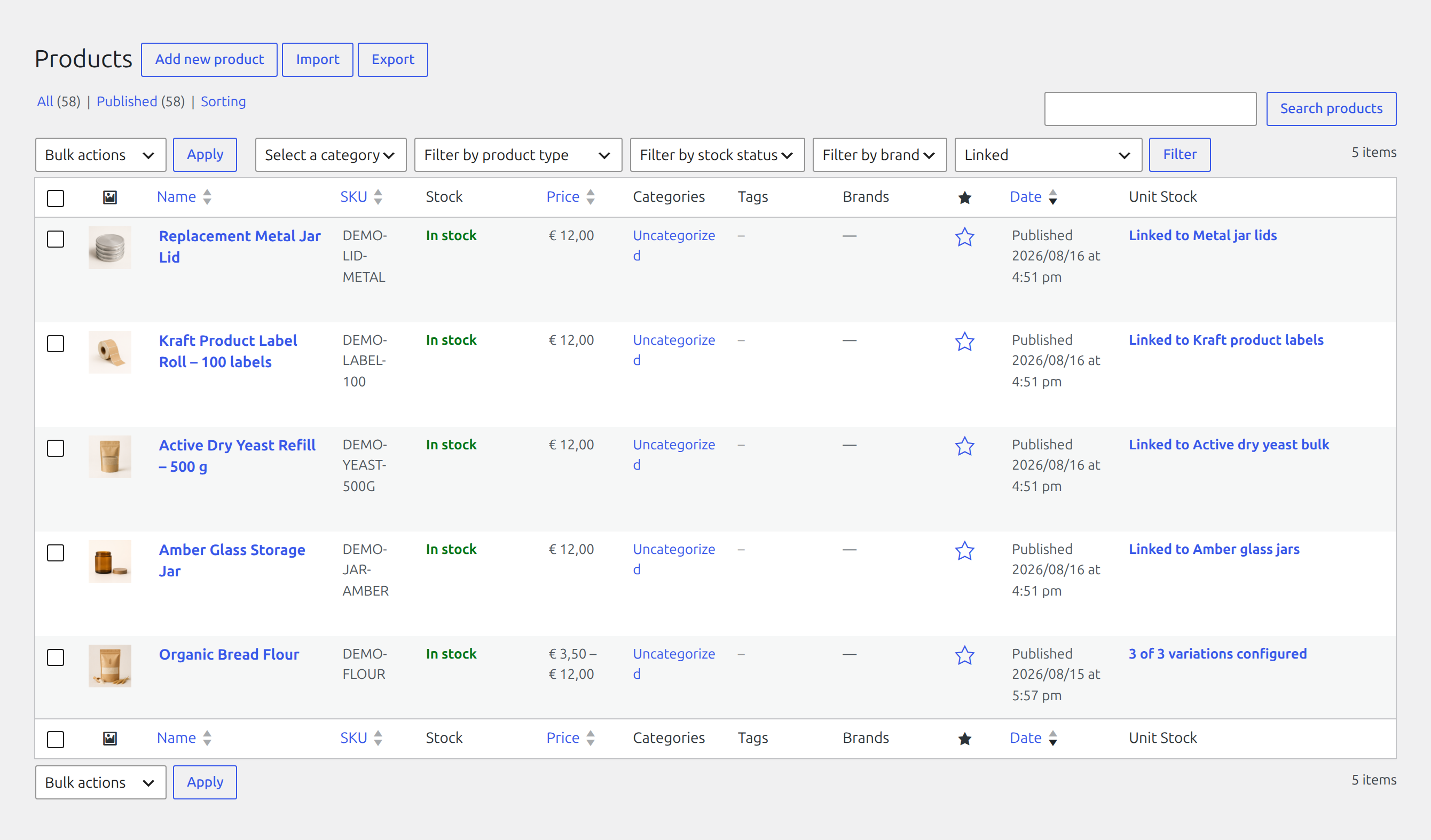
The native Products → All Products list adds a Unit Stock column and an All Unit Stock states filter. Use it to find fully linked products, variable products with incomplete variation coverage, and items that are not linked yet. The status links open the product or variation controls that own the mapping.
Choose an existing-stock action
| Choice | Use it when | Effect |
|---|---|---|
| Disable native quantity management | The pool already contains the complete physical balance | WooCommerce’s item-level managed quantity is disabled without adding it to the pool. |
| Add native item count, then disable it | The native quantity represents packages that must become physical pool stock | Native count × consumption is added to the pool once, then native quantity management is disabled. |
| Keep unchanged | Another deliberate compatibility workflow still needs native quantity management | The pooled mapping is saved and WooCommerce’s native setting remains unchanged. Review carefully to avoid two competing limits. |
Back up the database and verify the native count before using transfer. The operation is intentionally one-time.
Edit or unlink a mapping
The Current product links table lists active mappings and their exact pool and consumption summary. Choose Edit product to change a rule where that product or variation is configured. You can also unlink directly from the directory.
For simple products, save changed mapping fields with Update. For variations, use that expanded variation panel’s Save changes button.
Mapping changes affect new purchases only. Existing order items retain the pool and exact demand captured at purchase. Unlinking also affects future purchases and does not erase stock movements or order snapshots.
Premium recipe mappings show their calculator type and component count in this table but must be edited on the Recipes tab.
Diagnose a mapping
Open Stock and review the linked-item line. It shows consumption per item, calculated sellable quantity, and configuration warnings. Common causes of a warning are an unavailable product, a conflicting native stock setup, or a mapping whose data no longer matches the product configuration.