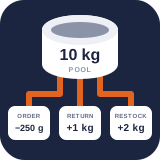
Receiving, batches, and expiry
PremiumDefine suppliers and packs, schedule or receive deliveries, and control traceable batches through expiry, count, transfer, quarantine, write-off, and recall.
Reviewed 2026-08-17
Receive stock immediately or schedule an expected delivery.
The Receiving tab connects supplier deliveries to Free inventory pools. Its internal workflow links separate daily receiving, incoming deliveries, batches, receipt history, supplier settings, and data exchange. Every receipt increases the authoritative balance through a typed movement and creates a traceable batch.
Find it in WordPress: Products → Unit Stock → Operations → Receiving
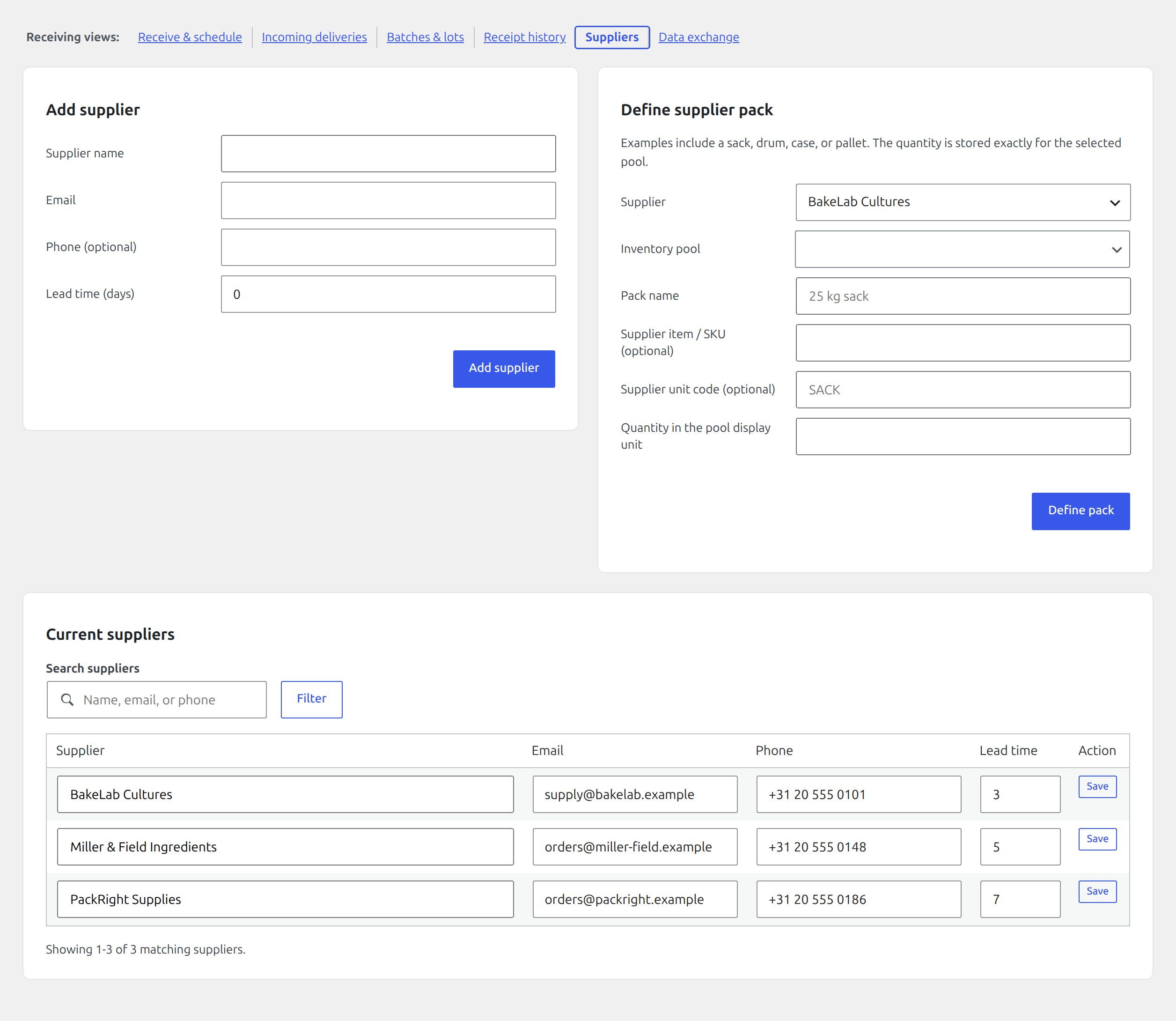
Define suppliers and packs
Add a supplier with name, optional email and phone, and lead time in days. Existing suppliers remain editable in the Current suppliers table; select Save on the changed row before leaving the view. Then define a supplier pack by selecting its supplier and destination pool, naming the pack, and entering the exact quantity in the pool’s display unit. Optional supplier SKU and unit-code fields are required when a purchase order will be sent through a supplier API connection.
A pack describes how stock is purchased (for example, one 25 kg sack) rather than how it is sold. Reorder suggestions use the pack quantity and supplier lead time.
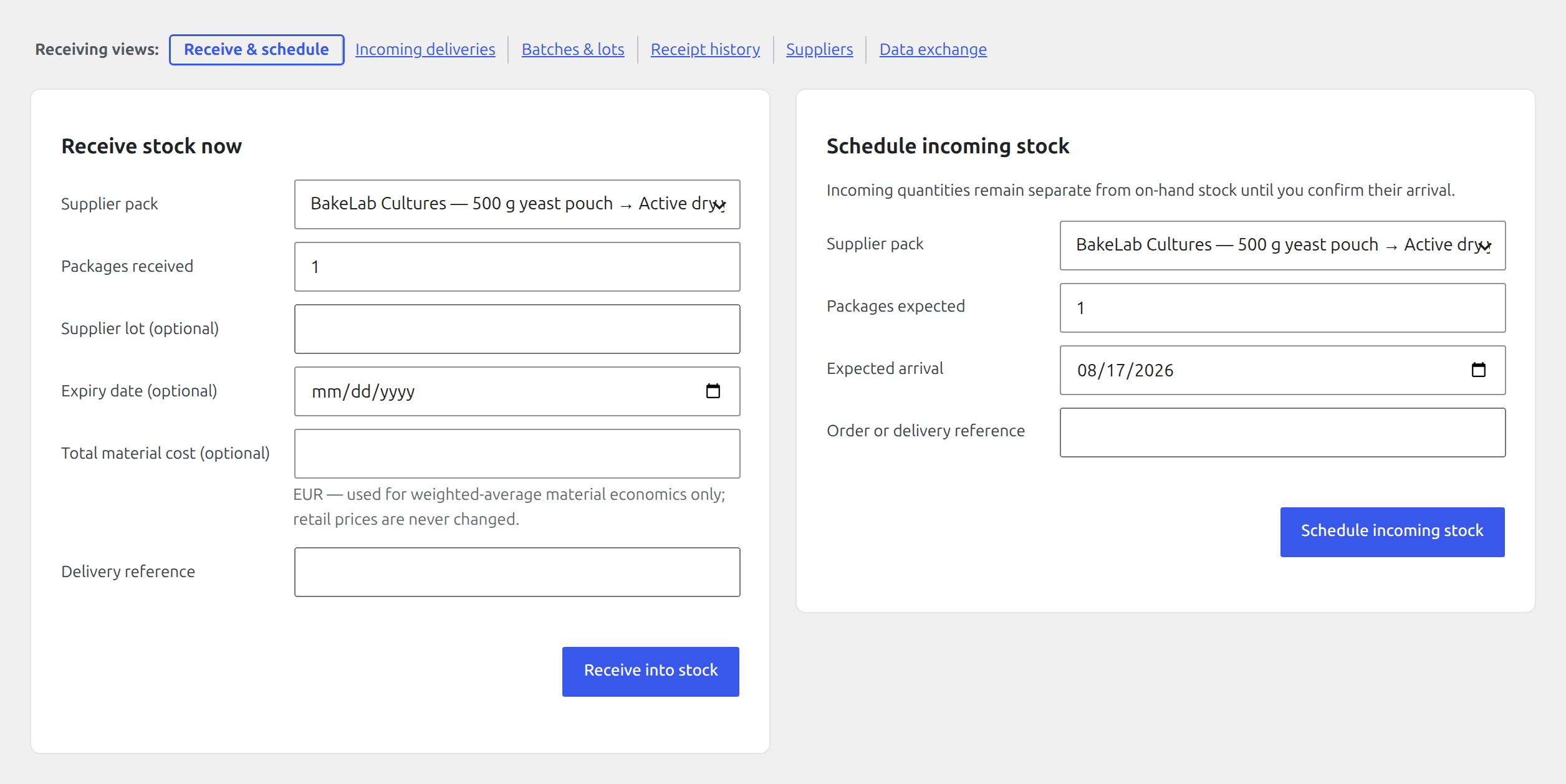
Receive stock now
Select a supplier pack and enter the number of packages received. Optionally add supplier lot, expiry date, total material cost, and delivery reference. The total received quantity is pack quantity × package count.
The cost applies to the complete receipt and is used by material economics. Use the store’s WooCommerce currency; the screen shows the expected currency.
Schedule incoming stock
Use Schedule incoming stock for an expected delivery. Enter the pack, package count, expected arrival, and reference. Incoming quantity appears in supply projections but remains separate from on-hand and available-to-sell stock.
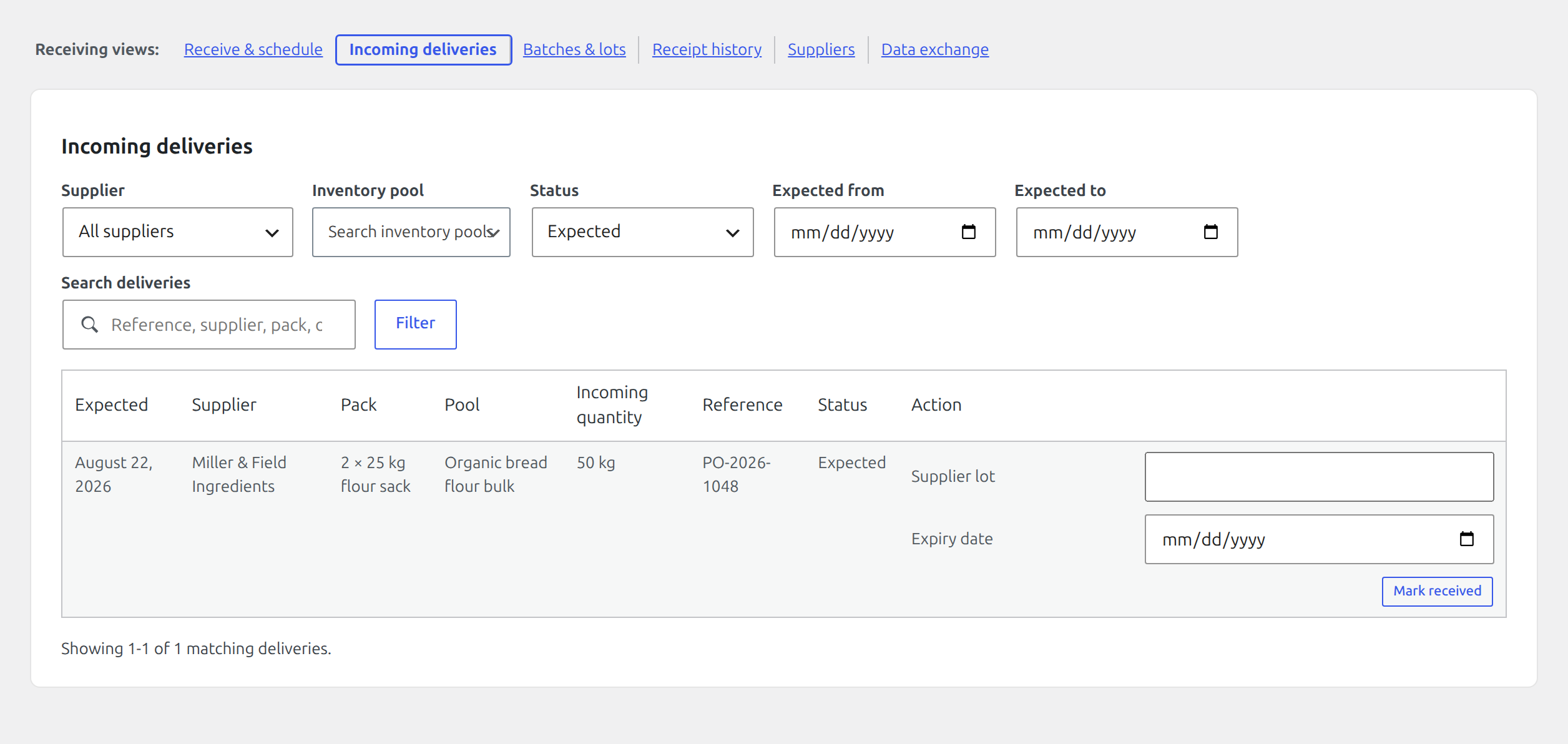
When it arrives, find it under Incoming deliveries, add lot and expiry if available, and choose Mark received. Only that confirmation moves it into on-hand inventory and creates the batch.
Work with batches and lots
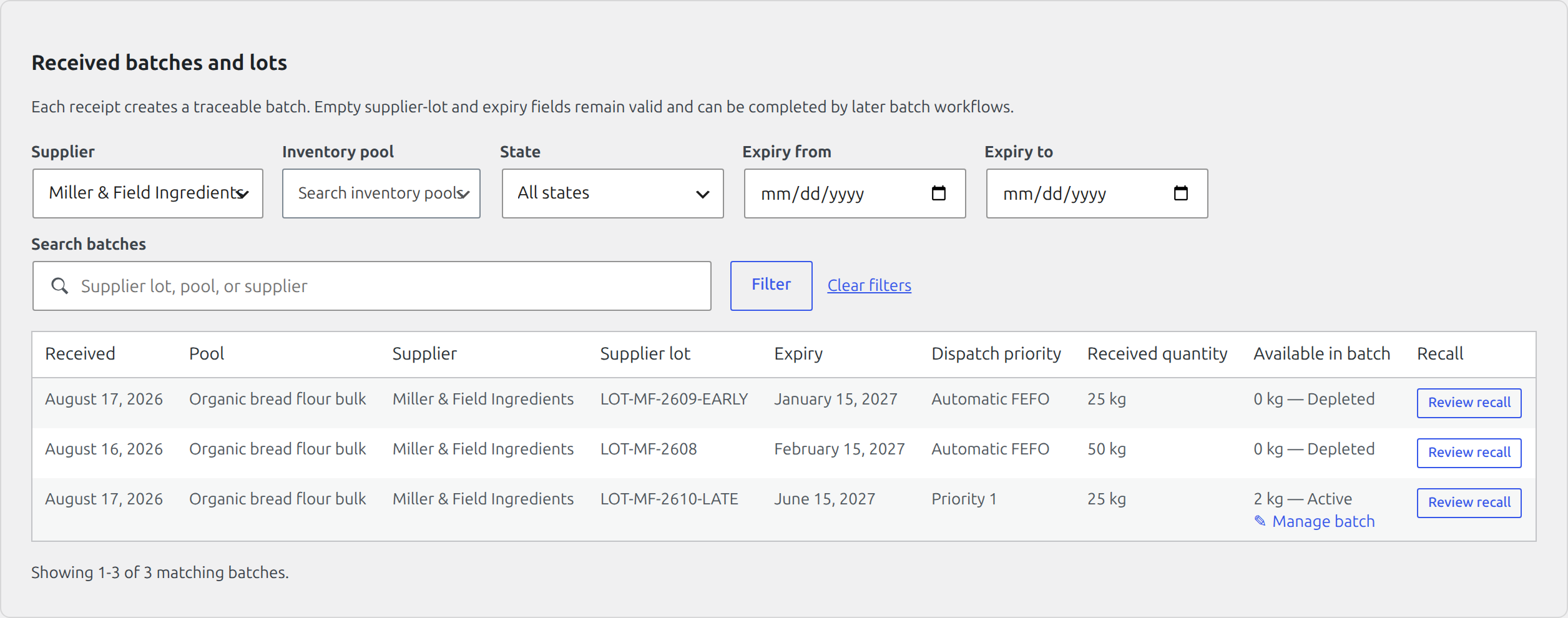
The batch table shows receipt date, pool, supplier/pack, lot, expiry, available batch quantity, and status. Available batch stock can be:
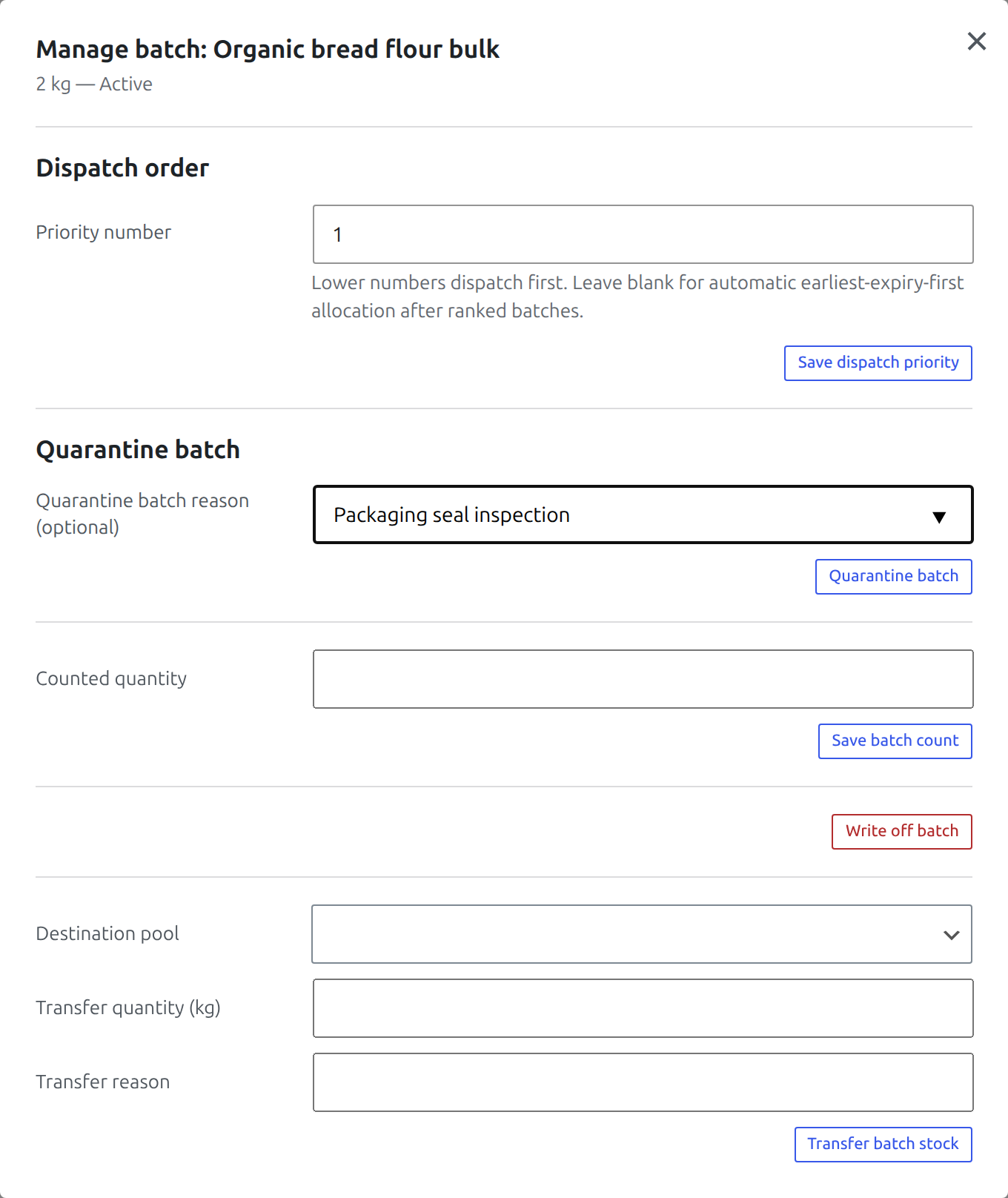
- assigned a dispatch priority that overrides automatic expiry ordering;
- counted, with the difference recorded as a stocktake movement;
- transferred to a compatible destination pool;
- quarantined and later released;
- written off permanently;
- opened for a recall review.
Transfers preserve traceability and require compatible unit families. A batch operation cannot consume more than the batch has available.
Quarantine and release reasons accept either a reusable reason suggested by the adjustment policy or a free-form operational explanation. The reason belongs to that specific state action; counts, write-offs, and transfers remain separate operations.
By default, eligible dated batches dispatch by FEFO: earliest expiry first, then earliest received, with undated batches last. Enter positive Priority numbers in the batch managers when the warehouse needs a deliberate sequence. Lower numbers dispatch first; batches without a number remain in FEFO order after all ranked batches. Equal priority numbers use FEFO as the tie-breaker.
Priorities remain attached to their batches while quarantined. A quarantined batch is still skipped, but releasing it returns it to its saved dispatch position. Clear the number to return that batch to automatic FEFO. Priority never makes expired, depleted, quarantined, or recalled stock eligible. Changes are recorded in the batch event journal.
Ordinary negative pool movements are projected onto available batches transactionally, and order restorations return quantity against the exact recorded order allocation. Changing priorities affects future reductions only; it never rewrites batches already tied to an order. Expired and quarantined batch quantities are excluded from available-to-sell stock even though the physical pool balance still records what is on hand.
Expiry and recall
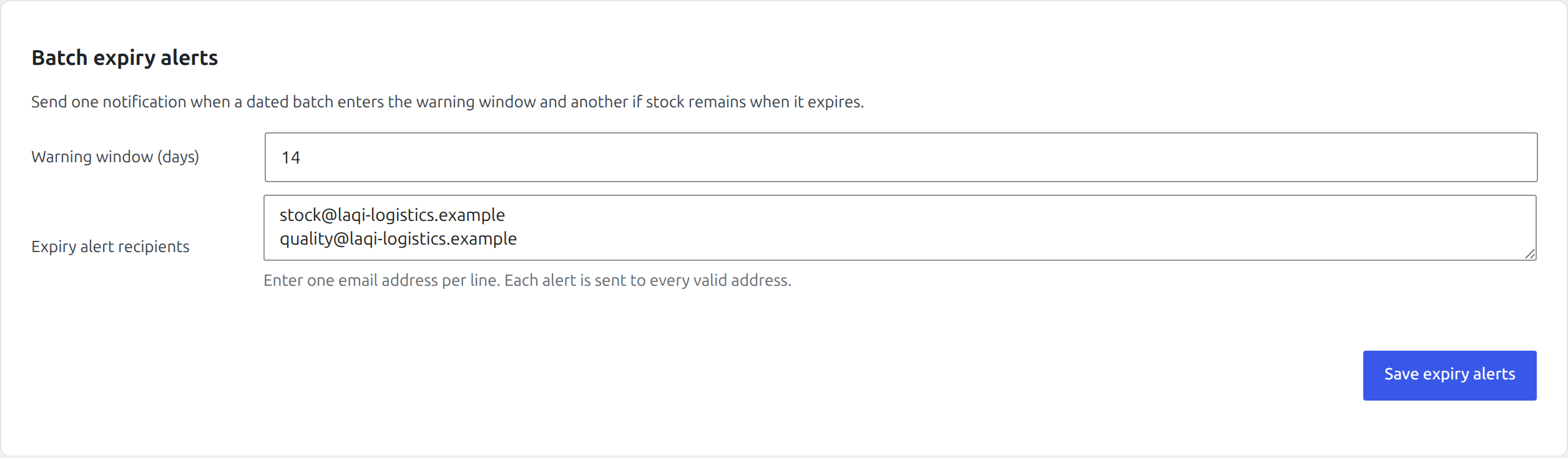
Configure an expiry warning window and recipient list. Premium sends one notification when a dated batch enters the window and another if stock remains on expiry. An authorized workflow can record expired remainder as waste.
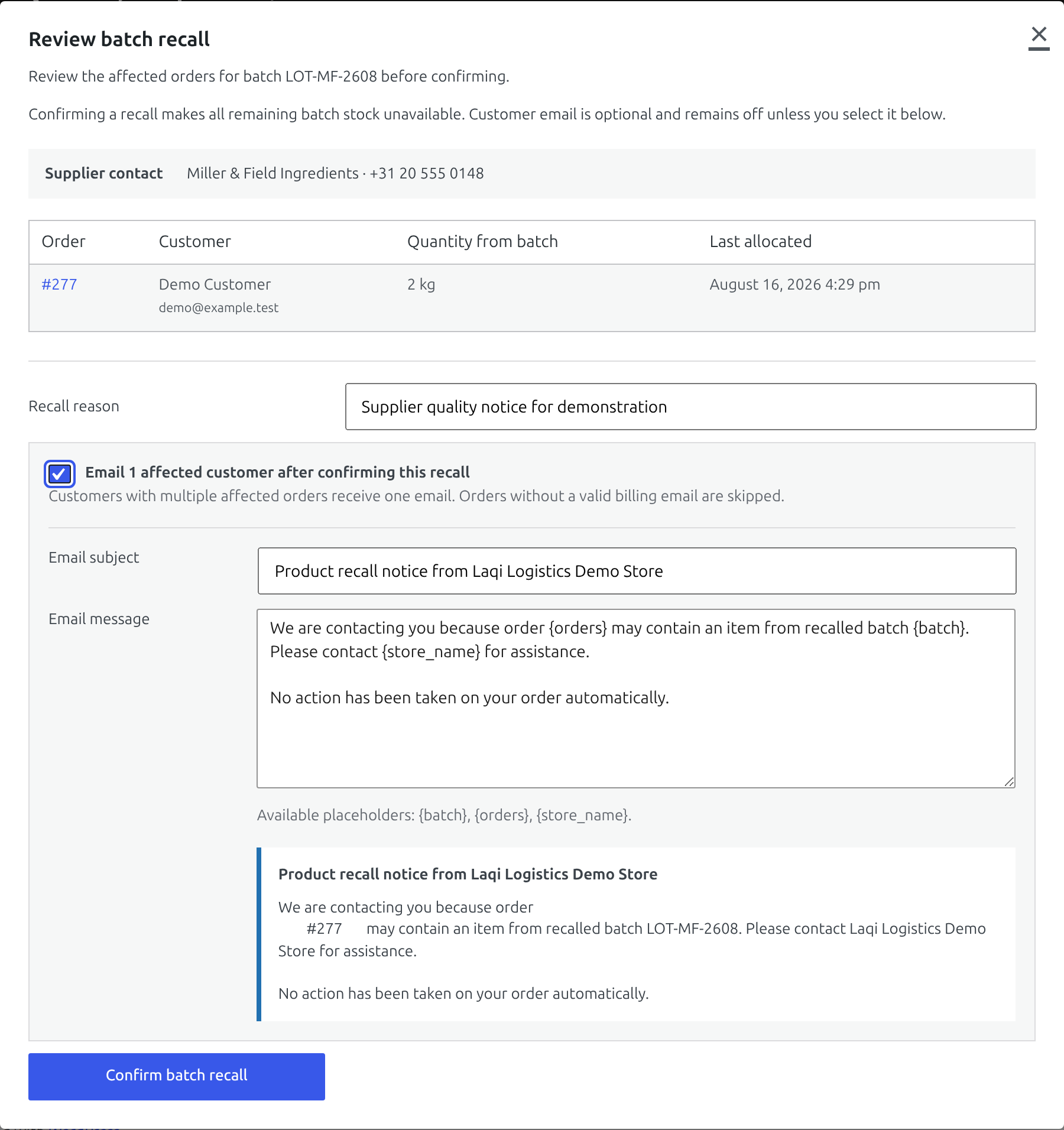
A recall review shows the supplier contact, affected orders, customers, allocated batch quantity, and last-allocation time before any state change. Confirming makes the remaining batch stock unavailable.
Customer email is optional and remains off unless an authorized user selects it in the review dialog. When selected, the plugin sends one message per affected customer after confirmation, skips orders without a valid billing email, and resolves the editable {batch}, {orders}, and {store_name} placeholders in the preview. Review the recipient count, subject, message, and rendered preview before confirming.
CSV exchange and receipts
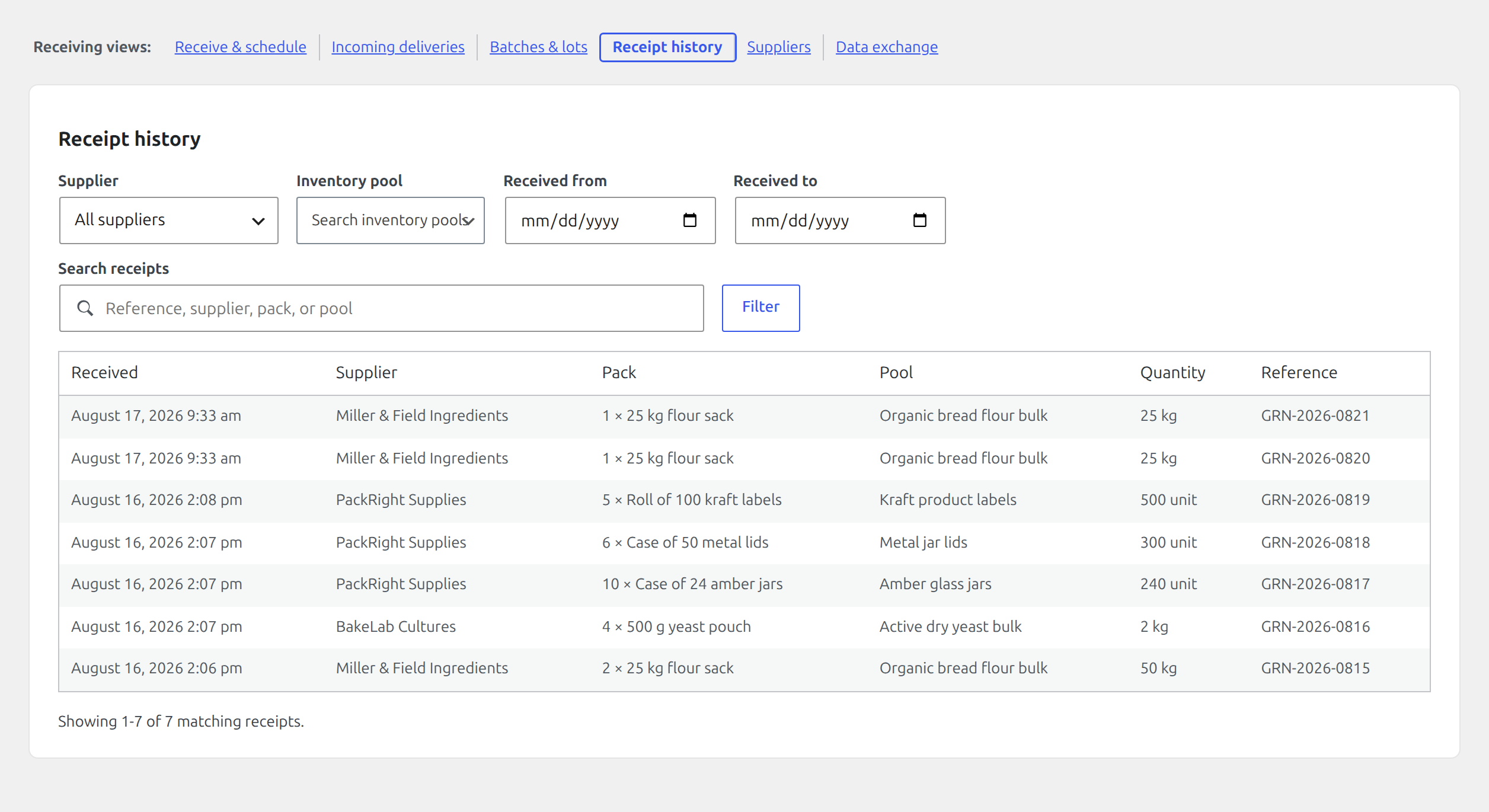
Receiving also includes operations CSV controls and recent receipt history. Use stable references so re-imports can identify existing rows instead of creating duplicates. See CSV and external integrations for formats and safeguards.