
Troubleshoot CSV status updates
PremiumResolve upload limits, stuck background jobs, unknown statuses, missing orders, and row failures.
Reviewed 2026-08-02
The file will not upload
What it means: The plugin does not impose a row limit, but the web host still controls maximum upload size, request size, storage, and PHP limits.
What to do:
- Compare the CSV file size with the WordPress upload limit shown on the upload screen.
- Split the file into smaller CSV files if it exceeds that limit.
- Ask the host to raise the limit when splitting the file is not practical.
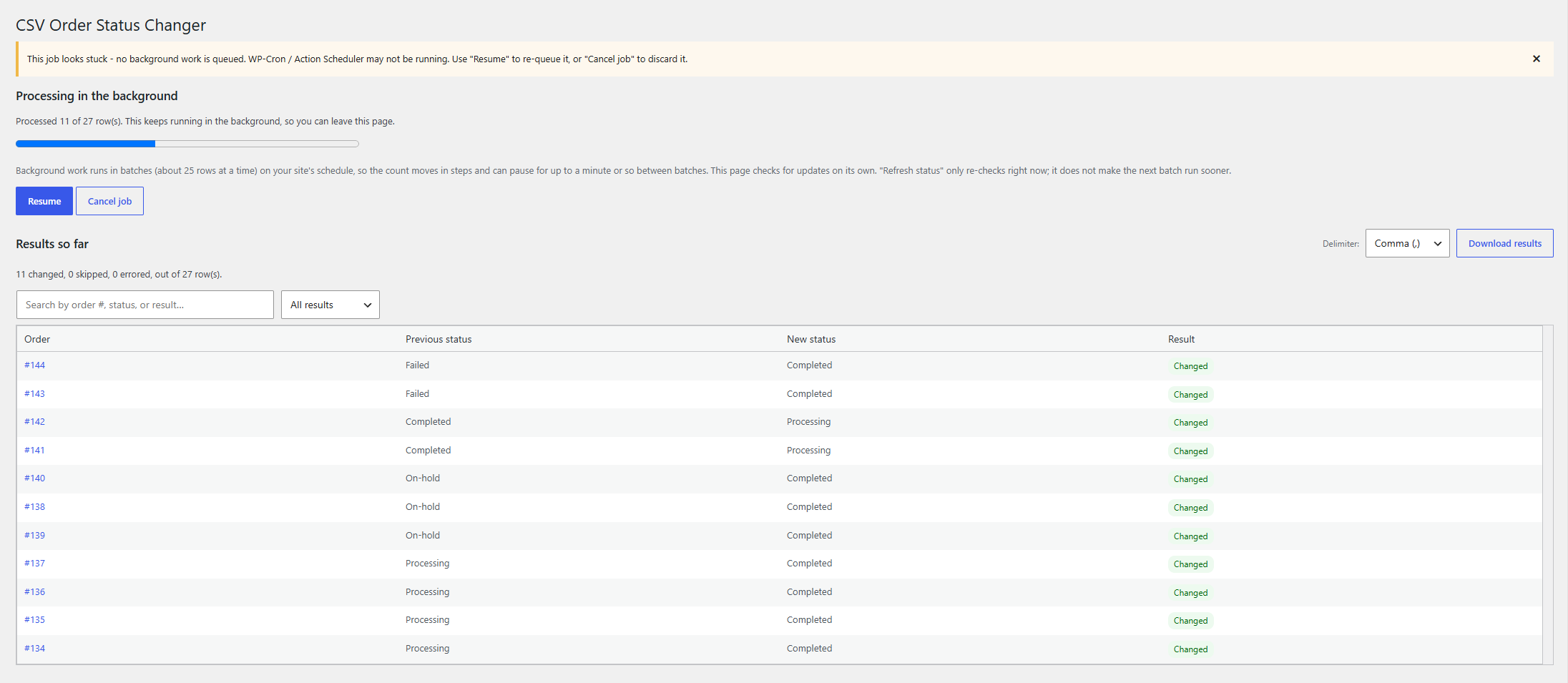
A background job is stuck
What it means: Background mode relies on WooCommerce Action Scheduler and WordPress cron. A stalled job usually means its next scheduled batch did not run.
What to do:
- Select Resume on the progress screen.
- If the job stops again, open WooCommerce → Status → Scheduled Actions and look for failed or overdue CSV processing actions.
- Confirm that the site receives WordPress cron requests.
- Use interactive mode for smaller files while cron is being repaired.
Unknown status
What it means: The value in the status column does not match a status registered on this store.
What to do: Download a fresh sample from the plugin screen and use one of its status slugs. Both completed and wc-completed formats are accepted when that status exists.
Order not found
What it means: The value in the order ID column does not resolve to a WooCommerce order.
What to do: Open the intended order and compare its internal ID with the CSV. Do not use a formatted order number produced by another extension.
One row errored
What it means: That row failed, but the plugin continued processing the remaining rows. A payment, shipping, or custom-status integration may have rejected the transition.
What to do: Open the order linked from the results, inspect its notes, and try the same status manually. WooCommerce or the integration may then display a more specific validation message.
Customers received unexpected email
What it means: Status changes use normal WooCommerce email behavior. Moving an order into an email-enabled status can therefore notify the customer.
What to do: Enable Do not send customer emails before a corrective run. For future imports, review the emails attached to the target status in WooCommerce settings before processing the file.